Product Release Version: v25.3.0

        January 2025 Product Release

© 2025 Practice Management System

Disclaimer: All rights are reserved. No part of this work may be reproduced in any form or by any means graphic, electronic, or mechanical, including photocopy, recording, or information storage and retrieval systems – without written permission of the publisher.

The products that are referred to in this document may be either trademarks and/or registered trademarks of the respective owners. The publisher and the author do not claim these trademarks.

While every precaution has been taken in the preparation of this document, the publisher and the author assume no responsibility for errors or omissions or for damages resulting from the use of the information contained in this document or from the use of programs and source code that may accompany it. In no event shall the publisher and the author be liable for any loss of profit or any other commercial damage caused or alleged to have been caused directly or indirectly by this document.

Printed January 2025 at PracticeSuite, Inc.

Part 1- Product Enhancements
Practice Management

1.1 Fee Schedule

1.1.1 Fee Schedule Import

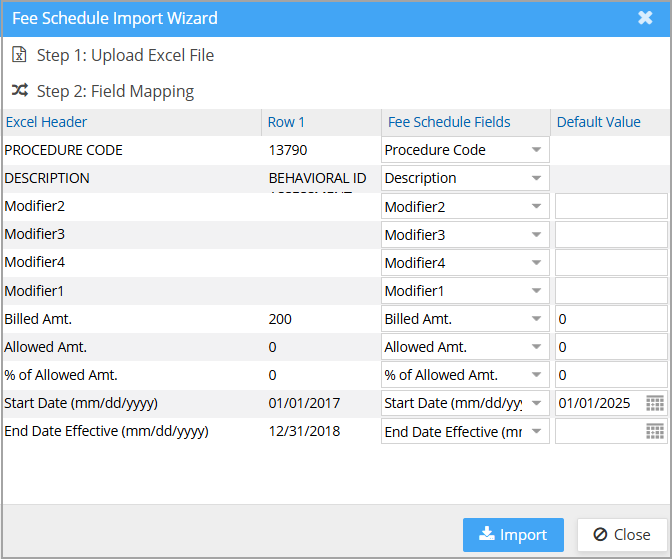
A. When importing the file, if the column name in the source file matches the field name in the system, these matched fields are automatically mapped and selected on the import screen eliminating the need for the user to select manually. Please refer to Image 1.1.1.

B. If the start date or the end date fields are empty in any row in the file, the date is defaulted for the missing date field.

Image 1.1.1

1.1.2 Procedure Code Comparison

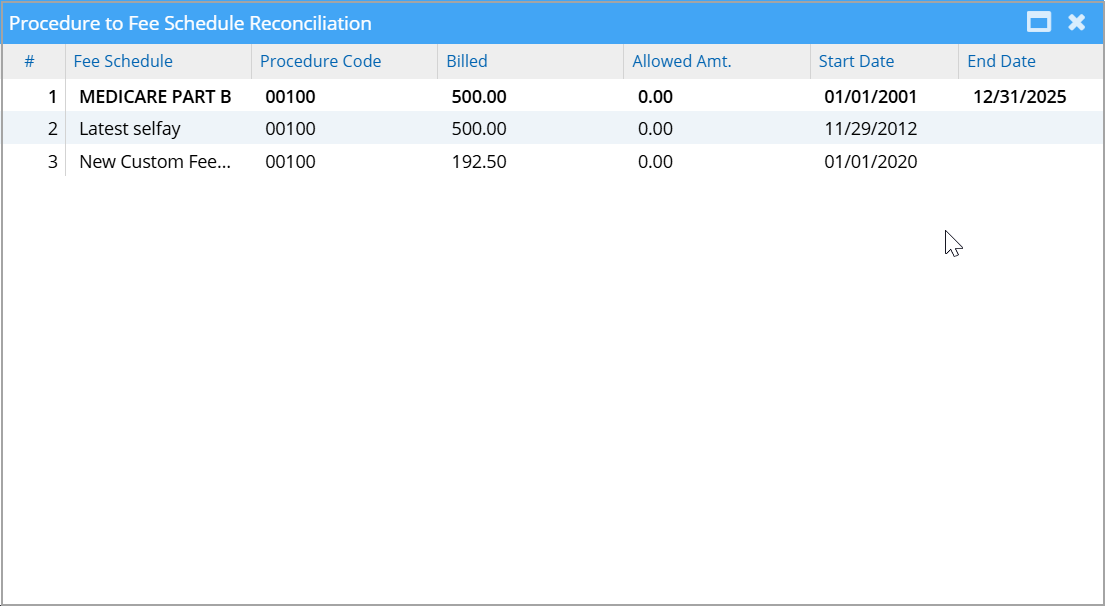
A procedure code comparison page has been introduced which lists all the fee schedules of a procedure code. The listing will have the billed amount and allowed amount of the code in each fee schedule allowing users to compare them on screen.

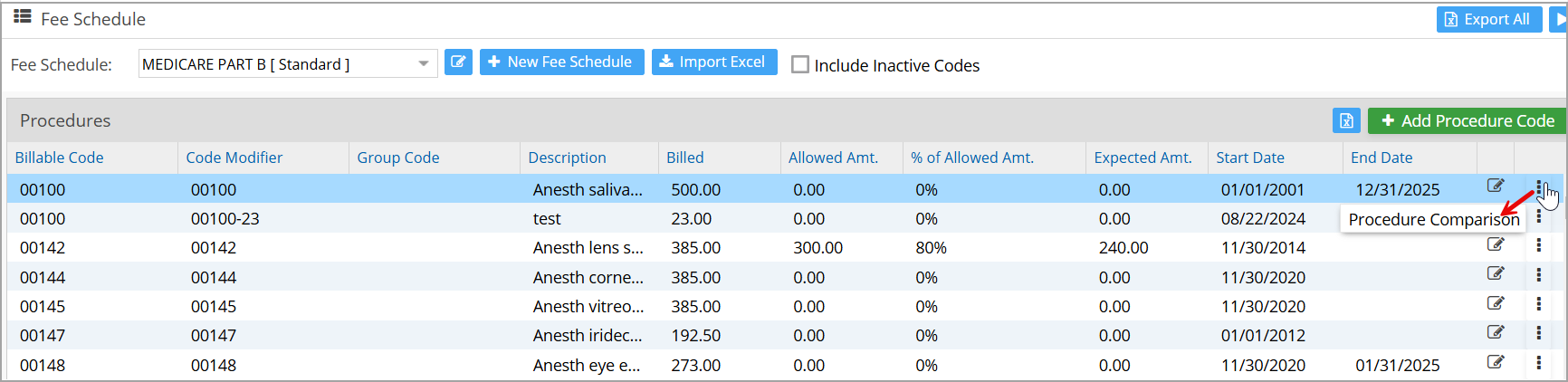
The ellipsis in the fee schedule listing has an option ‘Procedure Comparison’ (see Image 1.1.2a) which will take the user to the comparison page of the selected procedure code (Image 1.1.2b).

Image 1.1.2a

Image 1.1.2b

Also, users can end-date the procedure codes from any of the listed fee schedules.

Note: Moving forward, end-dated procedure codes will not be shown in red. However, a warning message will be displayed saying ‘Please be aware that the deactivated code(s) may still be present on the Standard Fee Schedule or other custom fee schedules. If the code(s) are no longer required for billing, please individually deactivate from the respective fee schedule.’

Additionally, each fee schedule will have a new column ‘Group Code’ which will list the group codes for the procedure code.

1.2 Custom Payer Type

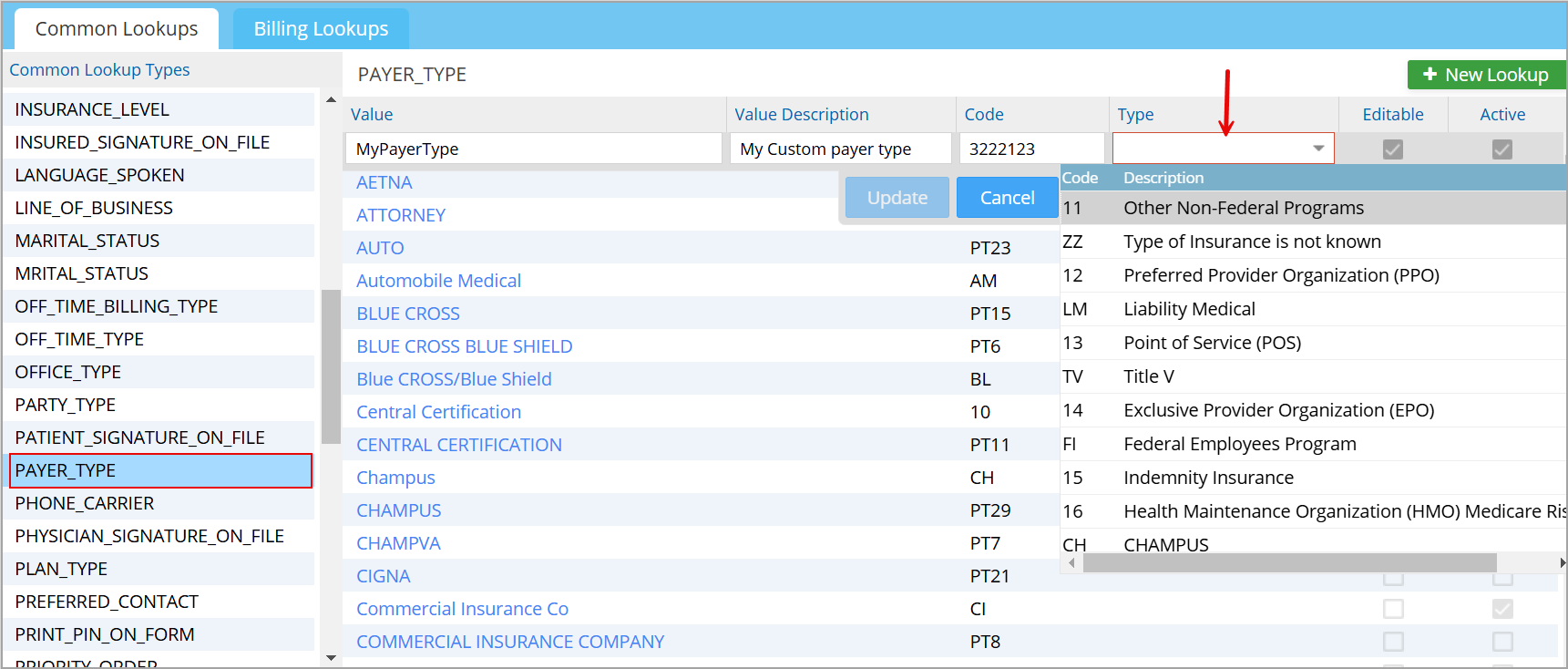
Users can now add custom payer types to the payer type list and map them to the standard type from the lookup screen.

To do this, navigate to the Payer Type lookup from the All Lookups. A new field named Type has been introduced in the payer type lookup screen and users can use the field to map the custom to the standard type. Please refer to Image 1.2.

Please note that the custom payer type remains internal to the system and the info in the ‘Type’ field populates in the claim.

Image 1.2

1.3 Adjustment Posting

Insurance and patient adjustments will create separate entries of different payment types to ensure clarity and precision. All insurance adjustments are reflected under the payment type Auto Ins Adjustment while the existing payment type Auto Adjustment will be exclusively used for any patient adjustments.

1.4 Patient Payment Auto-Posting

The patient payment auto-posting feature has been rolled out to trigger from Charge Entry, Charge Master, and XSuperbill screens. The auto posting is triggered when the line turns to patient responsibility. This feature is already available on the Manual Posting screen. 

1.5 Work Queue – New Worklists

* Two new worklists have been made available in the Work Queue. The following are the newly added worklists:

a. Eligibility Failed List

Eligibility failed items can appear in three worklists within the Work Queue hierarchy. The following are the three lists where the failed eligibility items can appear:

i. Charge worklist (if there are unbilled charges for the patient, and did not pass the eligibility check)

ii. Appointment worklist (if there are upcoming appointments for the patients where eligibility has failed)

iii. Patient worklist (lists all the patients with failed eligibility)

b. Incomplete Patients

Patients with incomplete info will be listed under this worklist.

* Additionally, another change that would help configure the denials worklists is the availability of all denial codes from the repository in the work queue setup screen. Previously, only the posted denial codes were available for selection in the configuration screen.

1.6 Charge Master

1.6.1 Accession# Audit Log

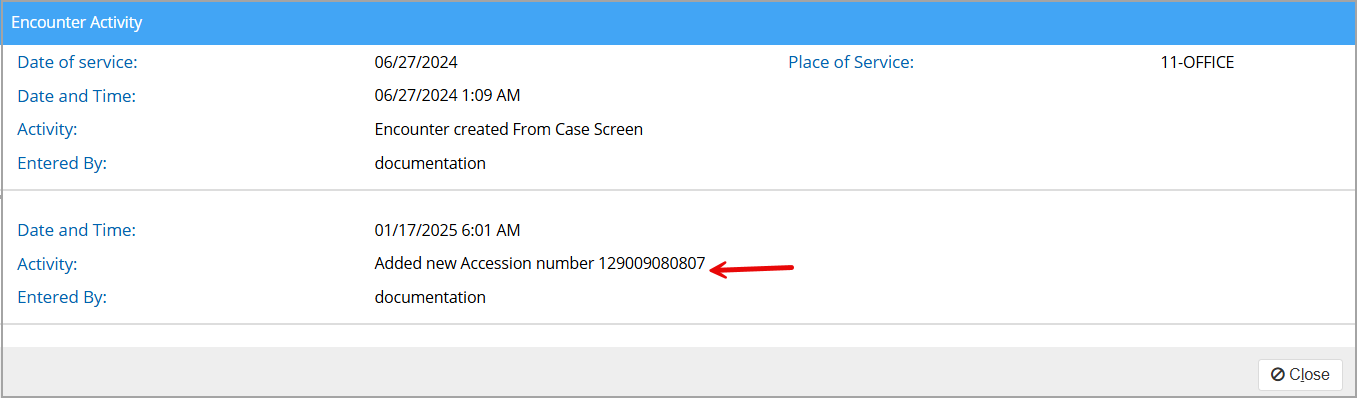
The audit trail of the changes made to the accession# from the Charge Master is now included in the encounter notes screen. Users can click ‘Show Notes’ in the encounter section to access the log.  Accession # create and update activity will be recorded on the screen (see Image 1.6.1).

Image 1.6.1

1.6.2 Title of the Referring Provider

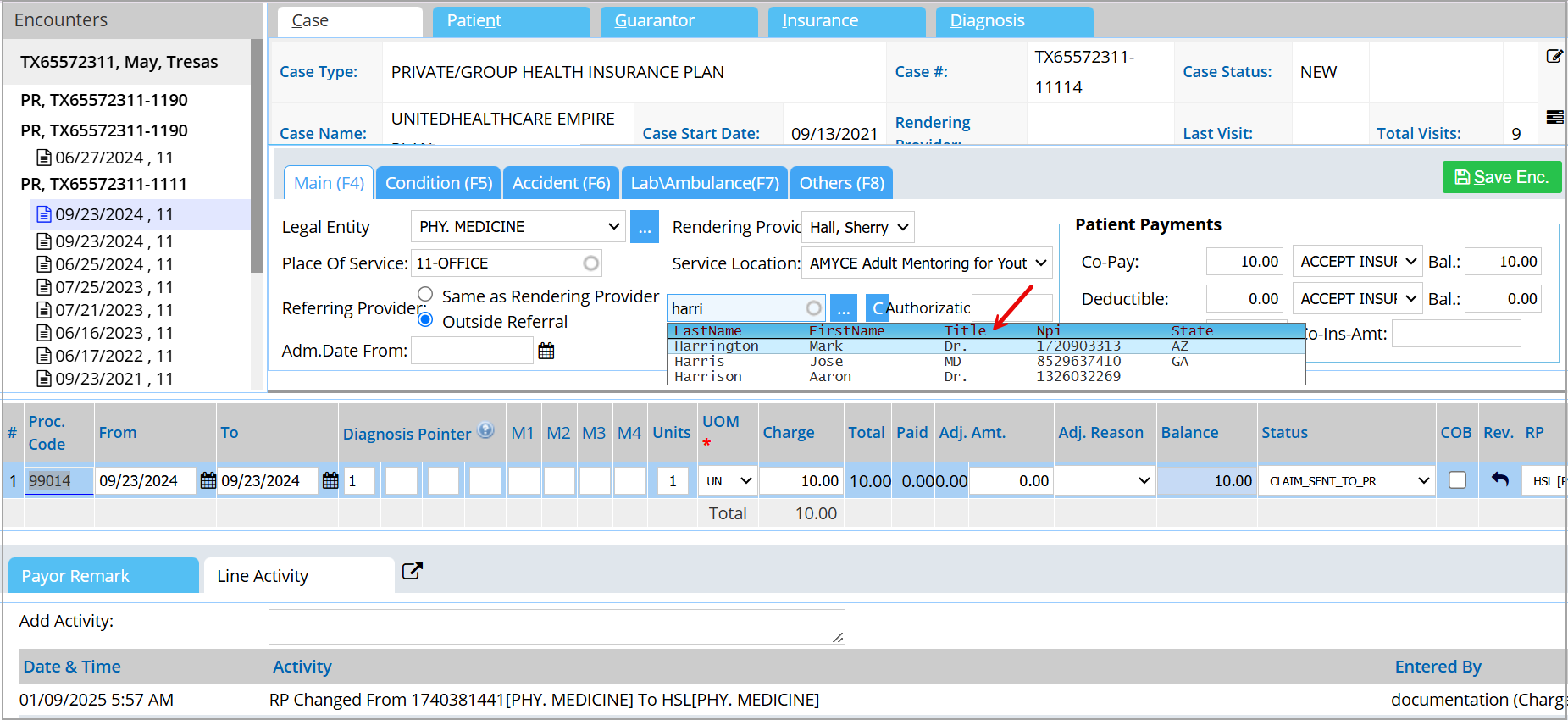
The Referring Provider dropdown will hereafter display the provider’s title along with their name. Please refer to Image 1.6.2.  The title is retrieved from the Referring Provider Master, and the change has been extended to the following screens:  Charge Master, Patient Demographics, Case, and Authorization.

Image 1.6.2

1.6.3 Ordering Provider’s NPI

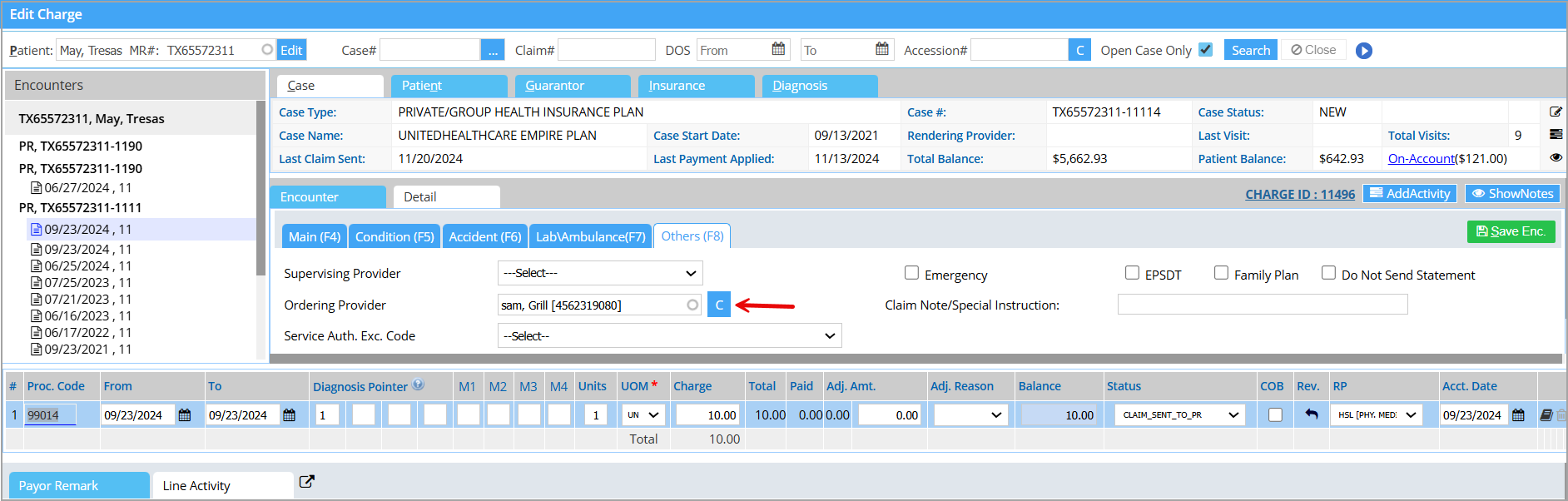
The Ordering Provider field in the Charge Master screen will display the NPI with the provider’s name thereby improving clarity and consistency in provider selection. Please refer to Image 1.6.3.

Image 1.6.3

1.7 ERA – Claim # Search

A filter to search with the claim # has been added to the ERA listing screen. Please see Image 1.7.

Image 1.7

1.8 XSuperbill

1.8.1 Eligibility Processed Status

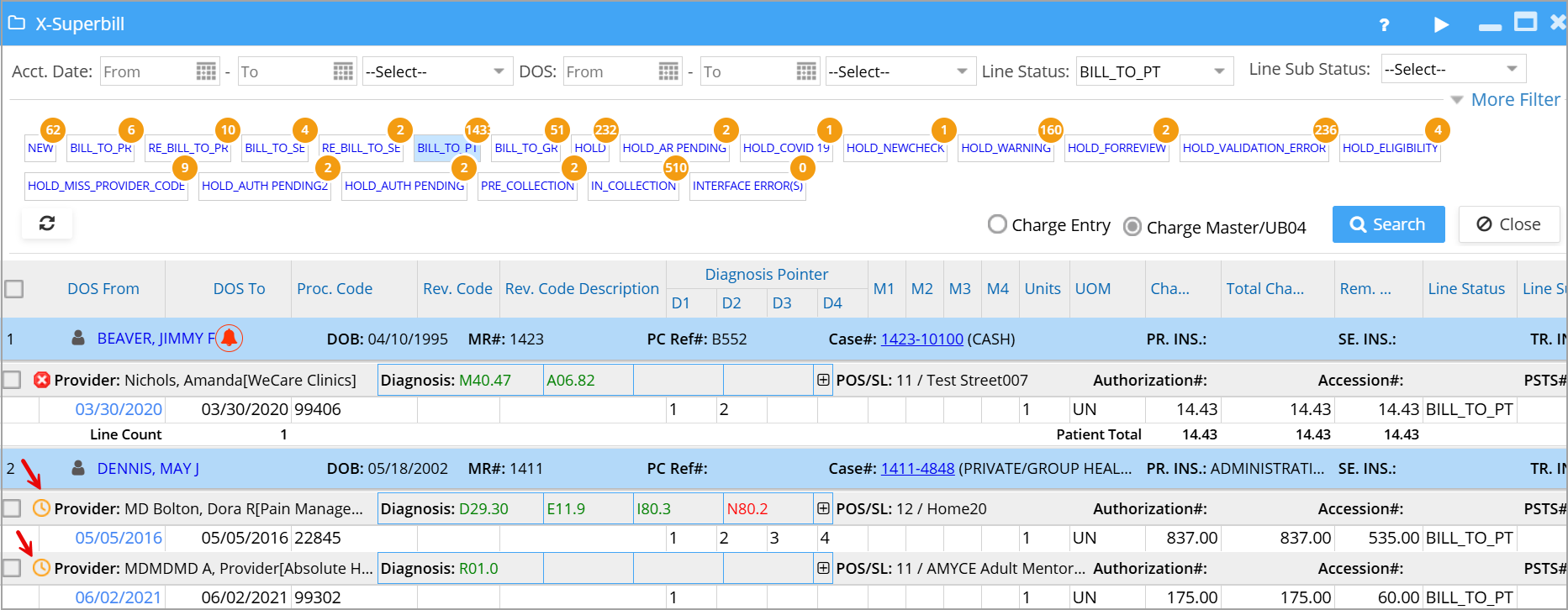
To enhance the clarity and interpretation of the eligibility processed status, a new icon is now available on the XSuperbill screen. Additionally, the existing definitions have been revised to align with the change.

All charges pending auto eligibility will now have the icon (see Image 1.8.1). The red x alert next to the charge will indicate that it has completed the eligibility cycle, however, a failed or an errored response was received. Successful verifications will appear with a green checkmark.

Image 1.8.1 

1.8.2 PC Ref# Search

Patients can be searched with the PC Ref# (external patient ID) on the XSuperbill screen. The patient search field supports searches by patient’s name, MR#, and PC Ref#.

1.8.3 Invalid Diagnosis Flag

Invalid diagnosis codes if present in the charge will be highlighted in red. Please refer to Image 1.8.1.

1.9 EDI Claim Rule Exclusions

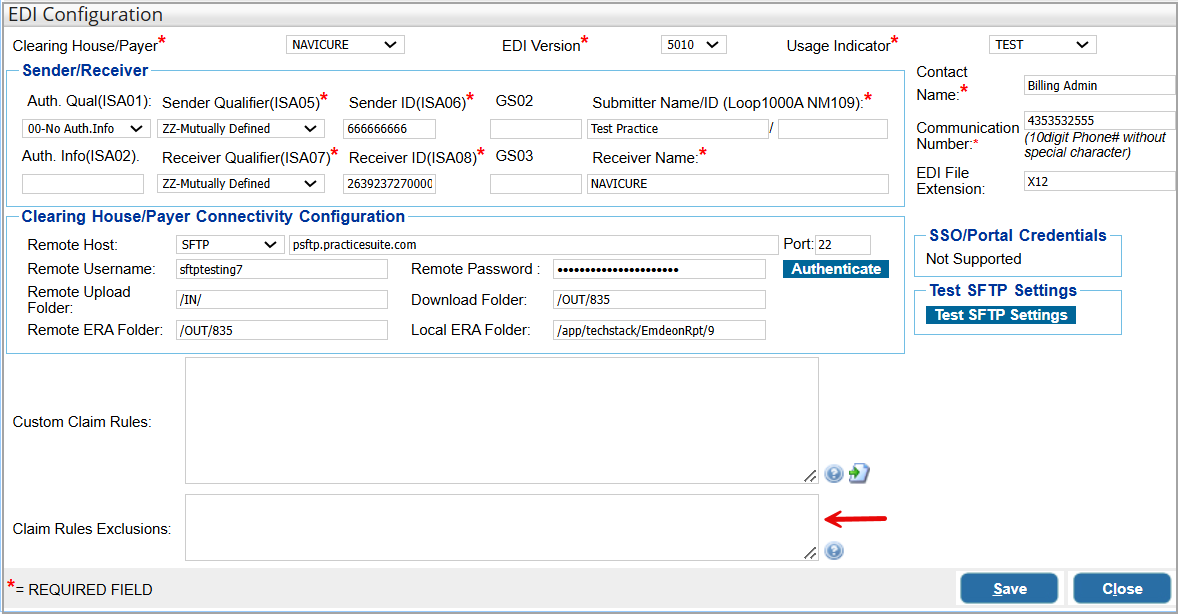
In the EDI rules configuration screen, a new box has been added to indicate the payers that must be exempted from a specific rule.  Users can indicate the payer and the rule in the ‘Claim Rule Exclusions’ area. Please see Image 1.9. The following syntax can be used for adding the exclusion rules:

<payer id>:<rule>

For example, to exclude the payer ID ‘60054’ from the rule for copying the rendering provider as the referring provider on the charge, enter the following –  60054:REFERRING:SAMEASRENDERING into the exclusions box.

Image 1.9

1.10 Referral Management – Added New Tags

New tags have been made available to populate the referring provider’s phone and fax number, as shown in Table 1.

Tags for Referral In Information Tags for Referral Out Information

#@REFERRAL_PROVIDER_FROM_PHONE#@

#@REFERRAL_PROVIDER_TO_PHONE#@

#@REFERRAL_PROVIDER_FROM_FAX#@

#@REFERRAL_PROVIDER_TO_FAX#@

Table 1

General

1.11 Referring Provider Master- Gender Field Update

A dropdown is added to select the gender in the Referring Provider Master screen (Image 1.11).
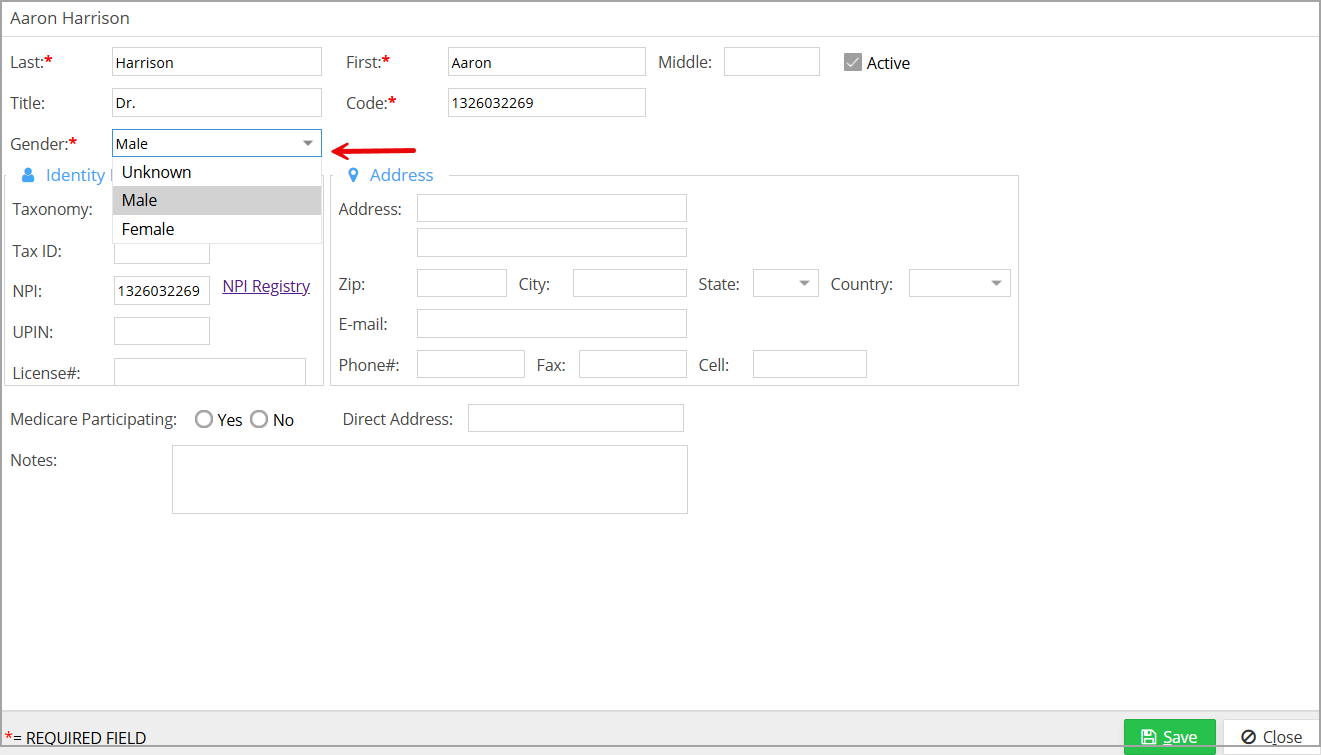
Image 1.11

1.12 Patient Search Screen Update

A filter to search by State has been added to the patient search screen. Please see Image 1.12.
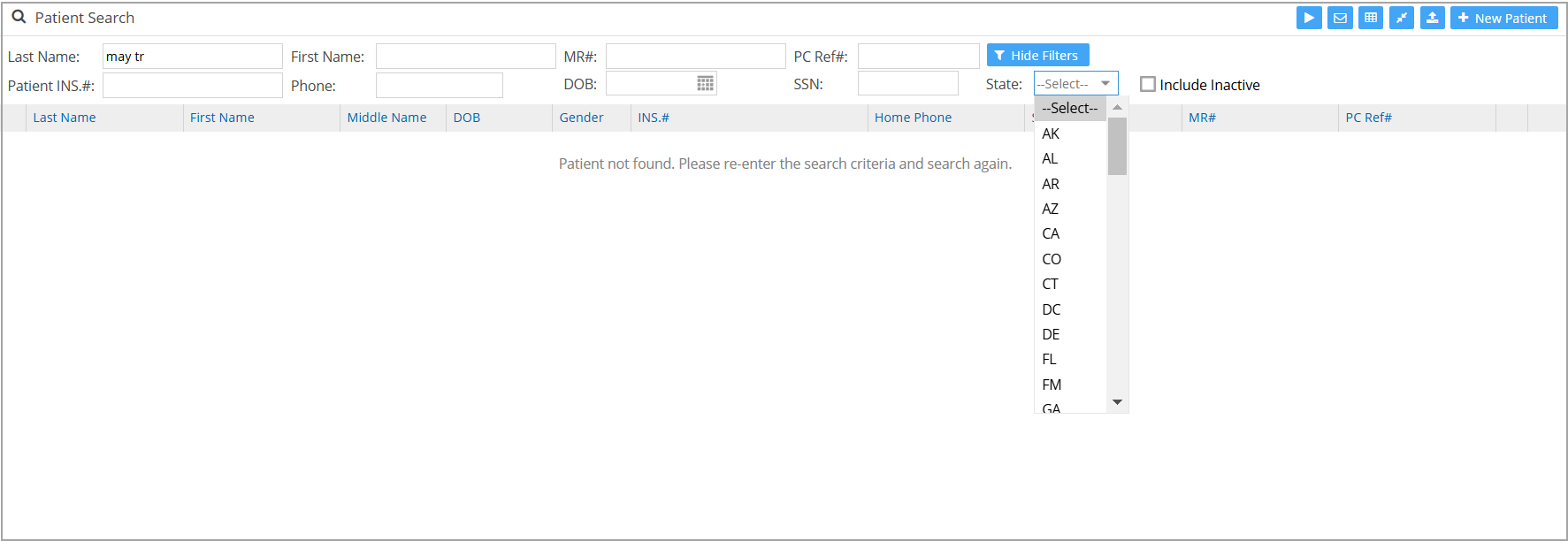
Image 1.12

1.13 Document Manager –Default ‘Share with Patient’

To make it easier to share documents with patients via the Hello Health patient engagement portal, the option ‘Share with Patient’ checkbox in the Document Manager can be defaulted to ‘Yes’. Previously, users had to individually select the option for the document even if most of them had to be shared.

To enable the default to ‘Yes’, a setting has been added to the Portal Options page named Default Share Patient Documents in Document Manager, and selecting ‘Yes’ will automatically select the ‘Share with Patient’ checkbox. Please see Image 1.13.

Image 1.13

1.14 Patient Portal – Quick Pay Screen

The Patient Portal Quick Pay screen now allows flexible entry of statement # and supports inputs with or without hyphens, spaces, or case sensitivity. This enhancement simplifies the process, minimizing input errors, and improving user experience.

1.15 Letter Master- Added New Tags

The following tags have been added to the Letter Master and will be available in Scheduler and Patient Master. 

#@Provider FName#@ #@Provider MName#@ #@Provider LName#@

Reports

1.16 Update to ‘I22. Charges and Payments by Referring Physicians Report’

The ‘I22. Charges and Payments by Referring Physicians Report’ has been updated to align with the system’s month-end close processes and reporting prerequisites.

1.17 I4 Report – EOB Flag

The ‘I4. Payment Deposit Report’ now includes an EOB flag to indicate if an EOB file was uploaded to the payment entry.  ‘Y’ in the column is indicative that the EoB was uploaded, while ‘N’ indicates otherwise.

Image 1.17

1.18 J22 Report – LE Address on Header

 The ‘J22. Procedure Productivity by LOB Report’ will display the address of the Legal Entity in the header if the user has selected an LE when running the report. The patient ledger PDF header will also display the same LE address. Please refer to Image 1.18.

On the other hand, if ‘All’ is selected in the LE filter, then the header will display the primary address of the Legal Entity. 
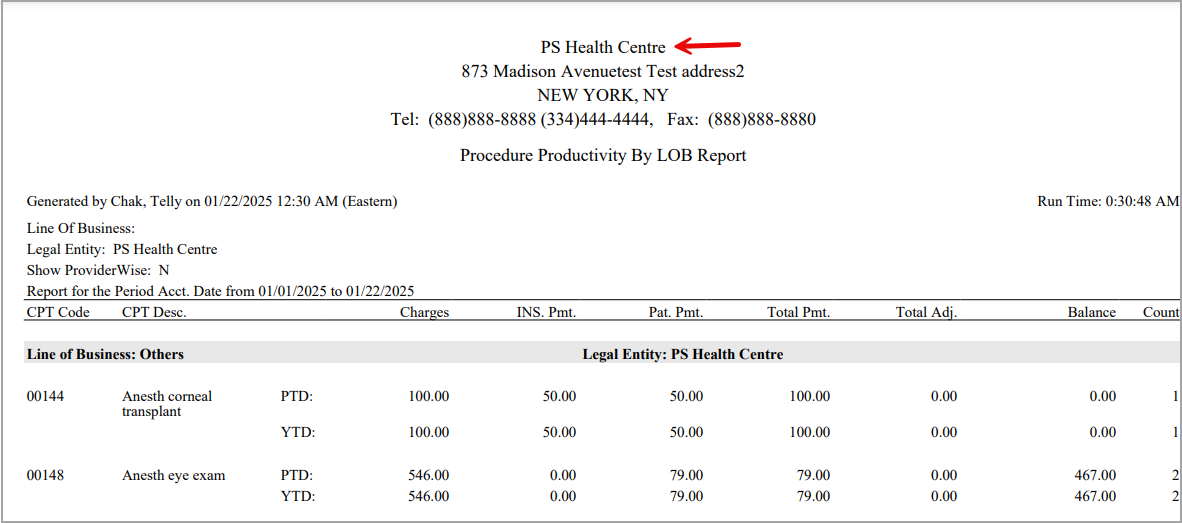
Image 1.18

1.19 I5 Report – Added Patient’s Address

‘I5. The On Account Payment Report’ will include the patient’s full address on the on-screen display and the Excel export.

Part 2: Resolved Items

Practice Management

2.1 ERA 

2.1.1 Partial Refunds Error

An issue with partial refunds in the PLB section of the ERA where refunds were not working correctly when matched with the claim# has been resolved. Users can now successfully process partial refunds by matching the claim number or the payment number.

2.1.2 Payment Reversals Error

The issue where reversals for an ERA were refunded to the original payment and not to the payment having the reversal has been addressed.

2.1.3 Multiple ERA Autopost Errors

Several auto-posting errors and those particularly related to reversals have been addressed in this update.

2.2 Claims Workbench Performance

The performance issue with the Claims Workbench has been resolved.

2.3 Denials in Collections Manager

When a previously worked claim reappears in the Collection Manager after a new denial is posted, it will fall into the ‘New’ list instead of the existing status list.

2.4 Case Switch – Line Status

When switching a case for an encounter billed to a secondary or tertiary payer, if the target case does not have a secondary or tertiary payer, the line status will revert to the status before it was billed to the secondary.

2.5 XSuperbill Processing

Previously, even if the claim rule validation was not enabled for an account, the check box beside the claim on the XSuperbill screen remained unavailable, stopping the claims from being processed. This issue has been resolved.

2.6 Manual Payment Posting

The issue preventing users from posting payments after clicking the reverse button on the manual posting screen has been resolved.

General

2.7 Security- Certain Screens Unavailable for 2FA-Enabled Users

2FA-enabled users encountered the login page upon attempting to access the Patient Master or the Case Screen from the Charge Master. A hotfix was released to resolve this issue.

2.8 Group Login- Patient Master and Insurance

When accessed from the single sign-on login screen, the patient demographics screen was grayed out and the insurance area displayed no information. Both the issues were resolved in a hotfix release.

Reports

2.9 D2 Report – Aging Summary and Aging Buckets

In ‘D2. Detailed-Insurance Aging Report’, there was a mismatch in the amounts shown in the aging summary and the buckets. This discrepancy has been corrected.

2.10 D3 and D6 Mismatch

The discrepancy between the ‘D3. Summary- Patient/Guarantor Balance and Aging Report’ and ‘D6. A/R Aging Summary Report’ has been resolved.

2.11 D4 Report- Last Payment Date Error

The ‘Last Patient Payment Date’ column in the ‘D4. Summary- Insurance Balance and Aging by Patient Report’ erroneously displayed the auto-adjustment date if it was the last activity present for the line. This issue has been corrected.