Product Release Version: v24.0.0
June 2024 Product Release
© 2024 Practice Management System
Disclaimer: All rights are reserved. No part of this work may be reproduced in any form or by any means through graphic, electronic, or mechanical, including photocopy, recording, or information storage and retrieval systems – without written permission of the publisher.
The products that are referred to in this document may be either trademarks and/or registered trademarks of the respective owners. The publisher and the author make no claim to these trademarks.
While every precaution has been taken in the preparation of this document, the publisher and the author assume no responsibility for errors or omissions, or for damages resulting from the use of information contained in this document or from the use of programs and source code that may accompany it. In no event shall the publisher and the author be liable for any loss of profit or any other commercial damage caused or alleged to have been caused directly or indirectly by this document.
Printed June 2024 at PracticeSuite, Inc.
Part – 1 Product Enhancements
1.1 Scheduler- Appointment Count in Header
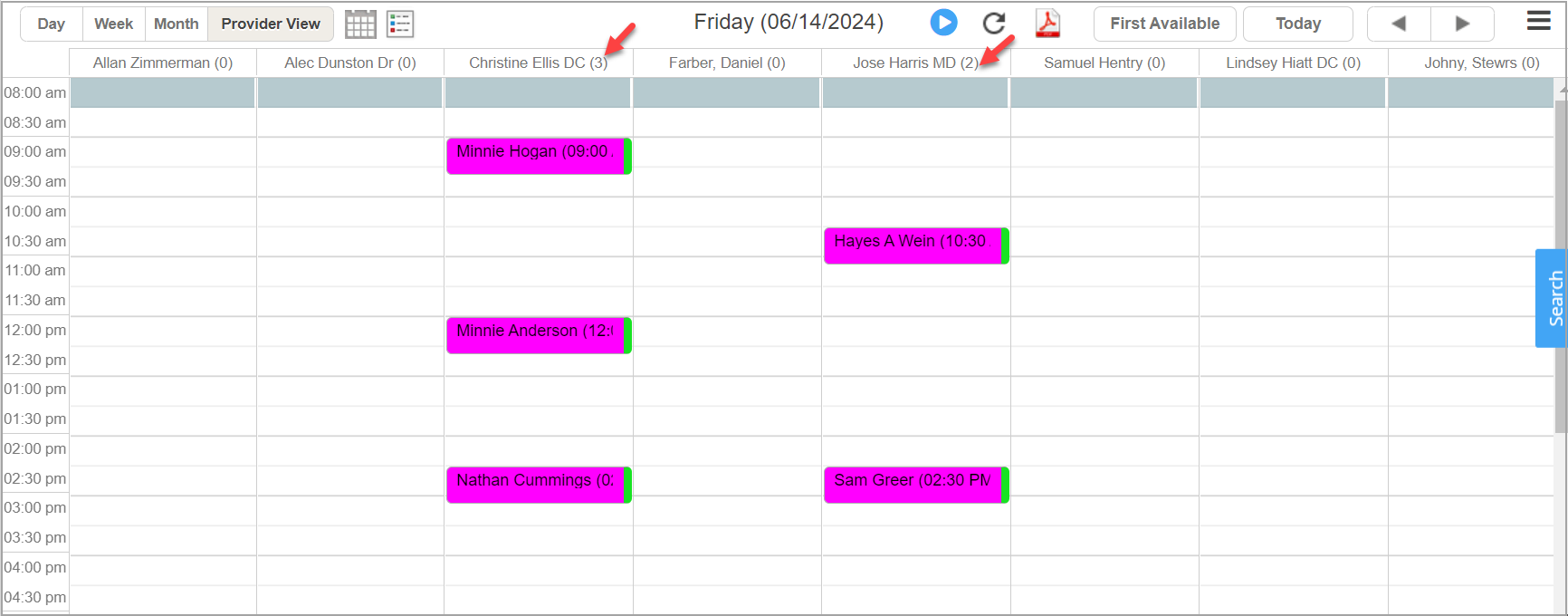
The total appointment count of a provider for the day will be displayed beside the provider’s name in the calendar header and visible in the calendar’s Provider View.
1.2 Documents Manager
1.2.1 Document E-Sign
Our enhanced document manager now provides various ways to work with patient documents. Users can now sign documents electronically, share them with patients, and mark them as review completed. The view button  beside the document when clicked, opens the document as shown in Image 1.2.1a.

- Added a new ‘Share with Patient’ option, letting users mark documents that can be shared with their patients.
- Users can use the ‘Sign Electronically’ option to sign documents. When a document is signed, the remarks section will show who signed it and when.
- Users can mark a document as reviewed using the ‘Mark as Reviewed’ check box.
- The document list in the middle pane has been updated to show the review, share, and signed status of each document; see Image 1.2.1b.

1.2.2 Document Date added to Doc. Manager
In the Document Manager, the document listing will now show the document date. The date displayed here is the date entered when saving the file. Users can edit the document date, description, file name, and document type.
To make changes, double-click on a row and click Update when done.

1.2.3 Defaulting Provider Inside Doc Manager
The provider in the doc manager will default as follows: When a user opens the document manager screen from within the EHR, the provider field will automatically default to the rendering provider listed in the patient’s chart. If it is opened from the Patient Demographics, the field will pick the rendering provider assigned to the patient on the demographics. If opened from within the WorkQueue or the Collection Manager, the provider field will be automatically filled based on information from the claim.
1.3 Patient Demographics- Option to Opt-Out of Appt. Reminders
Patients can now opt out of appointment reminders and other notifications from the practice. To enable this for a patient, the practice can select the checkbox named Do not Send Notifications in the Other Attributes screen of the patient demographics.

1.4 ERA- Change to Partial Refund Processing
From now on, partial ERA auto-refund processing will occur if either the paid or the adjustment amounts that were originally applied for the claim are greater than or equal to the paid or adjustment amounts received in the ERA with the reversal. Earlier, a refund occurred only when both the paid and adjustment amounts applied before were greater than the paid and adjustment amounts in the ERA.
1.5 eFax
1.5.1 New Folder to Show All Failed Faxes
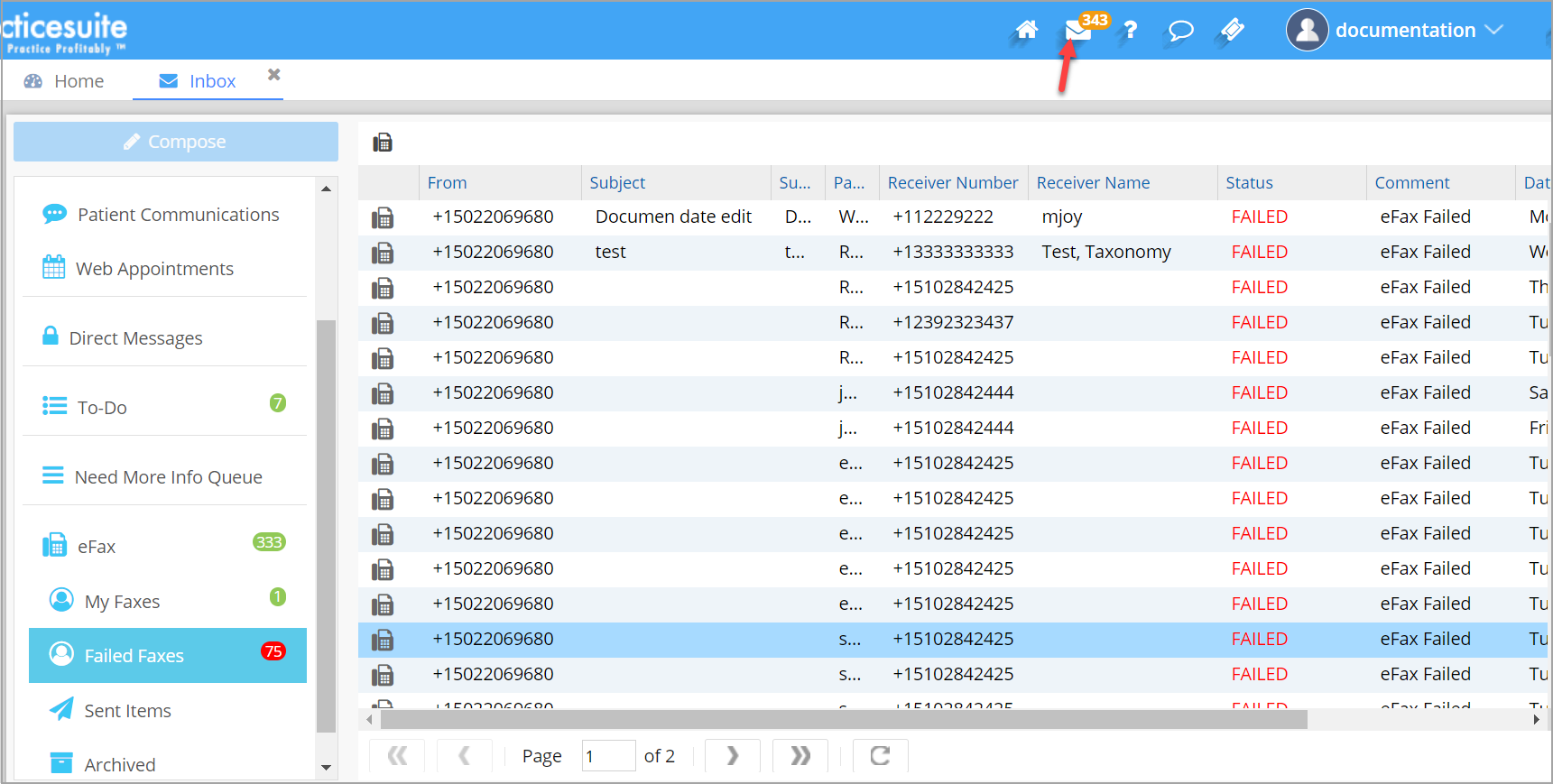
The eFax module now includes a Failed Fax bucket. When a fax sending fails, the affected fax is automatically moved to this newly created bucket. Users can conveniently resend failed faxes from this location. Additionally, the total count of failed faxes will be displayed in red next to the folder name.

1.5.2 Option to Fax Copy Lab Results
Users can now fax the exact copy of the lab results they receive in the Lab Hub. When results arrive in the Lab Hub and are processed in the system, a PDF copy sent from the lab is automatically saved in the Doc Manager under the document type LAB RESULTS. If such a document type does not exist, a new one will be created. Users can also fax these documents from here. The file name will be in the following format:
<Lab_Name> Lab <Test Date(mm-dd-yyyy)>.pdf
1.5.3 Limitation on Attachment Count Lifted
The earlier restriction of three attachments per fax message has been removed, and users can now fax any number of files. However, the total size of all files in a single message should not exceed 50 MB. A warning will appear on the screen if the size of the attachment(s) exceeds the permitted limit.
1.5.4 Document Rename Option in eFax
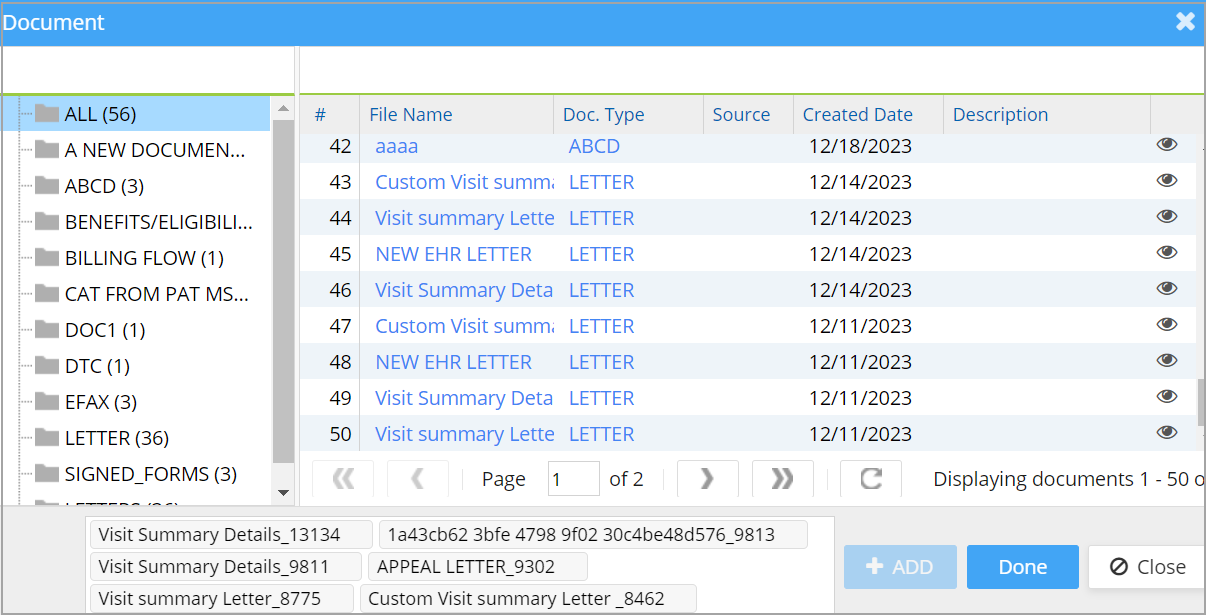
Users can now rename files received in the eFax inbox directly from the same screen. Previously, they had to navigate to the Document Manager to rename a document. The popup for mapping the patient includes the option to rename the file.


1.6 Credit Card Payment- New Gateway
Practice Management System introduces a new payment gateway, Paya for credit card processing.
1.7 Charge Master-UI Upgrade
The Charge Master screen has been upgraded to the new UI.
1.8 Manual Payment Posting- Repositioned the Line Sub Status Field
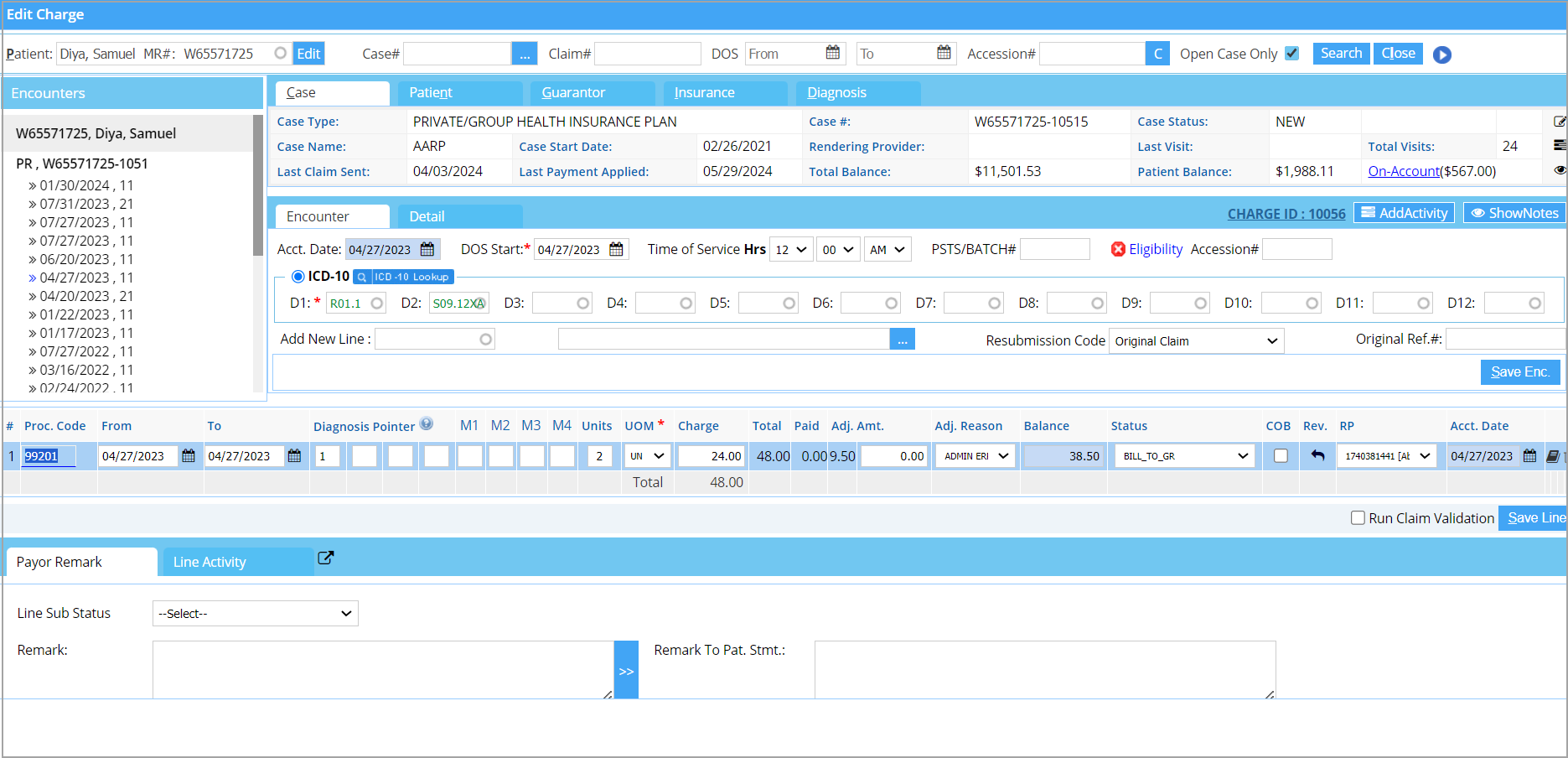
The Line Sub Status field has been moved next to the Next Action dropdown on the manual payment posting screen.

1.9 UB04 Charge Entry Screen
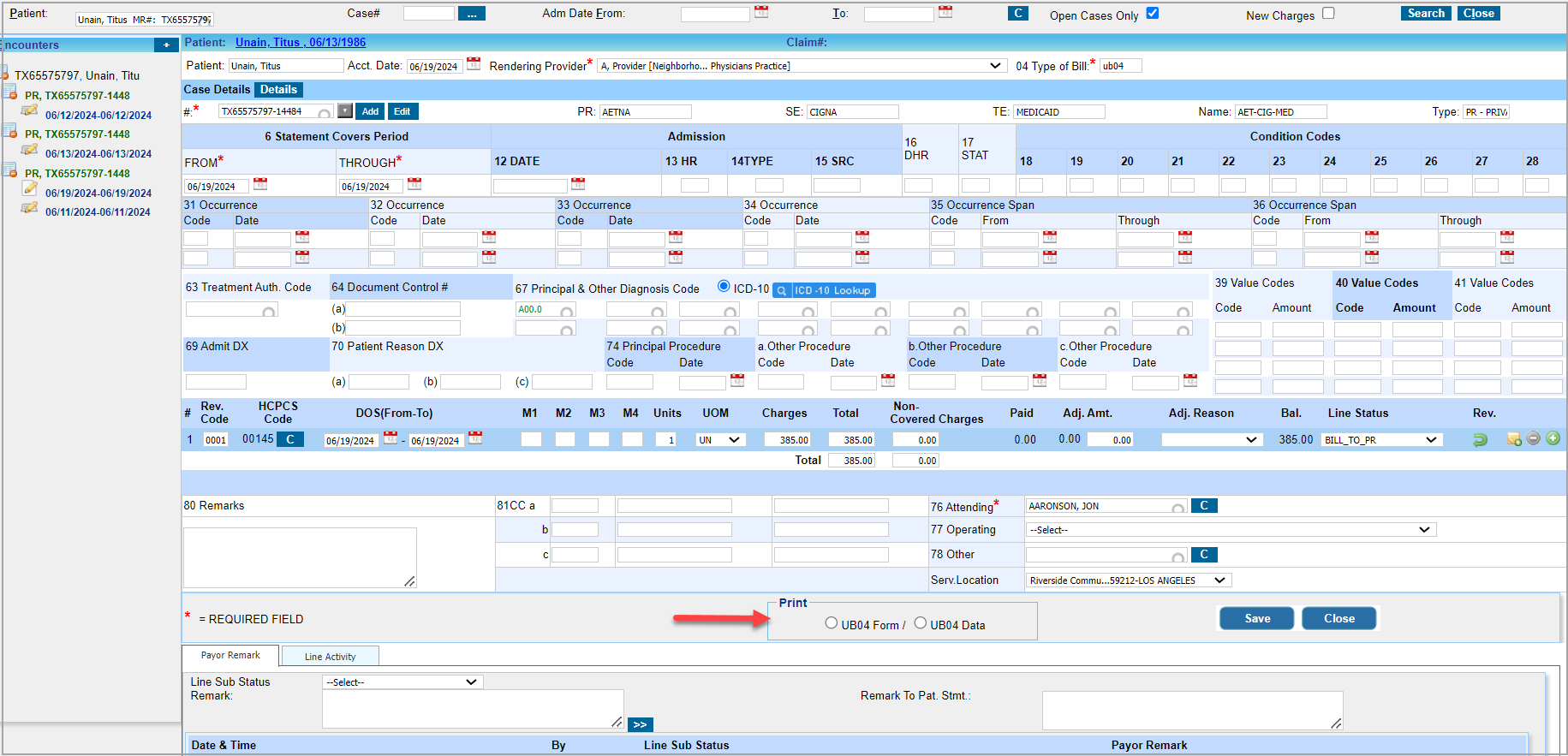
A print option has been introduced to the UB04 charge entry screen. This feature allows users to print the UB04 claim form directly from the screen, similar to the feature in the professional claim’s charge entry screen.
1.10 Auto-Case Creation
For patients whose account type is either self-pay or self-pay-ins, a cash case will be automatically added for the patient in the system (if the ‘Auto-case Creation’ setting is enabled in the Billing Options screen).
Note: If the patient already has an active Cash case, a new Cash case will not be automatically added for the patient.
1.11 RCM Work Queue Assignments- New Parameters Added
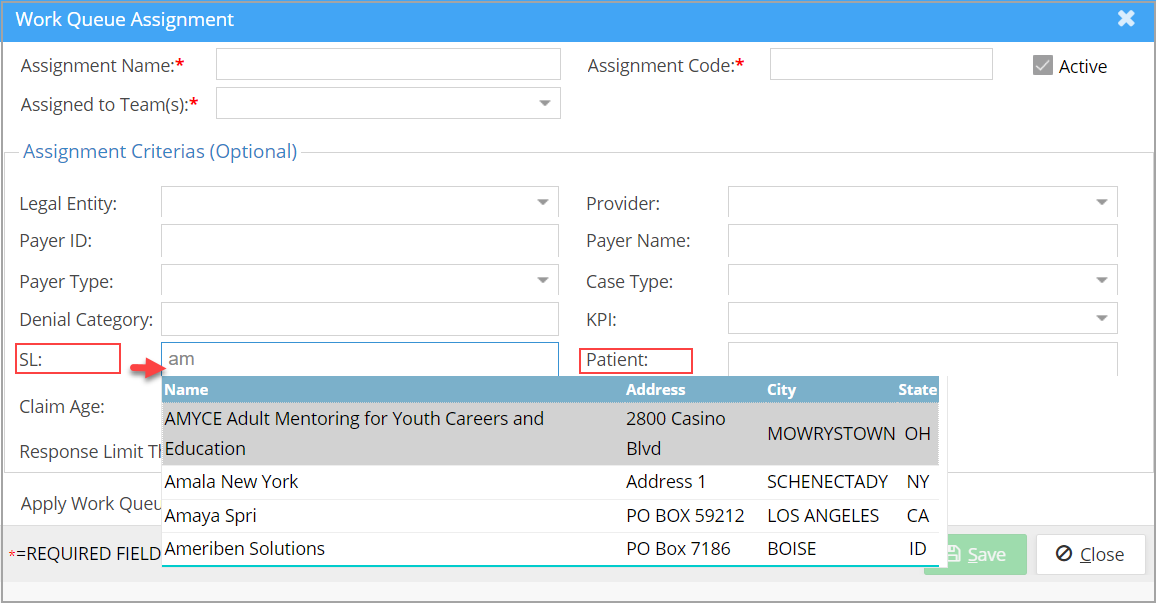
In the RCM Work Queue Assignments screen, two new parameters have been made available for the rule configuration. The two new parameters are Service Location and Patient.
Note: For service location search, users can search using either a service location name or state. If the user types in the first letter of a state name, all service locations under the state are listed in the drop-down. If it is a service location name, a list of all matching names will appear.
1.12 WorkQueue Updates
- The hierarchical display of claims in the left pane of the Work Queue has been updated as follows: Priority → Rule → KPI Category → KPI
- A new bucket called Unallocated has been introduced in the Work Queue. It will list only those claims that do not belong to any specific rule.
- Going forward, Collection Manager denials will appear in the Work Queue. Additionally, a new KPI named Collection Denials has been added to the H2 report. Users can pull this information into the Work Queue using the Mark as Work Queue Item checkbox.

1.13 Offline Reporting Feature
The offline reporting feature has been made available for the following reports:
1. I6. Posting Detail Report
2. I20. Payments By Month By Provider Detailed Report
1.14 Letter Master: New Letter Tags
Two new tags for the insurance group # have been created specifically for secondary and tertiary insurance. The tags are as follows:
#@Pat_Se_GroupId#@ for secondary
#@Pat_Tr_GroupId#@ for tertiary
The primary insurance group ID #@PatGroupId#@ has been renamed to #@Pat_Pr_GroupId#@
The tags will be available in letters created from the scheduler, patient search page, and EHR.
1.15 Inter-office Messages- Real-time Update of Unread Count
The unread message count displayed in the inbox header and the counts in the left pane will reflect the real-time number of unread messages. The count in the left pane will also automatically update. Additionally, the header count now includes the unread fax messages (which were previously excluded).
Part -2 Reports
2.1 I8. Summary Encounter Line Activities Report
The CSV and offline outputs of the I8 report will now include the encounter creation date in the last column.
2.2 H1 and H3 Reports Temporarily Removed
H1. Executive Dashboard Report and H3. End of Month Report Package have been temporarily removed from Report Central due to data and formatting errors.
Part 3: Resolved Items
3.1 Group Login- Missing Insurance in Patient Master
On the SSO screen, the patient’s insurance was not displayed on the patient master page. This is now resolved.
3.2 Discrepancy in Favorite KPI Counts
We have resolved the discrepancies between some KPI counts on the home page and their related reports. The others will be resolved in the upcoming releases. The corrected KPIs are:
*Claims That Are 45 Days From Response Limit Threshold
*Patients With Balances And Statements Have Been Sent For Atleast 3 Times
*Write Off Other Than Sfs Write Offs
*Clearinghouse Rejections
*Payer Rejections
3.3 Charge Master- Case Edit Issue
When users opened the Case screen from the Charge Master, the authorization number was not displayed in the auth# field. Both the authorization number and the guarantor drop-downs became unresponsive and could not be updated. Both of these items have been resolved.