Product Release Version: v23.5.0
April 2024 Product Release
© 2024 Practice Management System
Disclaimer: All rights are reserved. No part of this work may be reproduced in any form or by any means through graphic, electronic, or mechanical, including photocopy, recording, or information storage and retrieval systems – without written permission of the publisher.
The products that are referred to in this document may be either trademarks and/or registered trademarks of the respective owners. The publisher and the author make no claim to these trademarks.
While every precaution has been taken in the preparation of this document, the publisher and the author assume no responsibility for errors or omissions, or for damages resulting from the use of information contained in this document or from the use of programs and source code that may accompany it. In no event shall the publisher and the author be liable for any loss of profit or any other commercial damage caused or alleged to have been caused directly or indirectly by this document.
Printed April 2024 at PracticeSuite, Inc.
Part – 1 Product Enhancements
1.1 ERA
1.1.1 Partial ERA Refund
Previously, for the successful automatic processing of refunds through ERA, the paid amount in the ERA should have exactly matched the applied amount of the claim. This requirement has been removed. If the paid amount is either less or matches the applied amount the automatic processing will happen.
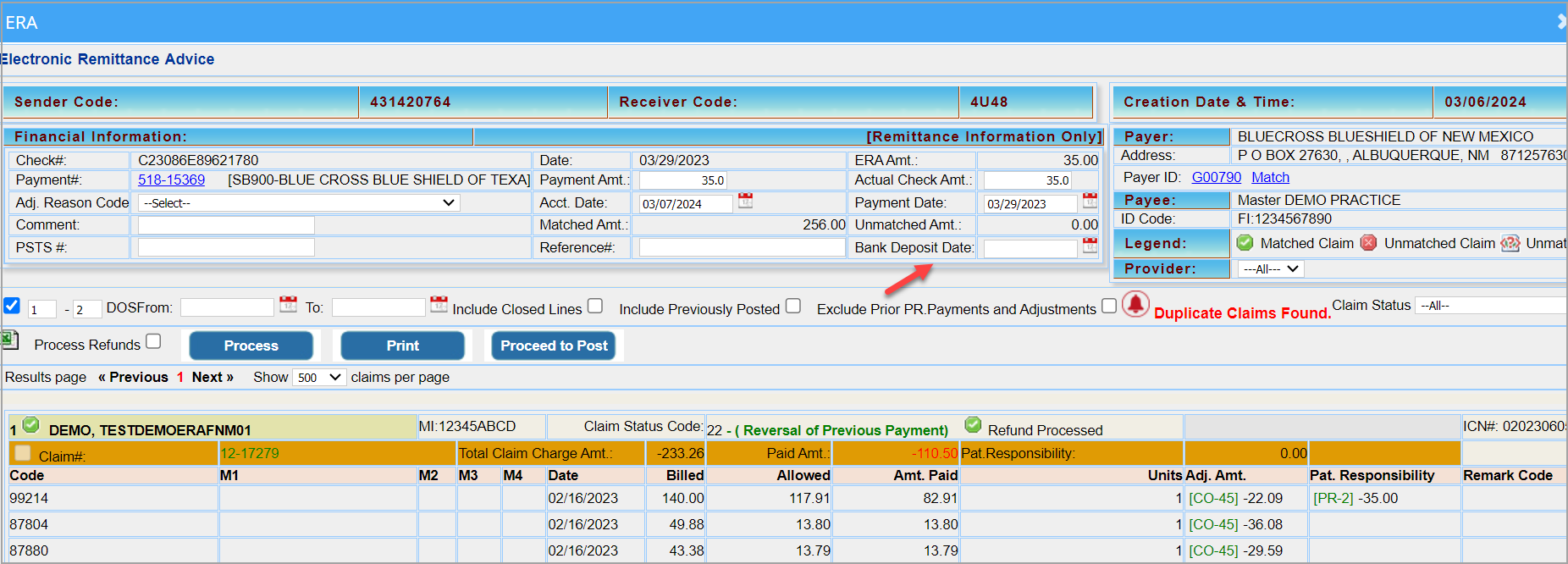
1.1.2 Bank Deposit Date
The field for entering the bank deposit date has been made available on the ERA header. This field was already available on the payment screen.
1.2 Scheduler
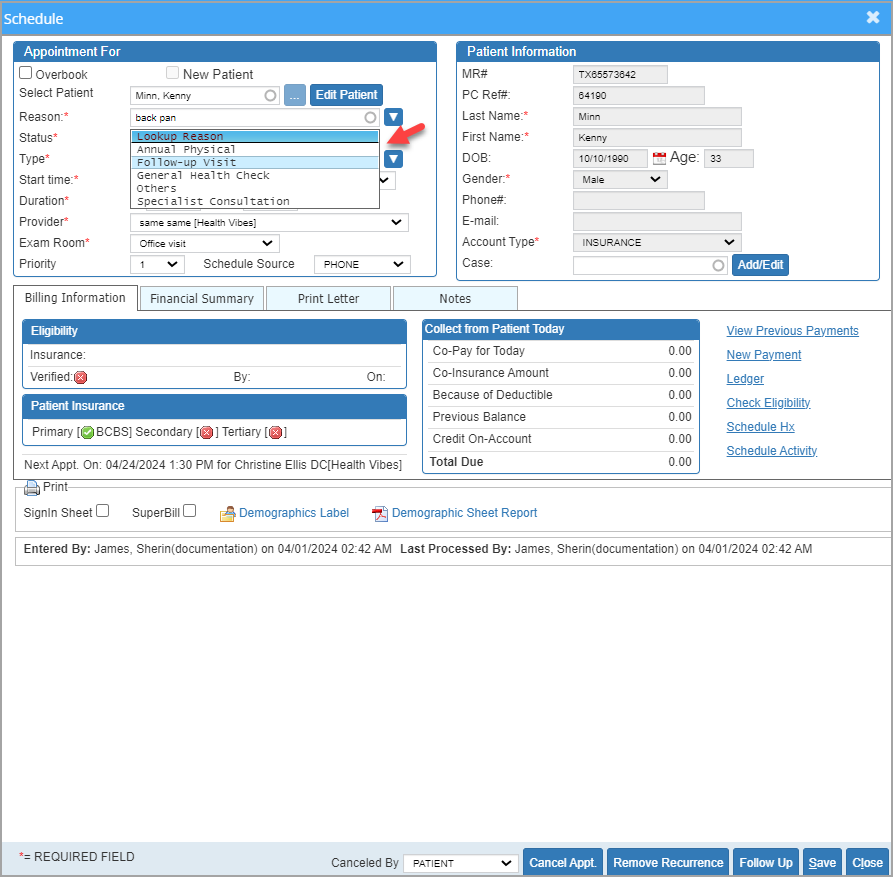
1.2.1 Appointment Reasons through Lookup
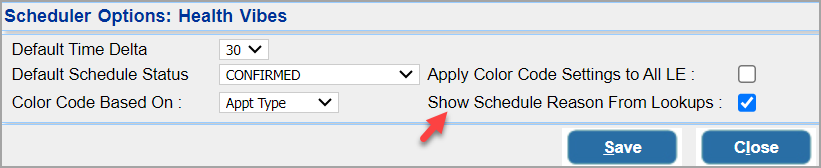
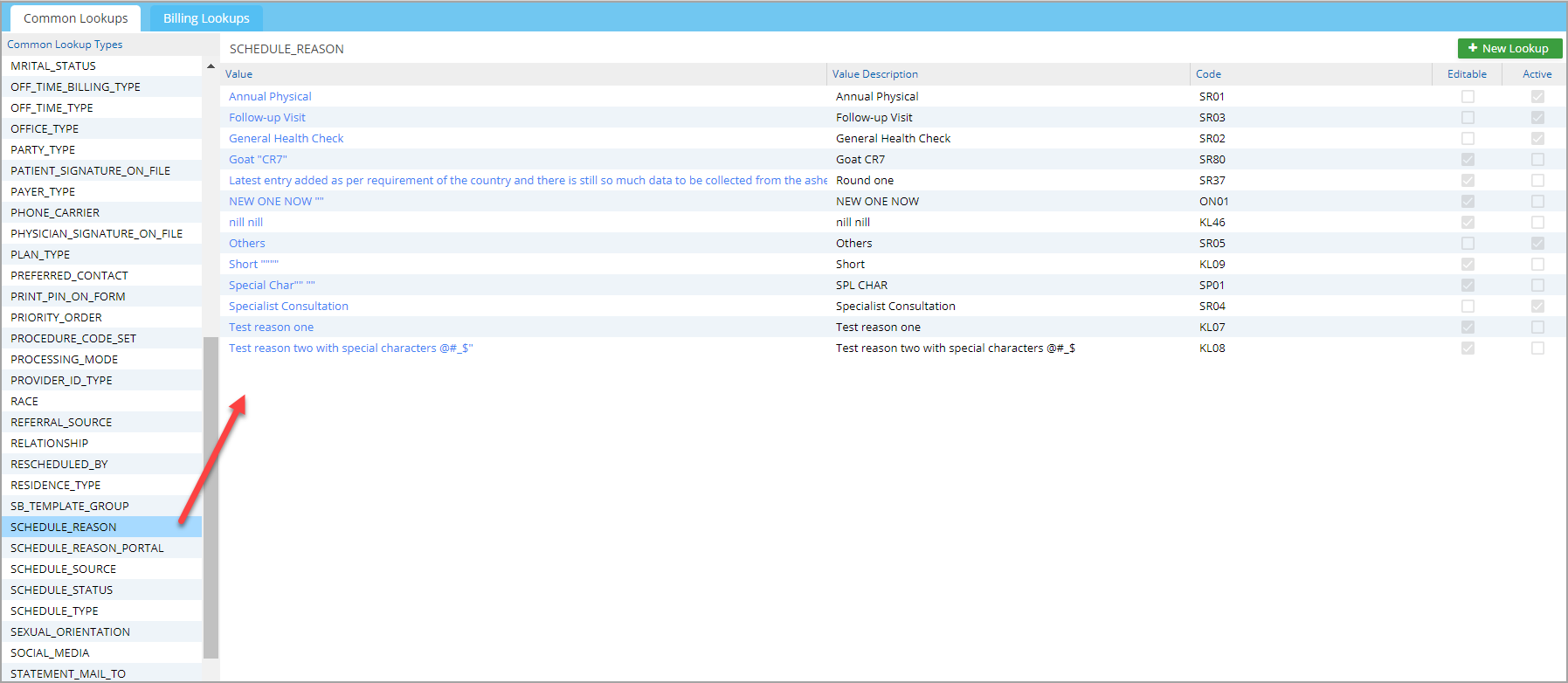
Appointment reasons can hereafter be listed from the lookup. A new lookup type named “Schedule Reason” has been added to configure this lookup list (please refer to Image 1.3.1b and Image 1.3.1c). Additionally, a configuration setting on the Scheduler Options screen has been made available to enable the listing from the lookup (Image 1.3.1a). Checking the box “Show Schedule Reason From Lookups” enables the feature.
1.2.2 Follow-up Appointments
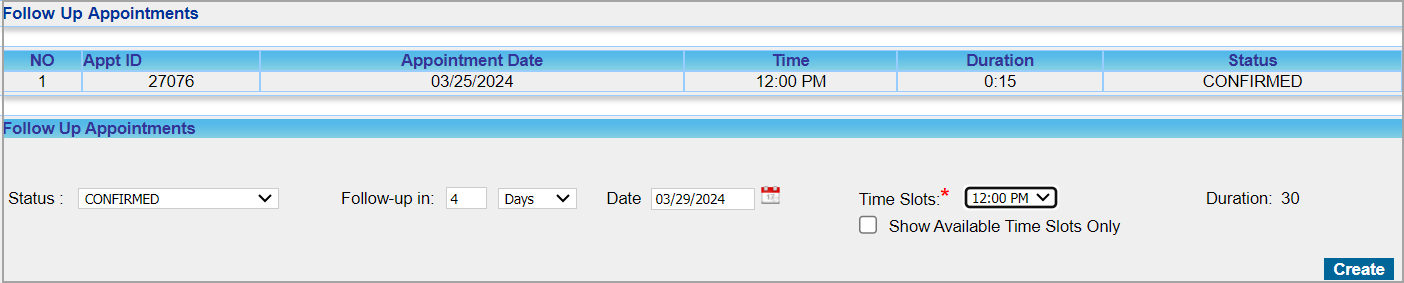
Users can now add a follow-up appointment by choosing one of the two field options:
a. Provide the number in the “Days” field
or
b. Select a date from the calendar icon
All time slots, both booked and available, will be displayed to the user by default. To exclude all blocked slots and see only the available slots for the selected date, the user can check the box “Show Available Time Slots Only”. The duration for the follow-up appointment will always copy the duration of the original appointment; however, if users need to modify the duration, it can be done by editing the appointment.
1.2.3 Patient Name Display on Mouse Over
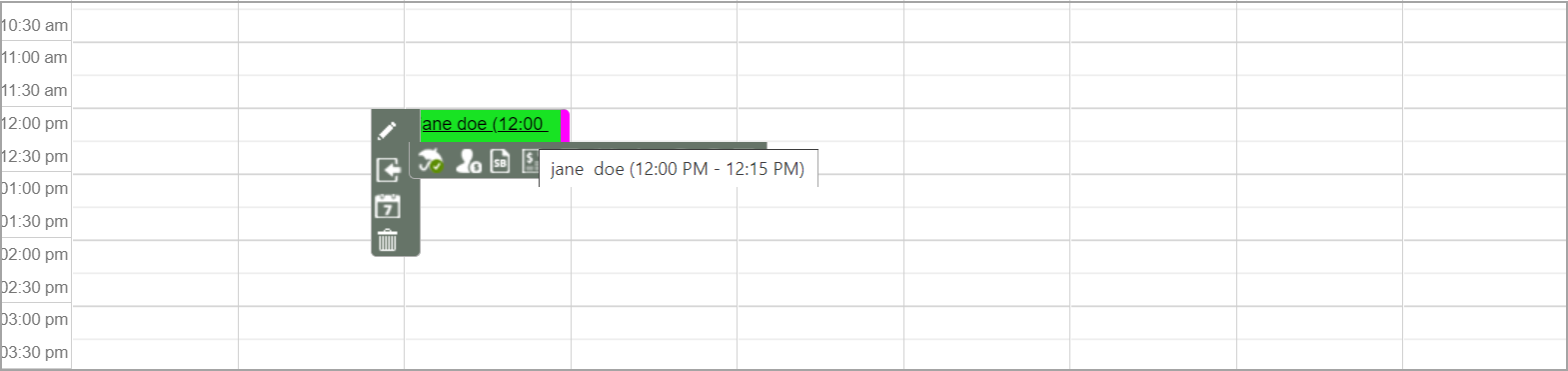
On the calendar screen, mouse over an appointment to view the patient’s full name, and the appointment time will be displayed in a tooltip.
1.3 To Do Enhancements
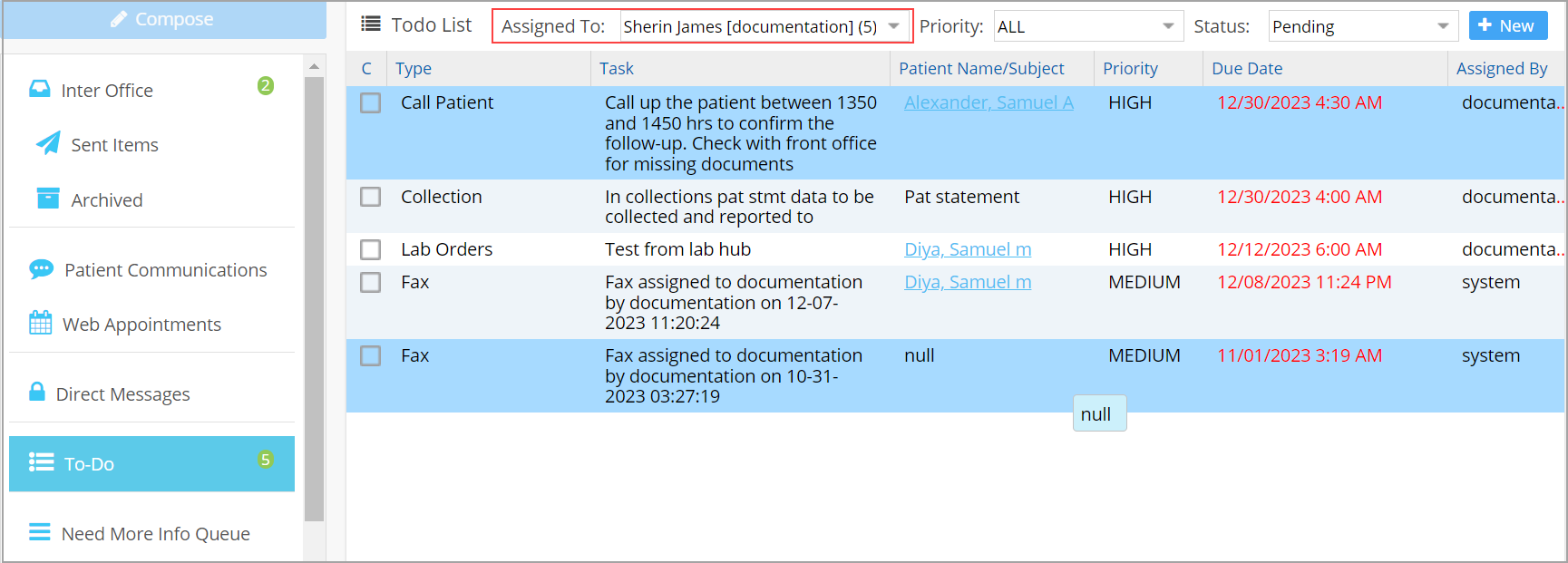
1. The “To Do” (Task Management) screen can now display all users’ tasks. A new “User” filter has been added to the screen to enable users to list tasks by user and the filter is always defaulted to the logged-in user (please see Image 1.4a). The user list will only have the users that have tasks assigned, along with the count of tasks (shown in parentheses). The current user will always be defaulted to in the drop-down list, regardless of whether there are any tasks assigned to the user.
2. The “Priority” filter has also been made available to filter tasks based on priority.
3. The “Active” status has been retitled to “Pending”.
4. Only the first three lines of the task/message will be visible on the listing screen. Clicking on the task will open the task editor screen to either review the task or modify it.
5. The “Mark as Complete” check box has been repositioned to the beginning. Users cannot mark the tasks of other users as complete.
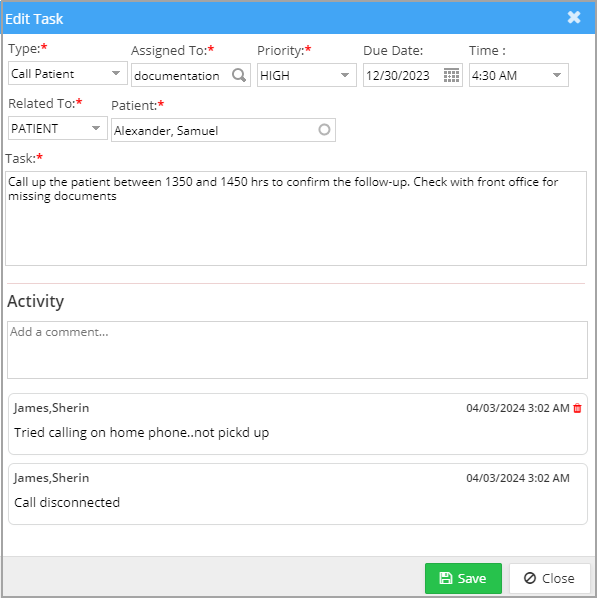
6. All users can now add a note or log an activity from the task edit screen. Activity history is displayed as a running list and includes the date and time stamp (see Image 1.4b). A delete icon is also provided beside each activity line of the user and, if needed, can be used to delete the activity.
1.4 Report Central- Search Option
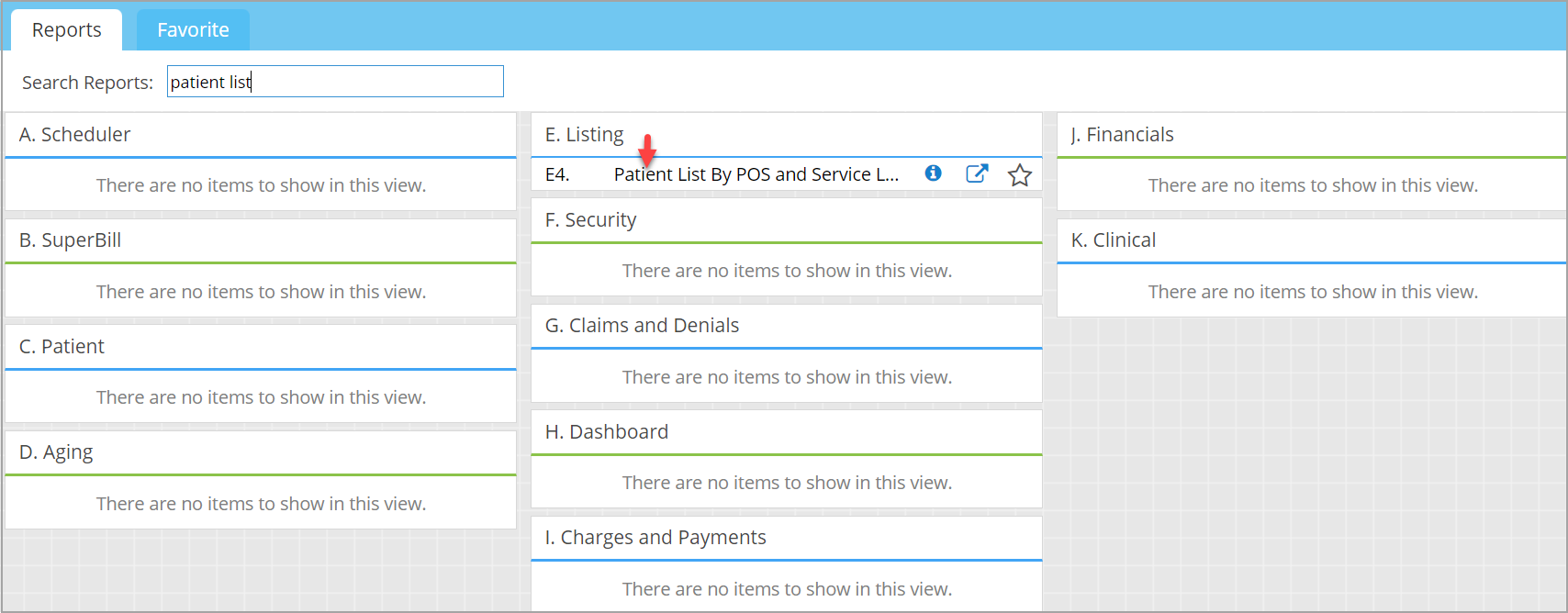
A search filter has been introduced on the Report Central screen for users to search reports by their title.
1.5 Patient Demographics
1.5.1 Restricting Insurance Changes in Case
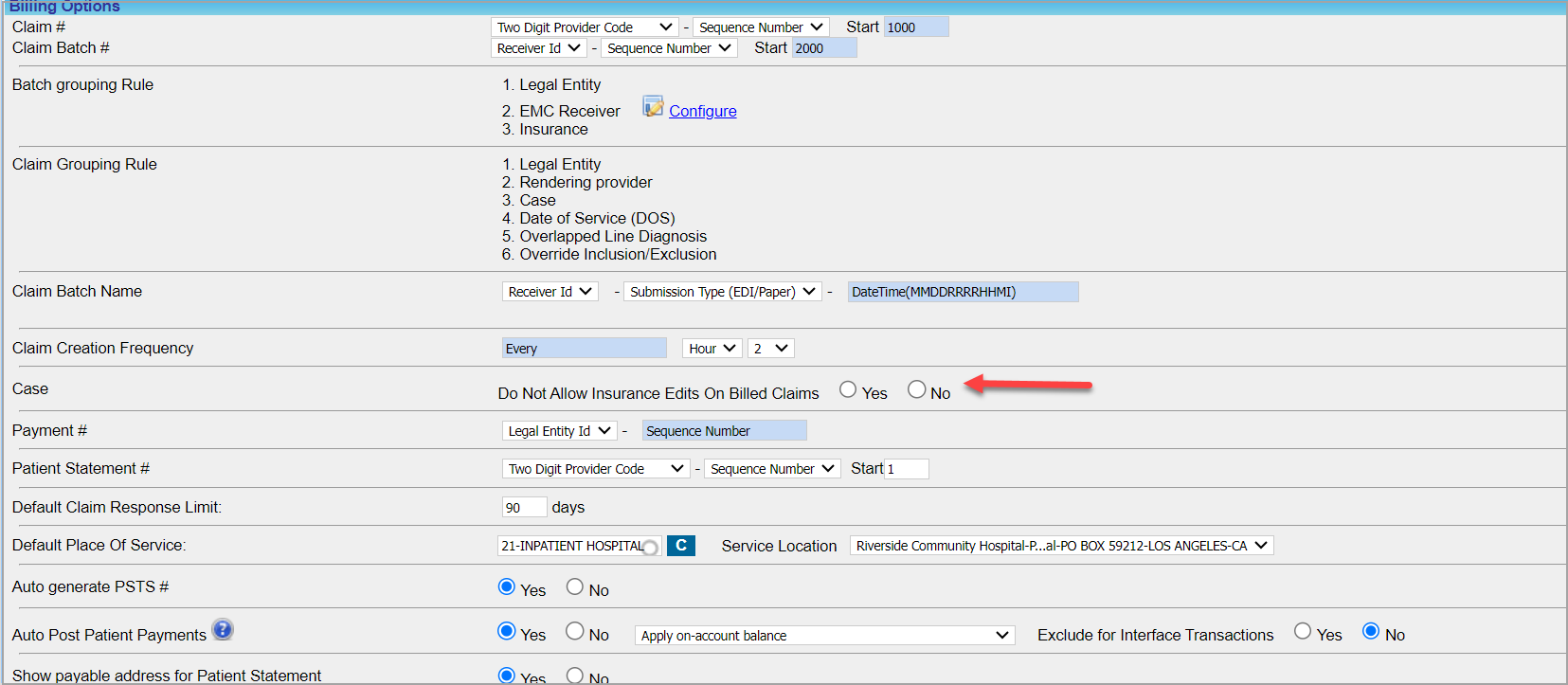
A new configuration setting has been added to the Billing Options screen to permit or restrict changing the insurance(s) within a Case. In the Billing Options, look for the option “Do Not Allow Insurance Edits on Billed Claims”. Selecting “Yes” here will permit users to modify the insurance in the Case even if a claim is filed. On the other hand, if “No” is selected, the system will always restrict users from changing the insurance in the Case.
1.5.2 Letter Search Option
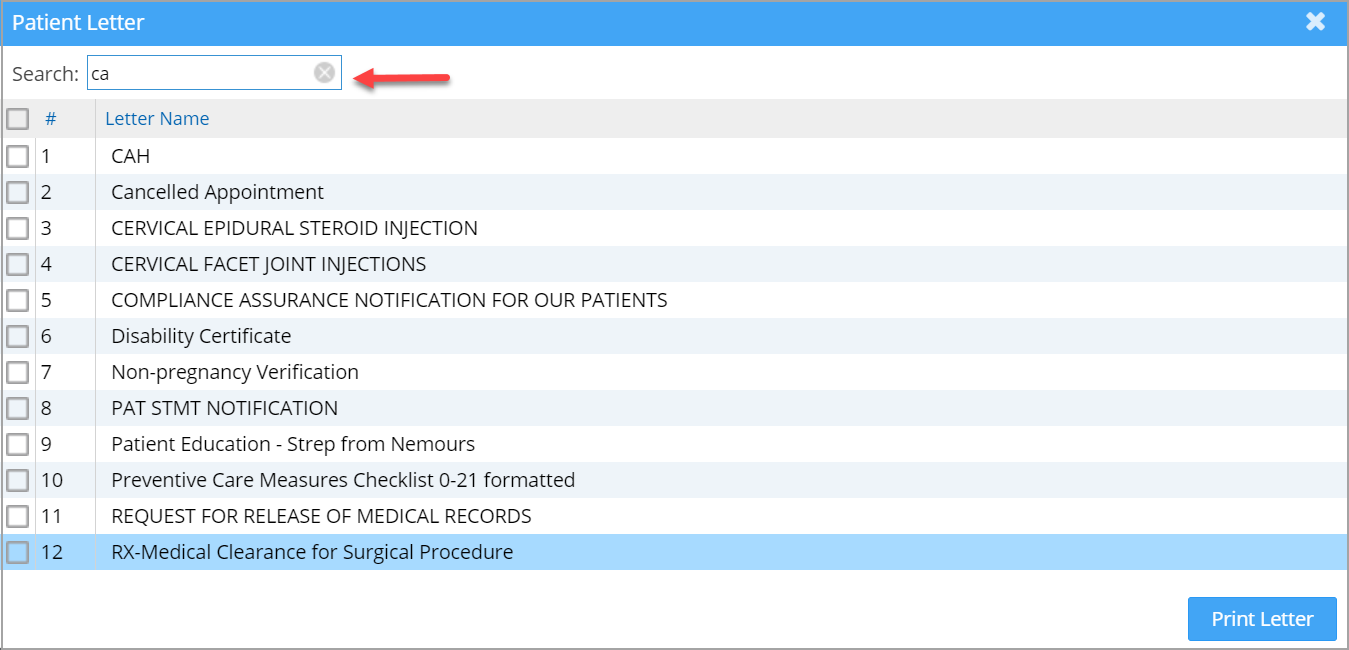
A search filter has been added to the pop-up window for generating patient letters. Additionally, users are now able to resize this window as needed.
1.5.3 View Appointment Details from Schedule Hx
The listing on the scheduler history tab is now a clickable link that opens the appointment details screen. Click on any row in the listing to open the appointment details in a view-only mode.

1.5.4 Ledger – Added New Search Filter
A search filter for filtering the list with the accident date has been added to the patient ledger. The accident date is also included in the PDF output of the ledger.

1.6 WorkQueue
The header section on the Next Action popup window has a few changes, as follows:
A. Claim# is now a hyperlink and opens the claim form.
B. MR# has been added.
C. Tax ID, Rendering Provider, and Service Location values will be displayed on the screen. Additionally, the fields on the header have been rearranged.

1.7 Fee Schedule Changes
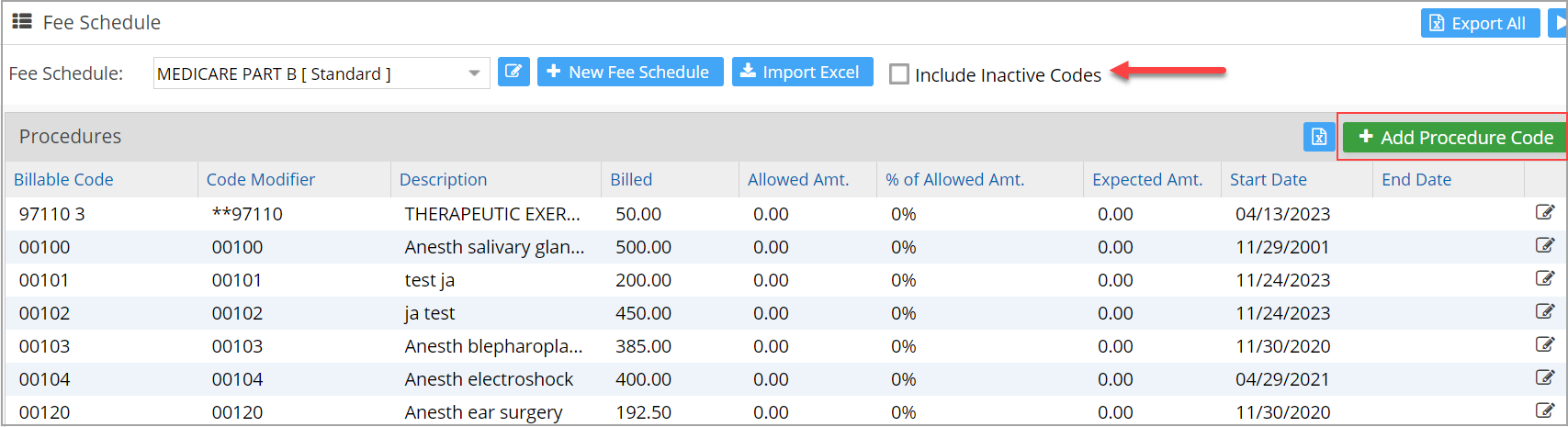
The system will default to display only active procedure codes on the fee schedule screen. A new check box filter, “Include Inactive Codes,” can be used to display the inactive codes along with the active ones.
Note: ‘Inactive’ codes mean those procedure codes that are end-dated.
Also, the Fee Schedule screen has a few label changes:
A. “Add CPT” has been renamed “Add Procedure Code.”
B. “Import CPT From” relabeled to “Import Procedure Code From” and
C. The pop-up page “New CPT” is retitled to “New Procedure Code”
1.8 Provider Off-time Screen
The provider off-time screen will list the off-time description instead of the practice status.

1.9 New EDI Rule for Last Seen Date
A new rule has been made available to copy the date of a similar illness as the last seen date on EDI Claims. For the rule to work, users will need to enter the last seen date into the field “Similar Illness Date”.
<PAYERID>: LASTSEENDATE:SIMILARILLNESSDATE
1.10 Clinical Quality Measures- Added Four New Clinical Quality Measures
The table below lists the new measures added.
| Quality ID | Description | NQF ID |
| 39 | Percentage of female patients aged 65-85 years of age who ever had a central dual-energy X-ray absorptiometry (DXA) to check for osteoporosis | 0046 |
| 176 | Percentage of patients aged 18 years and older who has been newly prescribed a biologic and/or immune response modifier that includes a warning for potential reactivation of a latent infection, then the medical record should indicate TB testing in the preceding 12-month period | None |
| 178 | Percentage of patients aged 18 years and older with a diagnosis of rheumatoid arthritis (RA) for whom a functional status assessment was performed at least once within 12 months | None |
| 180 | Percentage of patients aged 18 years and older with a diagnosis of rheumatoid arthritis (RA) who have been assessed for glucocorticoid use and, for those on prolonged doses of prednisone >5 mg daily (or equivalent) with improvement or no change in disease activity, documentation of glucocorticoid management plan within 12 months |
1.11 RCM Screen -Denial Category Field Size Increased
The field size of the denial category field in the RCM setup screen has been increased threefold to accommodate all the denial codes.
Part -2 Reports
2.1 ‘I8. Summary Encounter line Activities Report’
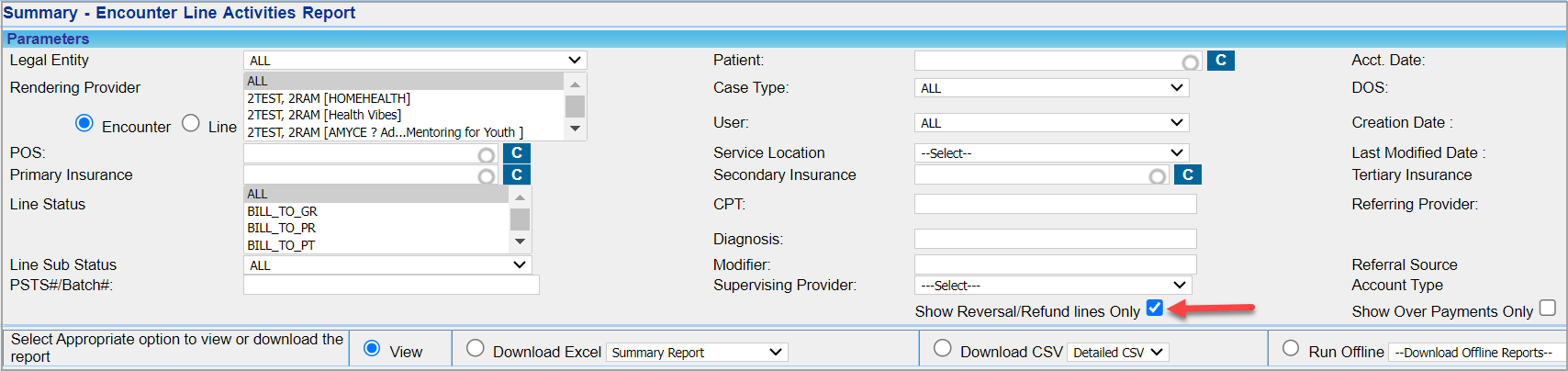
2.1.1 New Filter to Only Show Refund Lines
A new checkbox filter named “Show Reversal/Refund lines Only” has been added to the I8 report and, when checked, will exclusively show the lines having refunds and reversals.
2.1.2 Allowed Amount Included in Accounting Period Excel
The ‘Accounting Period Activities’ Excel will include the allowed amount. As in other payment reports, the allowed amount will be sourced from the payment posting screen if the amount was entered at the time of payment posting, if not, the amount entered in the fee schedule will be used.
2.2 ‘G5. Collector Worklist Report’- LE Info Added
The legal entity info has been added to the Collection Manager Excel and CSV, and the G5 report.
Part 3: Resolved Items
3.1 Report Mismatches
3.1.1 J23 and J9 Report
J23. Service Location Wise Month End Close Report numbers did not match with J9. Daily/Month End Close Report when filtered by the legal entity. This has been addressed.
3.1.2 D1 and D2 Report
D1. Summary- Insurance Aging Report and D2. Detailed- Insurance Aging Report showed a mismatch in charge, payment, and adjustment amounts, which has now been corrected.
3.2 Missing Images in Faxed Letters
Letterheads and provider signatures in the letters used to be stripped when faxed and the recipient did not receive these images. This is now resolved.