Practice Management System
Release Note
Product Release Version: v22.5.0
Product Release Date: Oct 2023
© 2023 Practice Management System
Disclaimer: All rights are reserved. No part of this work may be reproduced in any form or by any means through graphic, electronic, or mechanical, including photocopy, recording, or information storage and retrieval systems – without written permission of the publisher.
The products that are referred to in this document may be either trademarks and/or registered trademarks of the respective owners. The publisher and the author make no claim to these trademarks.
While every precaution has been taken in the preparation of this document, the publisher and the author assume no responsibility for errors or omissions, or for damages resulting from the use of information contained in this document or from the use of programs and source code that may accompany it. In no event shall the publisher and the author be liable for any loss of profit or any other commercial damage caused or alleged to have been caused directly or indirectly by this document.
Printed Oct 2023 at PracticeSuite, Inc.3206 Cove Bend Dr Suite A Tampa FL 33613
Part – 1 Product Enhancements
1.1 Payments- Multiple USIO ID Configuration
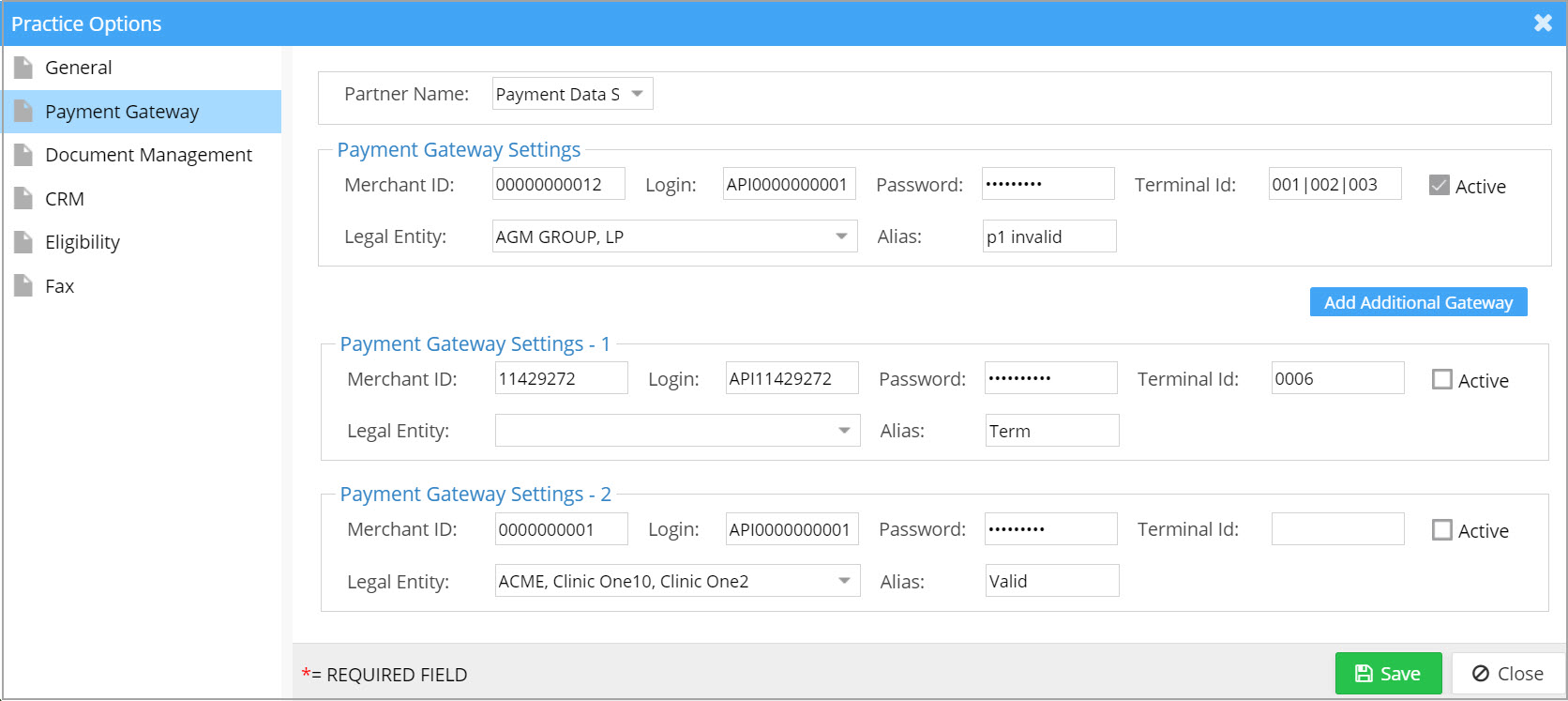
Multiple USIO IDs are now configurable for each practice wherein each LE can be provided a different Merchant ID for transactions. This is in addition to the primary USIO gateway already provided for the practices. Legal Entity – Merchant ID mapping is done from the Payment Gateway setup screen on Practice Options page (refer to Image 1.1a).
Important fields for Merchant ID set up
| Field | Description |
| Merchant ID | Unique ID for USIO transaction |
| Login | Login ID for the payment gateway |
| Password | Password for login |
| Terminal ID | ID for POS machine |
| Legal Entity | LEs assigned to this merchant ID; multi-select drop-down |
| Alias | Name provided to the merchant ID for easy identification(Optional) |
| Active | Uncheck this in order to deactivate/delete the merchant ID |
Points to Note:
A. While using the ‘Save This card’ feature in the Payments screen, cards will be saved under the specific merchant ID pre-assigned to the LE. This card will be available in the ‘Saved Card’ drop-down only when the patient later makes a payment to the same Legal Entity where the card was saved.
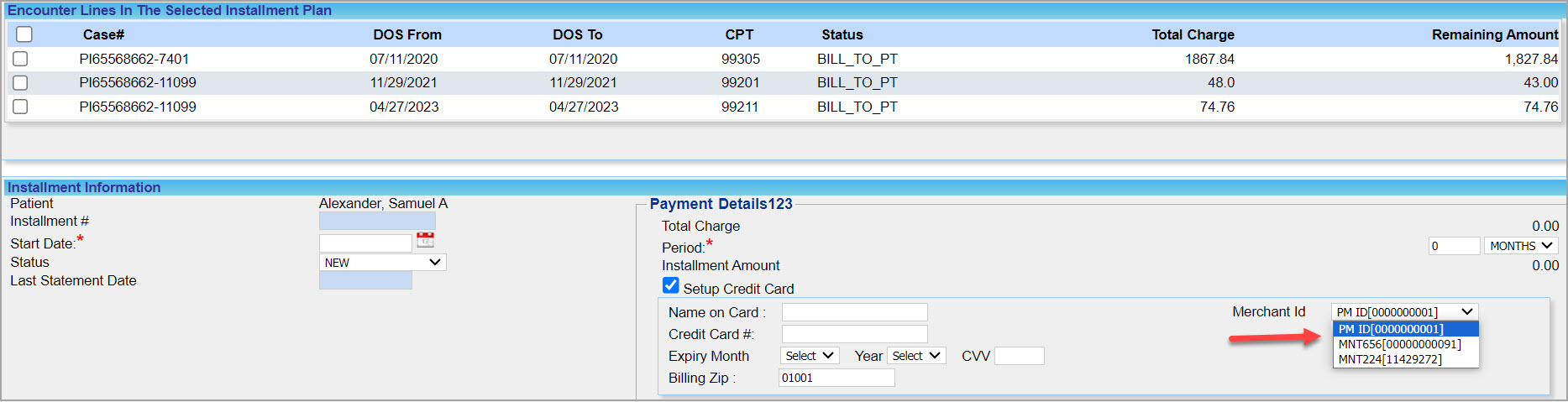
B. In Installment screen, all available Merchant IDs will be available in the drop-down for the user to choose from.
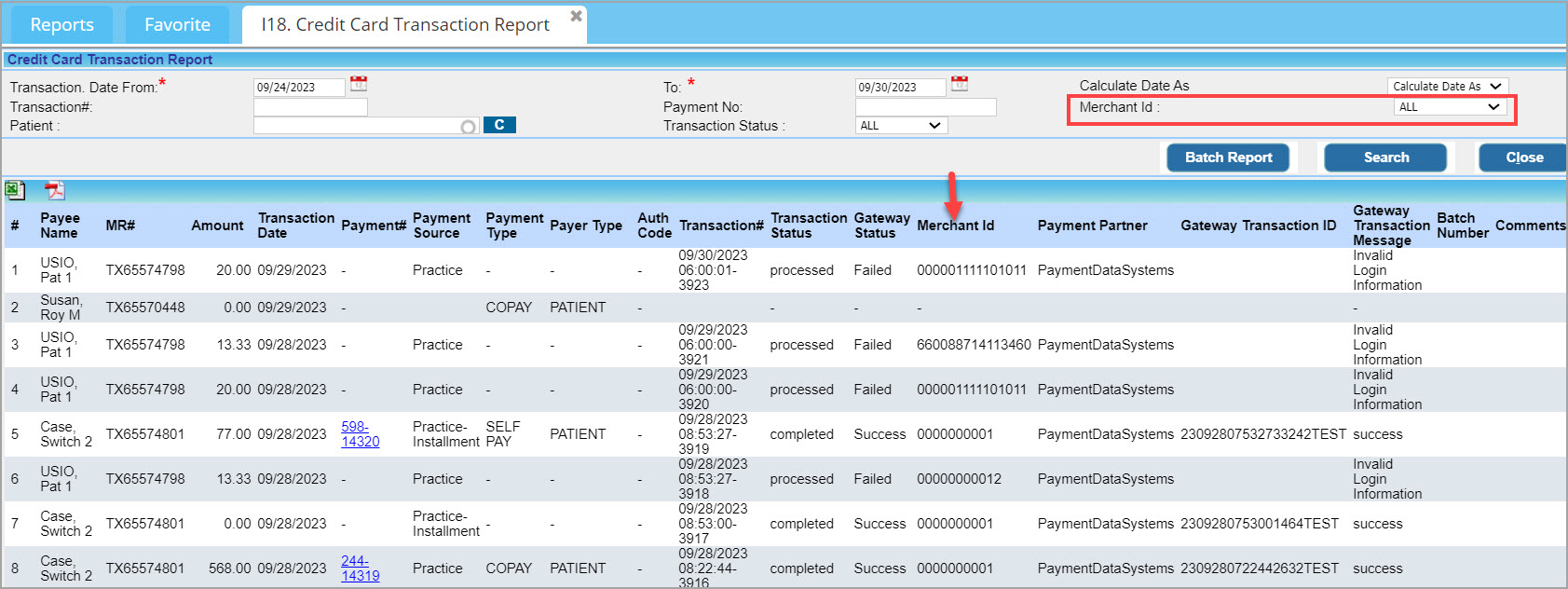
C. I18 report now has a new filter named Merchant ID; users can search transactions using these IDs. Additionally, a new column has been added to the report to indicate the Merchant ID, which will be displayed in all I18 report outputs.
1.2 Workqueue
1.2.1 RCM Workflow configuration Implemented in Workqueue
Our recently introduced RCM workflow configuration has been extended to WorkQueue module as well. Henceforth, all items in the Workqueue will be available to the logged-in user according to the rules set from the RCM configuration Screen.
The rule setting for WorkQueue is done from the RCM workflow configuration screen. Go to Billing options -> Setup RCM Workflow ->Configure to access the set up screen.
The left pane of WorkQueue will show the active Rules set from the RCM configuration and the KPIs selected form the H2. Operational Drilldown dashboard will be displayed under the rules if the lines satisfy the rule condition. This way claims can get listed in more than one rule on the left.
1.2.2 A new category Added for Underpayments
WorkQueue will henceforth have a section for Underpayments (Payments which are less than the fee schedules). The lines will be displayed even if they are closed.
1.2.3 Collections Manager Activity Tracking From WorkQueue
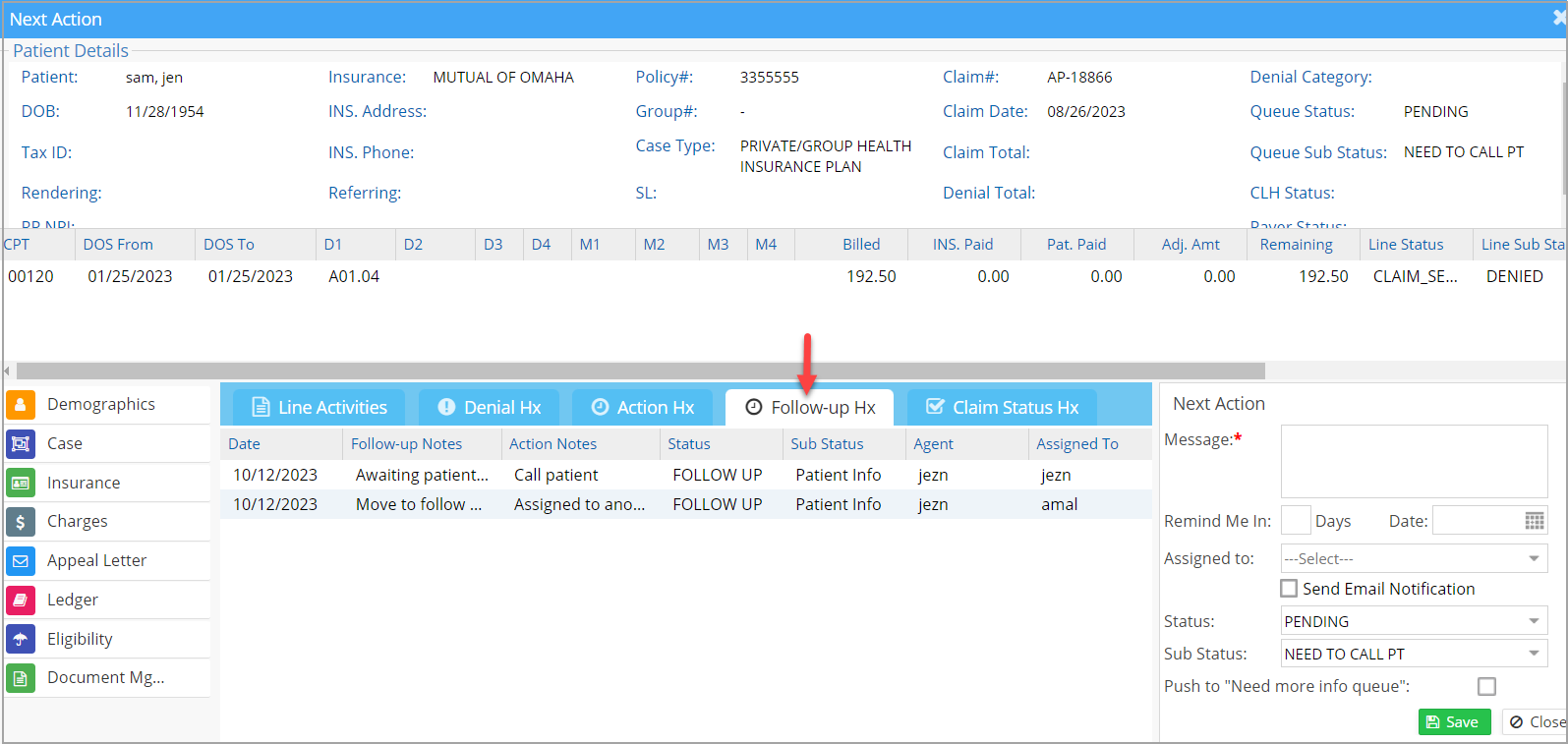
Users working on a claim in Work Queue can instantly view the claim’s Collection Manager activities without moving out from Work Queue. For this, Follow-up History tab inside Denials Workshop of Collections Manager is brought into Workqueue and placed near Action Hx tab;
1.2.4 CSV Output for Workqueue
Workqueue will provide a CSV output option. Image 1.2.4 shows the CSV icon in the Work Queue screen.

Click here to view fields in the WorkQueue CSV.
1.3 Collections Manager
1.3.1 Category Listing for the User
When the Collections Manager screen opens up, the categories for the logged in user will be auto-populated in the Category drop-down without the user having to hit the ‘Search’.
1.3.2 Collection Sub Status Grouping by Status
Henceforth, each collection sub status can be linked to one or more collection statuses. Selecting a collection status in the Collection Manager screen will bring up a specific set of sub statuses preset from the Billing Lookups.
To link collection status and sub status, go to Advanced setup-> All Lookups->Billing look ups. Select the collection sub status on the left pane. For each sub status, choose one or more collection statuses from the newly created Collection Status column which is a multi-select combo box (see Image 1.3.2).

1.3.3 Track Work Queue Activities from within Collections Manager
Users inside the Collection Manager module can instantly view Work Queue activities of the claims; the Action History tab of Workqueue is put into in the Collection Manager Denials Workshop, placed beside the Follow-up Hx tab.

1.4 Single Sign-on Systems
A few enhancements have been made to the group login page.
A. Removed check boxes beside the account names; instead account names will be clickable text.
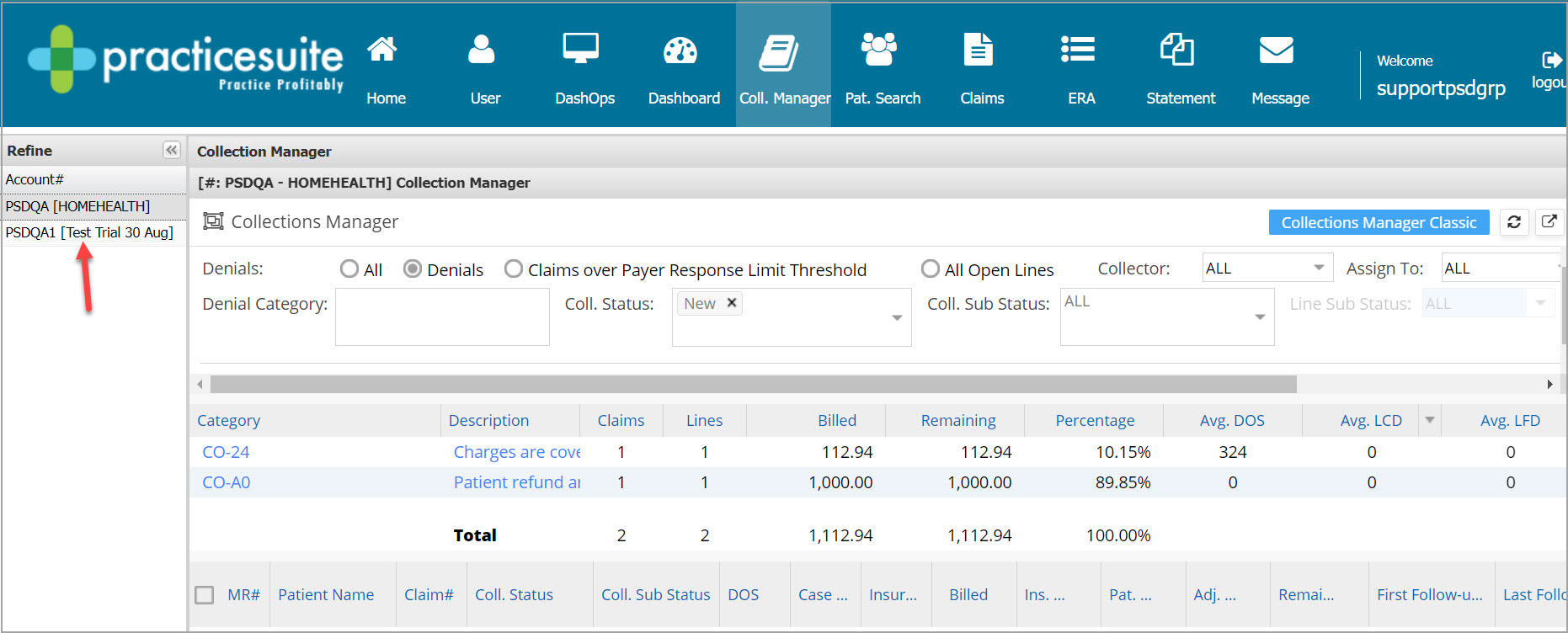
B. Size of email ID field has been increased from 40 to 100.
C. The following screens have been updated to new UI.
Claims Workbench, Collections manager, ERA screen, Statement screen and Messages screen.

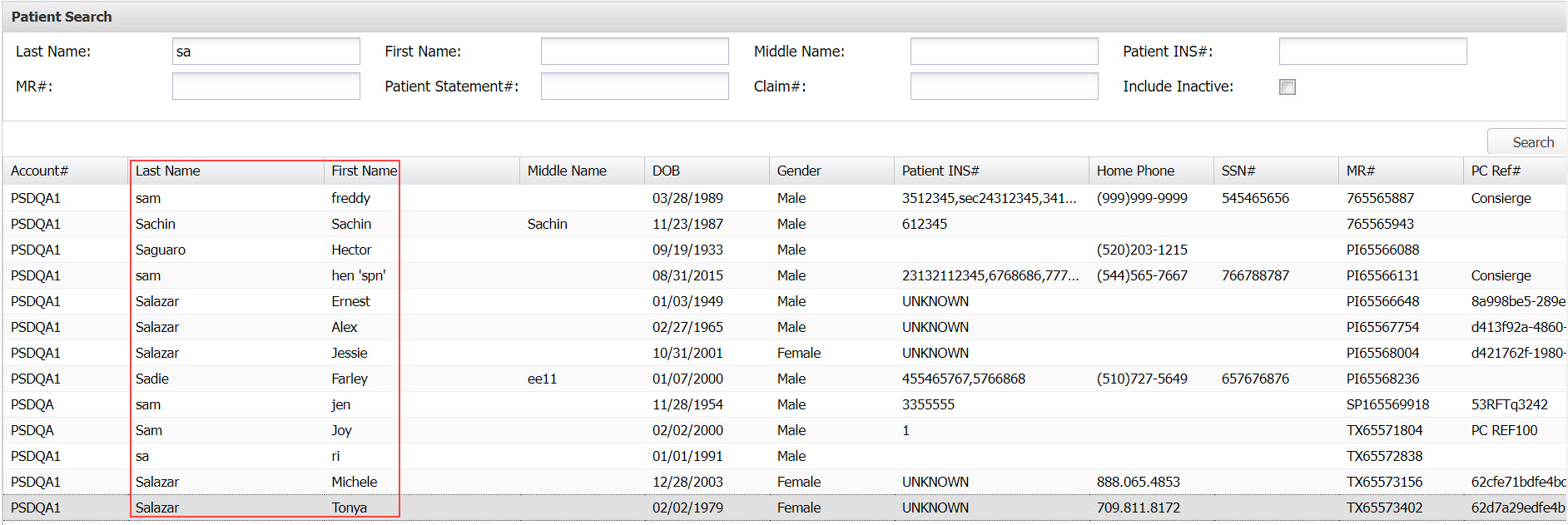
D. Patient Names inside the patient listing in the Pat. Search screen will henceforth be hyperlinks which will take the user to the patient’s demographics page.
1.5 Payment Reversal
There is a small change in the functionality of payment reversals. Bulk reversals and full refunds will clear off the copay, co-ins and deductible completely. In case of partial refunds, Co-pay, Co-ins and Deductible of the charge will remain in the charge.
1.6 ERA
1.6.1 Warning for Duplicate ERAs
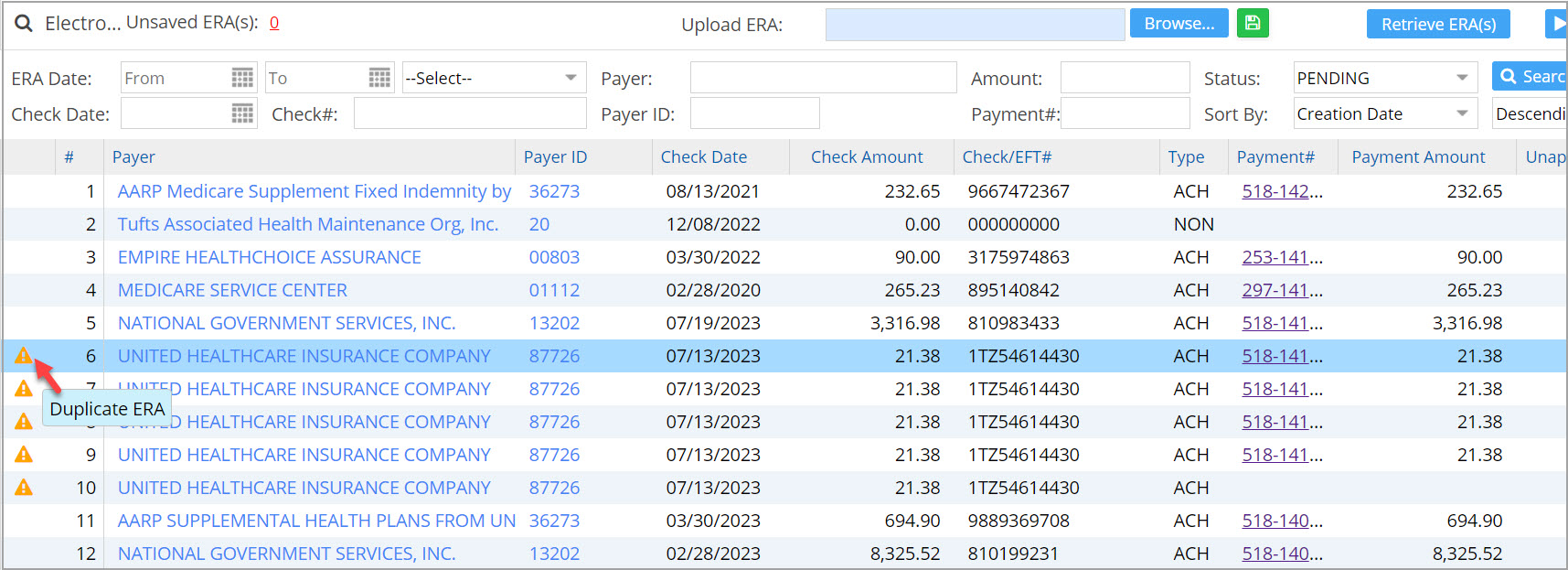
A new warning message will appear in the ERA Listing screen if another ERA with the same check# and charge amount exists in the system. This warning will trigger regardless of whether the payment has been processed or not.
1.6.2 Home Screen to Show ERA Creation Date
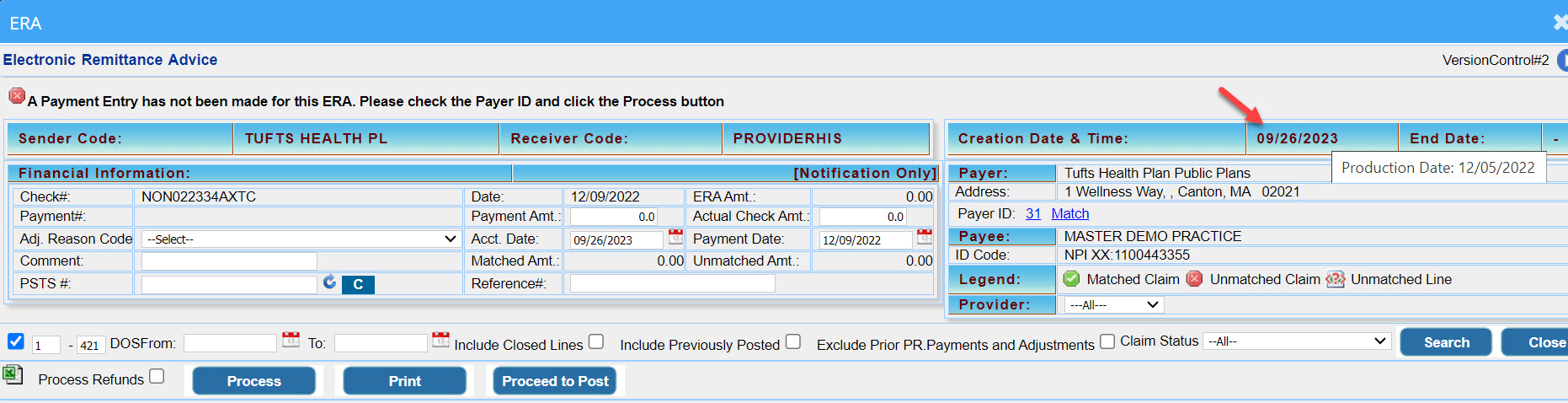
Creation Date and Time field on the ERA Home screen will now show the creation date of ERA and the production date will be shown on mouse hover.
1.7 New Time Zone Introduced
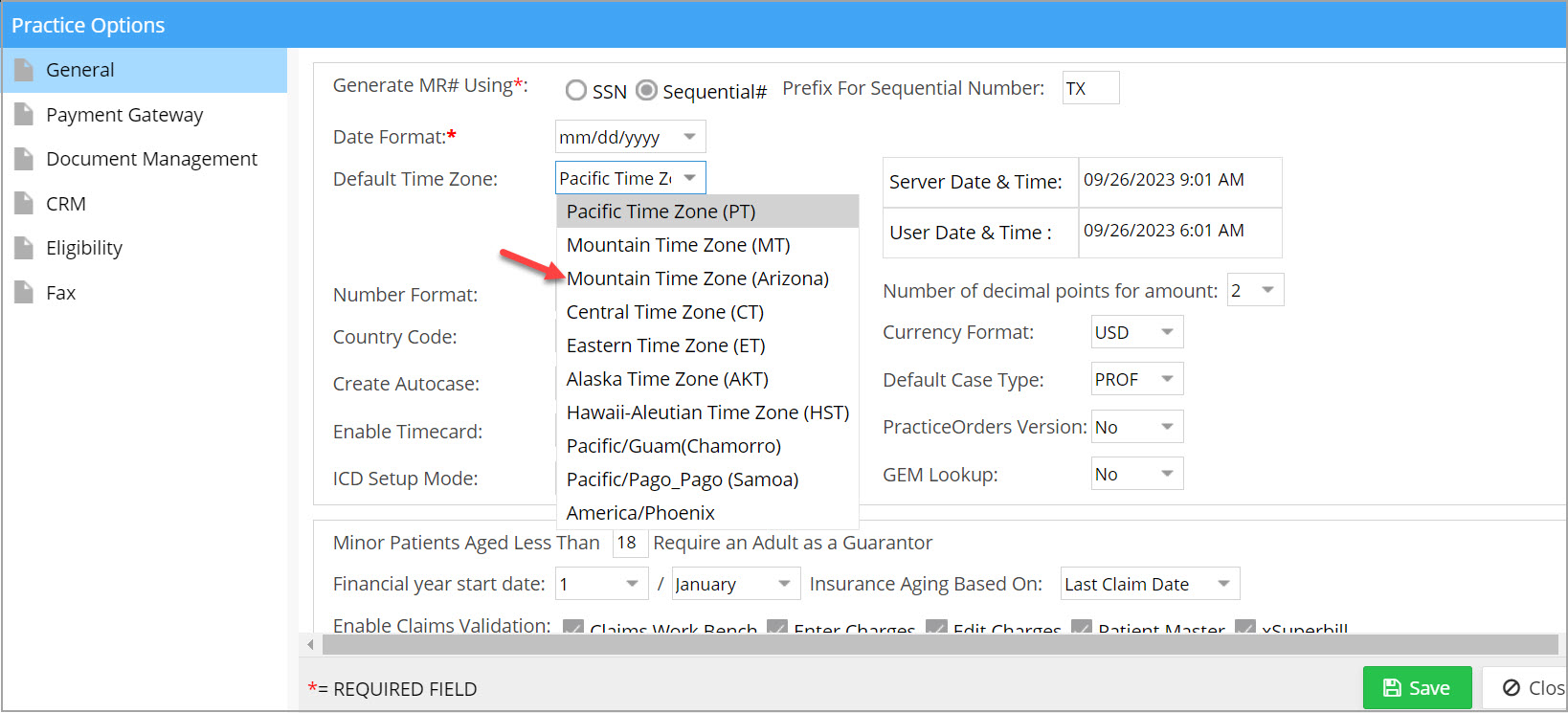
A new time zone has been introduced by the name Mountain Time Zone (Arizona); this is not adjusted for daylight saving time. (Mountain Time Zone (MT) which is already in place is adjusted for DST.)
1.8 XSuperbill – Charges in BILL-TO-SE bucket Made Editable
Henceforth, in the XSuperbill screen, when a charge is in the BILL-TO-SE or REBILL-TO-SE bucket, it will remain editable as in the related PR buckets.
1.9 Document Manager- Tooltip for Doc Folder Listing
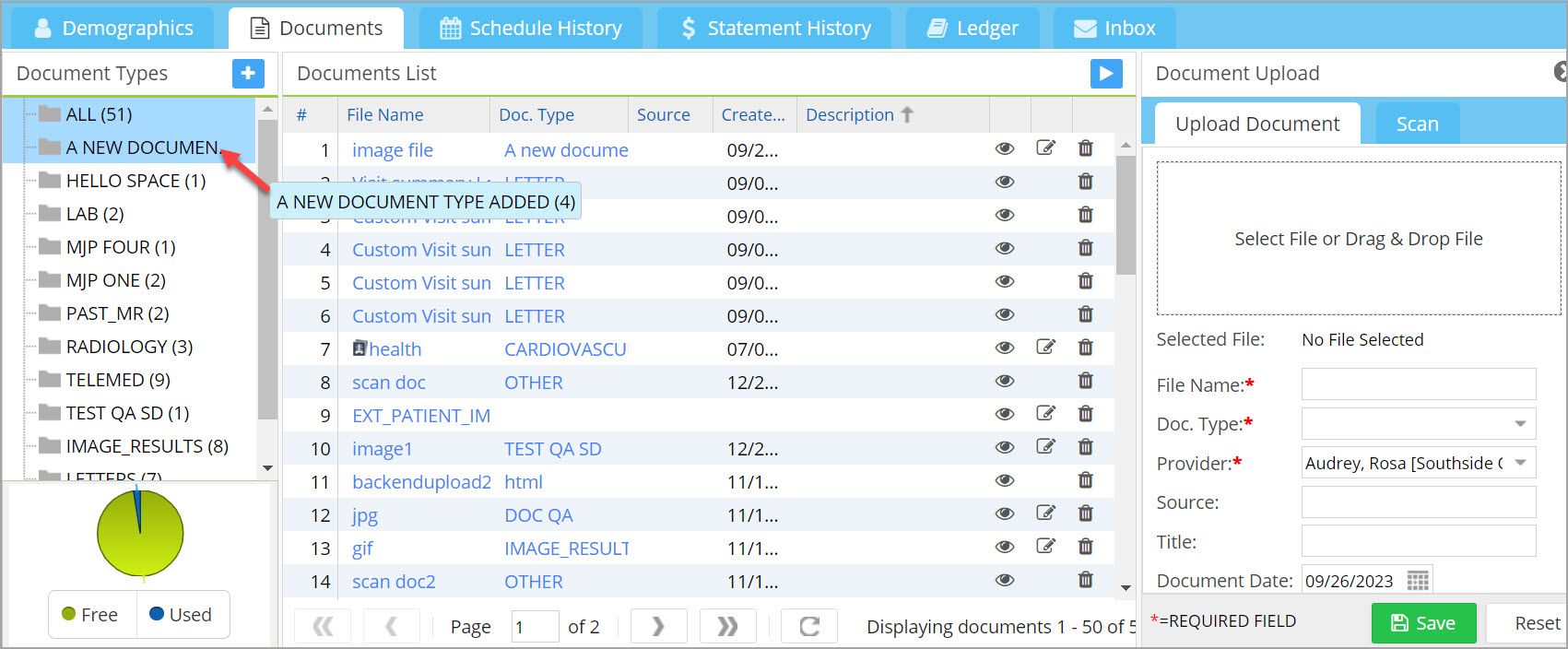
Document folder names displayed on the left pane of the Doc. Manager screen will show the full folder name and count on mouse-hover which is beneficial when the folder name is lengthier than the pane width.
1.10 Patient Statement- VIN # relabeled in Pay Slips
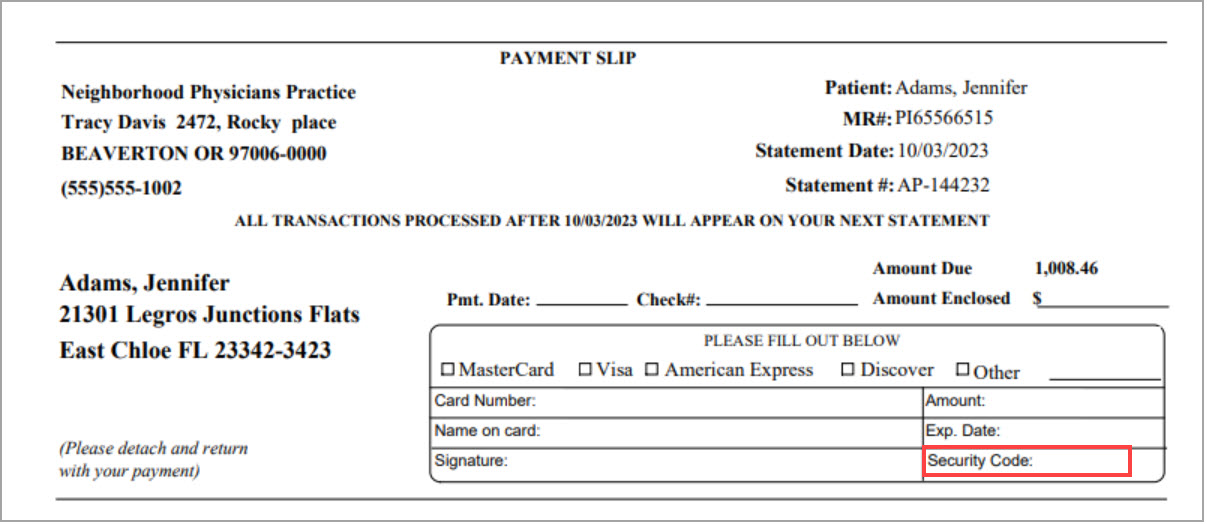
The VIN # on patient statement pay slips is now relabeled as Security Code. Note that this change is applicable to only those accounts which presently do not have any customizations with regard to patient statements.
1.11 Fax Setup- Audit Log Created
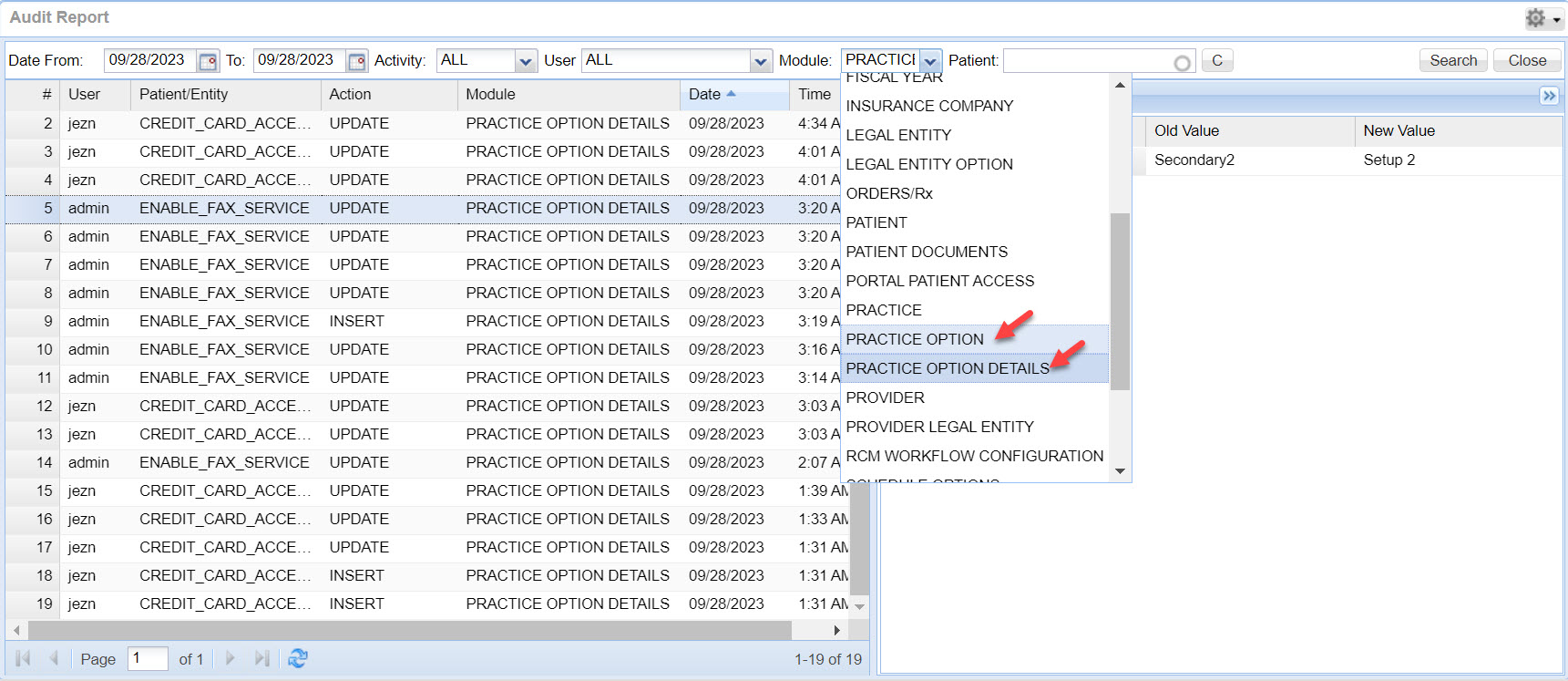
Audit trail created for all the latest fax setup activities. Two modules PRACTICE OPTION and PRACTICE OPTION DETAILS created in audit log will track all fax set up activities done from the Practice Options page.
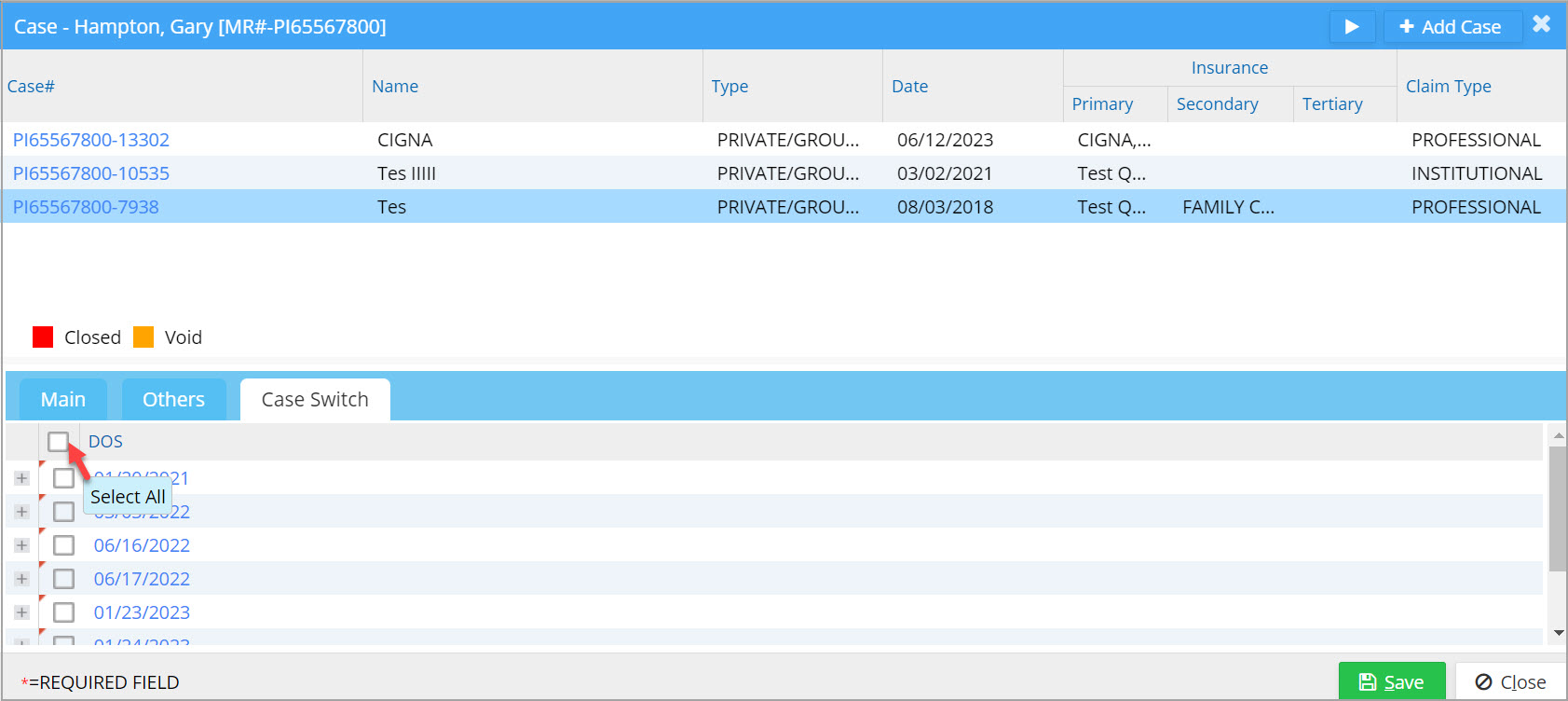
1.12 Case Switch Screen – Selecting all DOSs in one go
While switching cases, users can now select all the DOSs instantly using the newly provided ‘Select All’ check box.
Part – 2 Reports
2.1 Offline Reporting In G2. Denial Report
G2. Denial report is now equipped with offline reporting feature which can aid users while generating bulk data spanning several months.
2.2 I8. Summary Encounter Line Activities Report
2.2.1 Authorization Info included
Authorization number (Auth#) for an encounter will be displayed as the final column in the Detailed CSV and offline views of I8 report. If no authorization is linked to the encounter’s case, this field will be blank.
2.2.2 Closing Line Status to show up in I8
Line status of the encounter line at the time of closing the accounting period will be displayed in the Detailed CSV and offline outputs of I8 report. If the accounting period is not yet closed, the current line status will appear in the field.

Part – 3 Resolved Items
3.1 Tertiary EDI Claims
In certain scenarios, tertiary EDI claims were found being rejected. This is now fixed and tertiary EDI rejections will not recur.
3.2 XSuperbill – Processing of Charges with Warnings
In the XSuperbill screen, users were unable to process charges that had warnings. This is now resolved.
3.3 ERA
3.3.1 Issue while Processing Secondary Insurance Prior to Primary
While processing secondary insurance before primary, system marked all encounters of the patient on the same DOS as in the claim with ‘Claim sent to SE status’. This is now corrected.
3.3.2 Posting Denials for a Patient in the Same DOS
While Posting CO-24 and CO-B13 denial codes on two separate procedure codes for the same patient on the same DOS, CO-B13 was found being posted twice. This has been corrected and now CO-24 and CO-B13 postings are reflected accurately.
3.4 Collections Manager- Date/Time sort Rectified
Flawed Date/Time filter sorting in the Denials Workshop screen of Collections Manager is now corrected.
3.5 ‘G2. Denial Report’ – Non-functional Filters Corrected
G2 report erred out while using certain filters such as Exclude WO_CLOSE, Exclude PAID_CLOSE and Exclude HOLD filters were applied. This has been addressed.
3.6 Scheduler- Previous Payments Unavailable
For patient names having apostrophes, ‘View Previous Payments’ inside Scheduler yielded a blank screen. This is now corrected and the link is working fine.
3.7 Document Manager- Count Mismatch
The document pane on the left and the listing in the center of the Document Manager screen showed a mismatch in document count when the count was more than 20. This issue is resolved.
3.8 Mismatch in Aging amounts in the Home screen Widget and D3 Report Corrected
Aging amounts in the home page was wrongly computed due to which a mismatch occurred between the aging amounts in the home page and D3 report. This is now fixed.