Practice Management System
Release Note
Product Release Version: v21.1.0
Product Release Date: May 2023
© 2023 Practice Management System
Disclaimer: All rights are reserved. No part of this work may be reproduced in any form or by any means through graphic, electronic, or mechanical, including photocopy, recording, or information storage and retrieval systems – without written permission of the publisher.
The products that are referred to in this document may be either trademarks and/or registered trademarks of the respective owners. The publisher and the author make no claim to these trademarks.
While every precaution has been taken in the preparation of this document, the publisher and the author assume no responsibility for errors or omissions, or for damages resulting from the use of information contained in this document or from the use of programs and source code that may accompany it. In no event shall the publisher and the author be liable for any loss of profit or any other commercial damage caused or alleged to have been caused directly or indirectly by this document.
Printed May 2023 at PracticeSuite, Inc.3206 Cove Bend Dr Suite A Tampa FL 33613
Part – 1 Product Enhancements
1.1 Payment Master- Statement Autopost Facility
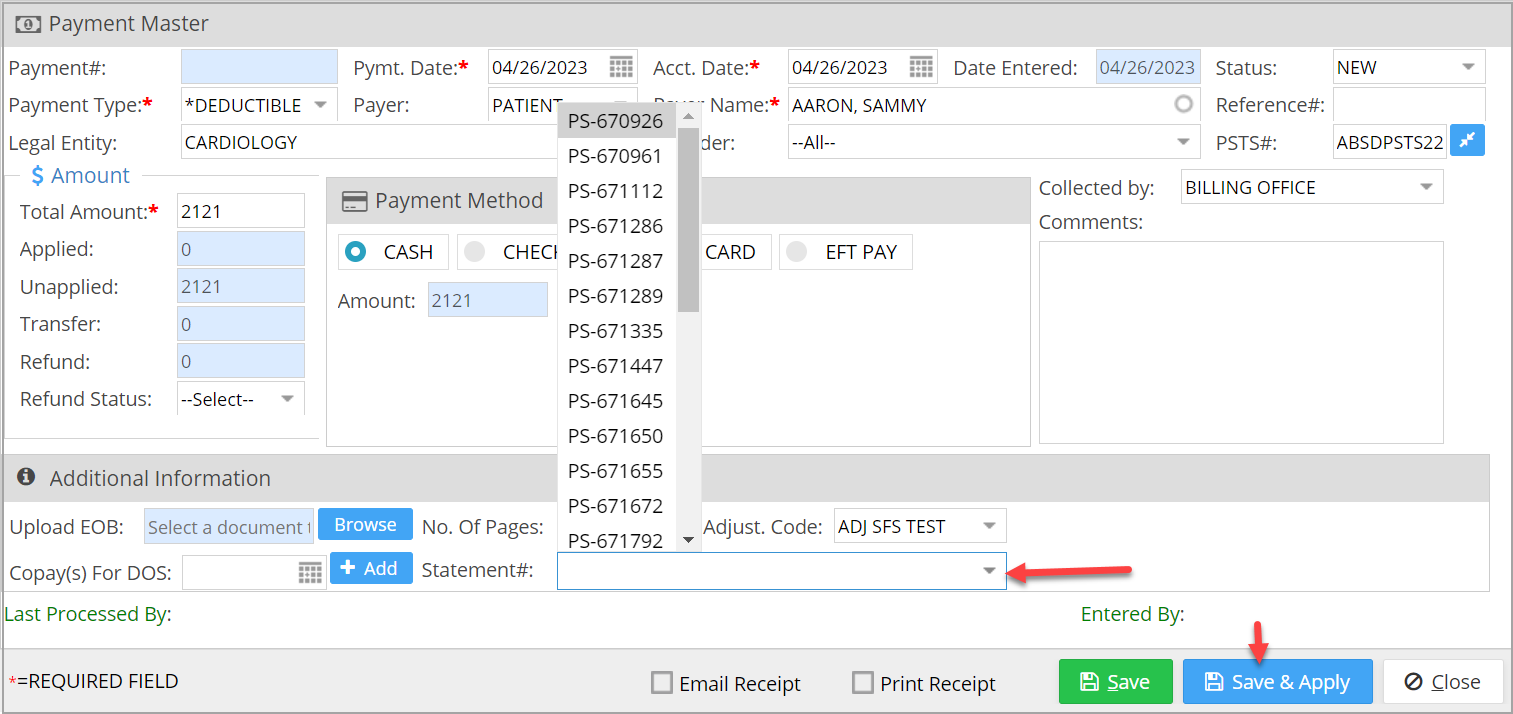
When adding patient payments, users can select the statement numbers to have them automatically applied to the date of services that pertain to the statements.
Payment master has a new field Statement# which is a multi-select drop-down (Image 1.1). Click on it to view all the statement# for the selected patient. Users can add/remove statements to the list depending on the payment status (see Table 2). The ‘Save and Apply’ action will auto-post the payment to the DOS on the selected statements.
| Patient Payment Status | Add Statement | Remove Statements |
| Fully Applied | No | No |
| Partially Applied | Yes | No |
| New | Yes | Yes |
Table 2
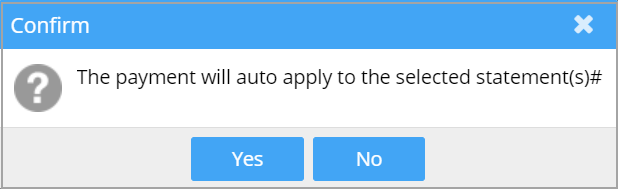
The system will prompt for a confirmation before proceeding.
1.2 eFax -Newly Added Features
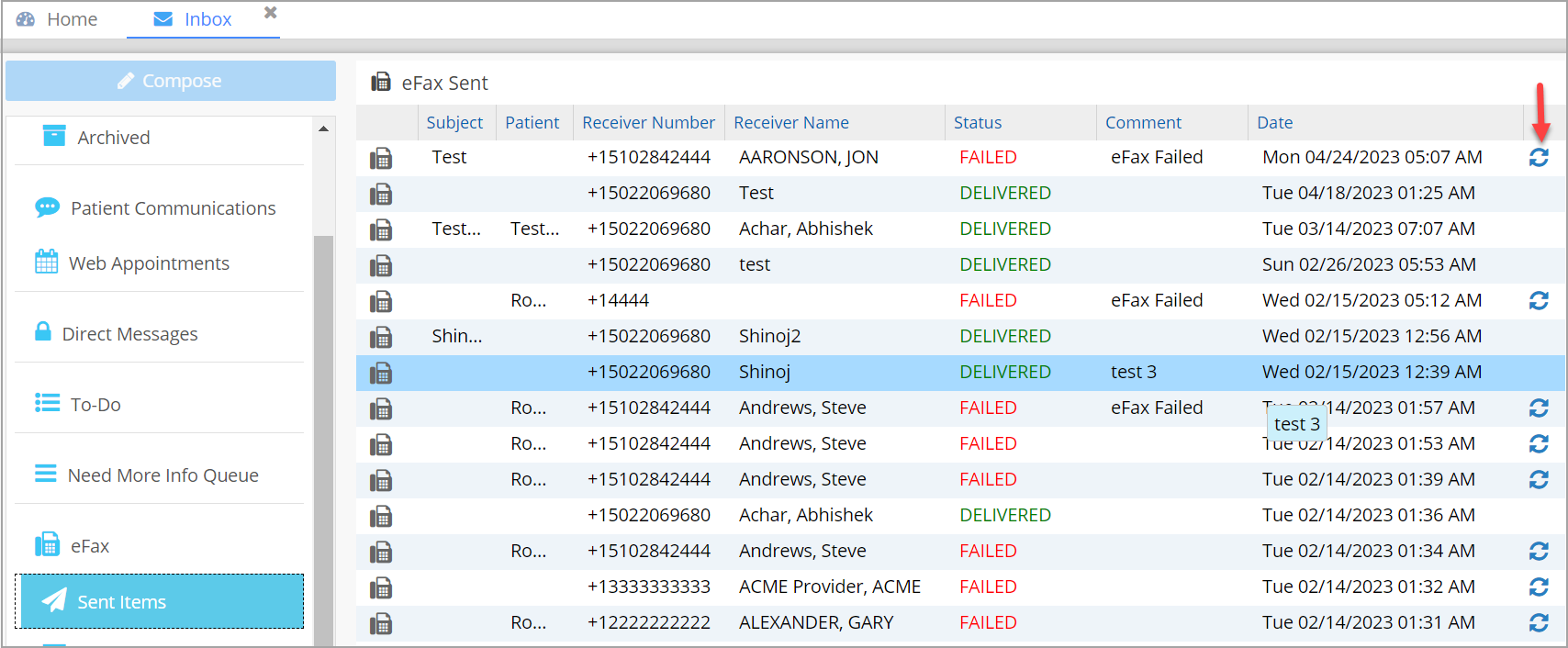
A. In order to track eFax activities in detail, new statuses have been introduced for fax messages. Henceforth, an eFax message will be in any one of the statuses defined in Table 1. Statuses will be colored differently. The newly defined statuses will reflect in the E11. Fax Transaction Report as well.
| eFax Status | Description |
| Initiated | This is the initial status of a message |
| Queued | On click of Send, the message will be queued |
| Failed | This status occurs when the message sending fails |
| Requeued | If the Resend option is given, the message will be requeued |
| Delivered | Finally, this status appears when the efax message is successfully delivered |
Table 1
B. For failed messages, users can easily resend by clicking on the option  (refer to Image 1.2).
1.3 Audit Trail for Scheduler
Audit of scheduling actions has been enabled. The audit log can be either be accessed from the Schedule History tab in Patient Demographics page or from the Scheduler page. Image 1.3a and Image 1.3b show the exact places in Scheduler and Demographics to access the log.


1.4 Eligibility Check for Claims
In future, regardless of the clearinghouse, claims will be placed on HOLD status if the eligibility check is unsuccessful. Previously, this feature was implemented only for Relay Health claims.
1.5 Collection Manager- Follow-up Note made Mandatory
In the Collections Manager page, adding follow-up comments is now required for every save.
1.6 ERA- Claims without Procedure Codes
For ERAs having a mix of claims where few have procedure codes/encounter lines mentioned and the rest have unspecified lines, system will look for open lines in the claims and bring them up for posting. Scenario where all claims in an ERA have unspecified procedure codes has already been handled in one of our previous releases.
1.7 Patient Statement- Void Undelivered e-Statements
If the eStatement generated from the system is not delivered in the patient’s email or SMS, the system will automatically void the generated statement.
1.8 Four New CQMs Added
| Quality ID | Description |
| 145 | Final reports for procedures using fluoroscopy that document radiation exposure indices, or exposure time and number of fluorographic images (if radiation exposure indices are not available) |
| 405 |
Percentage of final reports for abdominal imaging studies for asymptomatic patients aged 18 years and older with one or more of the following noted incidentally with follow-up imaging recommended:
|
| 406 | Percentage of final reports for computed tomography (CT), CT angiography (CTA) or magnetic resonance imaging (MRI) or magnetic resonance angiogram (MRA) studies of the chest or neck or ultrasound of the neck for patients aged 18 years and older with no known thyroid disease with a thyroid nodule < 1.0 cm noted incidentally with follow-up imaging recommended |
| 436 |
Percentage of final reports for patients aged 18 years and older undergoing CT with documentation that one or more of the following dose reduction techniques were used:
|
1.9 XSuperbill- ‘Account type’ filter Added
A new drop-down filter added for ‘Account Type’.

1.10 Provider Master- Provider Name field Size Increased
Field sizes for Last name, First name and Middle name of the provider in Provider Master has been increased to 60, 35 and 30 respectively.
1.11 Patient KIOSK- ‘Save’ Button Renamed
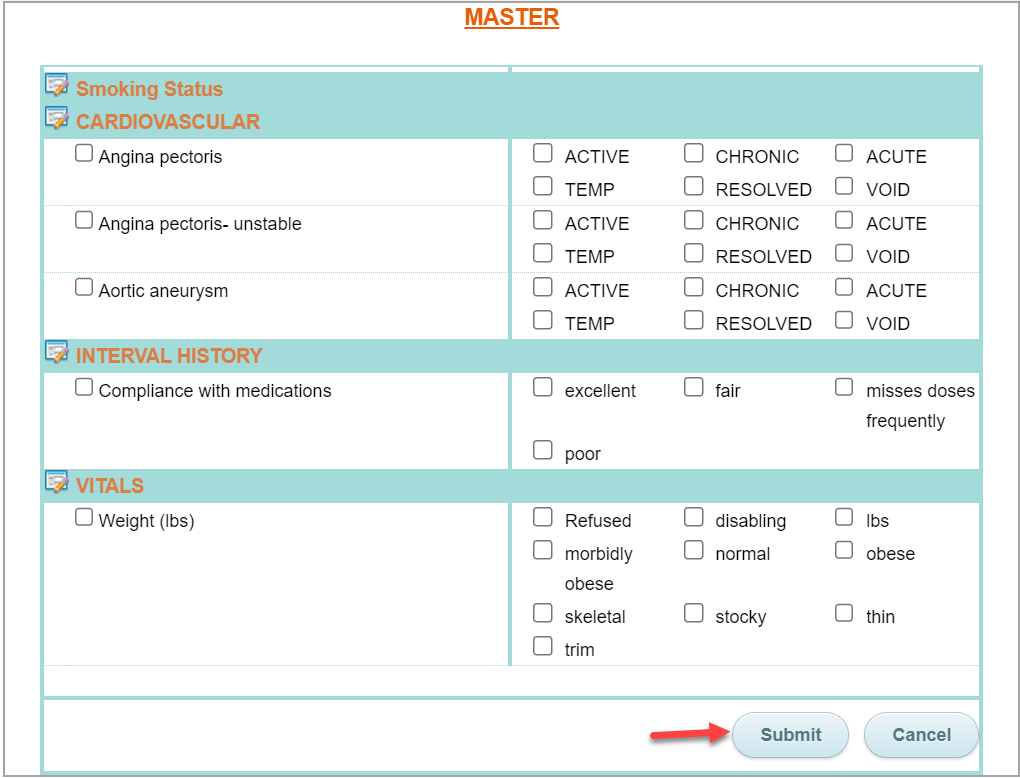
The “Save” button in the ‘Patient Forms’ module which the users must click after completing out a form in order to submit it, has been renamed to “Submit” (refer to Image 1.11).
1.12 Claims Workbench- A New Info Icon Added
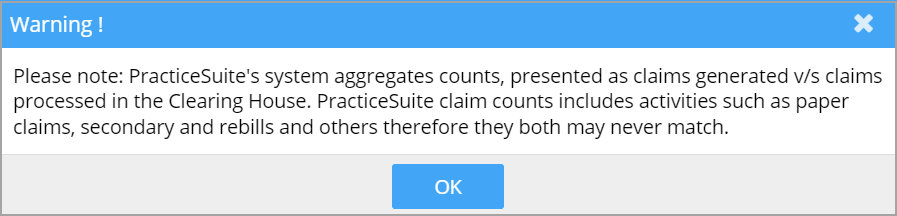
The left pane on the Claims Workbench Dashboard now has a new info icon (see Image 1.12a) which when clicked will show a message as in Image 1.12b.

Part – 2 Reports
2.1 ‘J30. Key Financial Summary Metrics’
Formulae used in the J30 report for tabulating a couple of aging buckets has been corrected and the report now matches the D15 report. For 60-day and 90-day buckets, we now calculate A/R>60 and A/R>90.
2.2 ‘A9. Appointment Reminder Report’
A new filter added for Legal Entity in the A9 report.

2.3 ‘E9. Interface Log Report’- Patient Name for CCDA Inbound
Patient name will be also be shown for CCDA inbound transactions in the E9 report.

2.4 ‘I10. Procedure Productivity by Insurance Report’
I10 report will have DOS as the search parameter.

2.5 ‘D2. Detailed Insurance Aging Report’
2.5.1 New Search Filter Added
D2 report now has another search filter A/R Methods — a drop-down having values akin to Insurance Master. It is also made available as a column in the report’s CSV and offline outputs.

2.5.2 More fields added to CSV output
The CSV output of D2 report has more fields added.
Fields: Charge per unit, Co-Pay, Co-insurance, Deductible.
2.6 G5 Reports and Collection Manager Output Files- More fields added
The “G5. Collector Worklist Report” and Collections Manager outputs now include the following fields.
Fields: Charge per unit, Co-Pay, Co-insurance, Deductible.
These fields are added to the following outputs: the Excel and CSV outputs of Collection Manager, and the Offline report of G5.
2.7 ‘I11. Adjustment Report’
Added a new column for Expected Amount in the Adjustment posting Activity Excel output of I11 report.

2.8 Actual expected Amount Added to I8 and D2 Report
Actual Expected Amount added to ‘I8. Summary Encounter Line Activities Report’ and ‘D2. Detailed Insurance Aging Report’.
Actual Expected Amt= Actual Paid Amt.(including Co-pay, Co-ins, Deductible)
Part – 3 Resolved Items
3.1 Message Icon in Home Screen
If there are no unread messages for the user, the Messages icon in the top-right corner of the Home screen will not display the orange indicator.
3.2 Patient Ledger Screen Resolution Corrected
The On-Account balance showing at the bottom most line of the Patient Ledger screen in Demographics page was out of sight in some specific resolutions. This has been corrected and the final line of the ledger is now in sight in all systems.
3.3 XSuperbill- Data Load on Case Switch
In the event of a case switch in the XSuperbill screen, the Case type and payer details related to the new case were not immediately loaded onto the screen. This is now corrected and the updated case information immediately appears on screen.
3.4 Issue of Payer Claim# Getting Overridden
Payer claim# received from the clearinghouse was overridden in a few rare scenarios when response from the clearinghouse reached us after the payer response. This is now addressed.
3.5 Issue in Scheduler Screen Resolved
While using the Appointment search option at the  menu on the right part of scheduler screen, users were not able to save or close the schedule screen when they select an appointment from the listing. This is now corrected.