Practice Management System
Release Note
Product Release Version: v21.0.0
Product Release Date: March 2023
© 2023 Practice Management System
Disclaimer: All rights are reserved. No part of this work may be reproduced in any form or by any means through graphic, electronic, or mechanical, including photocopy, recording, or information storage and retrieval systems – without written permission of the publisher.
The products that are referred to in this document may be either trademarks and/or registered trademarks of the respective owners. The publisher and the author make no claim to these trademarks.
While every precaution has been taken in the preparation of this document, the publisher and the author assume no responsibility for errors or omissions, or for damages resulting from the use of information contained in this document or from the use of programs and source code that may accompany it. In no event shall the publisher and the author be liable for any loss of profit or any other commercial damage caused or alleged to have been caused directly or indirectly by this document.
Printed Mar 2023 at PracticeSuite, Inc.3206 Cove Bend Dr Suite A Tampa FL 33613
Part – 1 Product Enhancements
1.1 ERA- Enhanced Auto Payer Creation Functionality
For the secondary (cob) auto-payer creation from the ERA, practices can opt to always have the payer of their choice added as the secondary insurance instead of continually getting added from the cob info in the ERA. When enabled the cob info in the ERA will get overridden and the selected payer will be used for the secondary and added to the patient’s demographics.
For this, the “Billing Options” page has a new field named Default COB Payer Name beside the field named – “Auto Create COB payer from ERA”. The new field has the pre-set value “Default from ERA”. If this default value is retained in the field, the ERA auto-payer creation will work as normal, adding the payer from the cob info. Alternatively, if a payer is selected in the Default COB Payer Name when the ERA processing occurs and if a secondary payer is not present in the patient’s demographics, the selected payer is added as the secondary for the patient.

1.2 Mass Write-Off Screen Changes
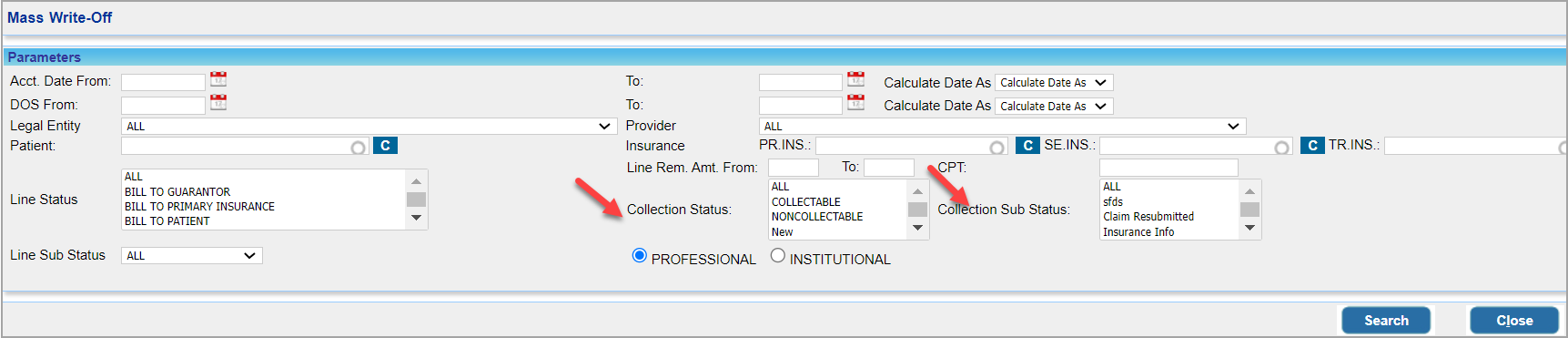
Collection Status and Collection Sub Status are added as multi-select filters to the Mass Write-Off screen. Additionally, the existing procedure code filter has been upgraded to search by both procedure codes and modifiers.
1.3 XSuperbill – Change in Warning Message Context
The warning message that is flagged for duplicate charges will get displayed henceforth only if the procedure codes in both encounters are exactly the same. A patient visiting the same provider within the practice where the codes are different will no longer be flagged as a duplicate.
1.4 Audit Trail for LE Provider Assignment
The Audit Viewer will hereafter capture both the assignment and de-assignment of providers from the legal entity.
2. Reports
2.1 ‘J6. Charges/Payments Reconciliation Report’
A new column is added to the “Charges and Unposted Charges” tab of the J6 report output to display the date of accident (DOA) of the patient.
2.2 ‘G2. Denial Report’- New Fields Added
| Field | Description |
| D1, D2, D3, D4 | Diagnosis pointers. |
| Denial Date | Check date of the remit that has the denial. |
| POS | Place of Service. |
| Previous Denial Date | For claims that are denied more than once. |
| ICN# | ICN# of the previous claim will appear if the claim is denied more than once. |
| Check# | Check# |
2.3 ‘C2. Generate patient Statement(s) Report’
Added new columns to CSV and excel outputs of the C2 report.
| CSV | Patient DOB, Accession# |
| Excel | Guarantor Address |
2.4 ‘G4. Claims Line Level Report’
Added columns to display “Payment#” and “Last Payment Date” related to a claim.
2.5 Supervising Provider added to I8 and I6 report
Column added in ‘I8. Summary Encounter line Activities Report’ and ‘I6. Posting Detail Report’ to show the supervising provider’s name.
2.6 ‘I8. Summary Encounter Line Activities Report’
Added a column in the detailed CSV to show the allowed amount. If no postings, the allowed amount will be zero. If payment is posted, the following is how the actual allowed amount is shown.
Allowed Amount= Allowed Amount Posted/No. of Units
2.7 ‘E9. Interface Log Report’
E9 report will henceforth capture CCDA outbound transactions, earlier only inbound CCDA transactions were being pulled into the E9 report. A new column ‘Action’ has been added which indicates how the CCDA document was extracted from the system. Please see Image 2.7.
| Action | Description |
| Sent | This is reflected in the ‘Action’ column whenever a chart is saved in CCDA-enabled accounts- the CCDA is sent automatically on saving the chart. |
| Transmitted | This reflects in the Action column when the user clicks the ‘Transmit CCDA’ from any of the screens |
| Downloaded | This reflects in the Action column when the user downloads the CCDA from any of the screens |

3. Resolved Items
3.1 Patient Ledger- Corrected Total Balance Due
The ‘Total Balance Due’ in the patient ledger showed a penny as balance even when all dues were cleared. This is now corrected.
3.2 Fax Document Upload Issue
Documents uploaded for faxing from the documents section were getting cropped at the sides. This issue has been addressed.
3.3 D2 Report- Issue in CSV File Rectified
Resolved the “Last Follow Up Note” issue in ‘D2. Detailed Insurance Aging Report’ where it failed to properly display the data in the report when double quotes were present in the note.
3.4 Payment Refund for Credit Card Payments
On saving a refund done through check for a credit card payment, the credit card# of the original payment got retained on the screen instead of the refund check#. This is now addressed.
3.5 A1. Appointment Schedule Report Excel Output
A1 excel output displayed all records for all providers irrespective of the filter applied in the report. This has been resolved.
3.6 Date Format in the CSV Output of C2 Report Corrected
There was a formatting issue in the date field in the CSV output of C2 report, observed in MAC devices. This is now resolved.
3.7 ‘A2. Appointment Worksheet Report’
Direct Excel output option in A2 report is removed since it is irrelevant there. This option continues to be available in A1 report.