Practice Management System
Release Note
Product Release Version: v20.4.0
Product Release Date: Nov 2022
© 2022 Practice Management System
Disclaimer: All rights are reserved. No part of this work may be reproduced in any form or by any means through graphic, electronic, or mechanical, including photocopy, recording, or information storage and retrieval systems – without written permission of the publisher.
The products that are referred to in this document may be either trademarks and/or registered trademarks of the respective owners. The publisher and the author make no claim to these trademarks.
While every precaution has been taken in the preparation of this document, the publisher and the author assume no responsibility for errors or omissions, or for damages resulting from the use of information contained in this document or from the use of programs and source code that may accompany it. In no event shall the publisher and the author be liable for any loss of profit or any other commercial damage caused or alleged to have been caused directly or indirectly by this document.
Printed Nov 2022 at PracticeSuite, Inc.3206 Cove Bend Dr Suite A Tampa FL 33613
Part – 1 Enhancements
1.1 Scheduler
1.1.1 Appointments in Dual Color
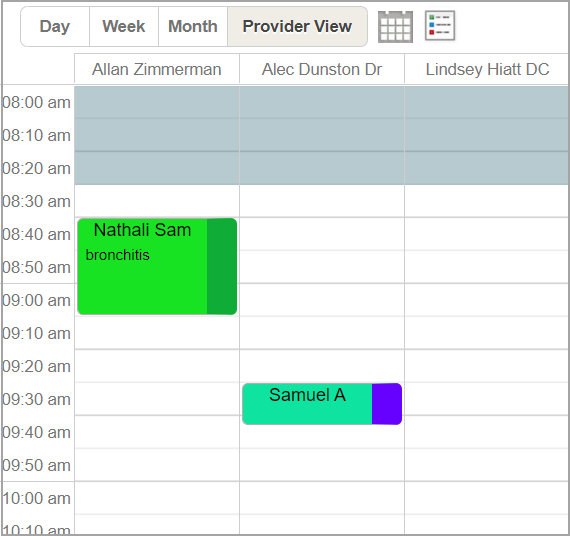
Appointments in the scheduler are now displayed in dual color. Both the colors assigned for the status and type are displayed together within the appointment slot and this helps users easily recognize the status and type without any additional clicks. Please note, the option selected in the scheduler setup (whether status or type as the default option for the color) will be the primary color within the slot and covers the larger land area. Please see Image 1.1.1. If no color is assigned to a type or status, the entire slot will appear in a single color.
1.1.2 Appointment Type Field
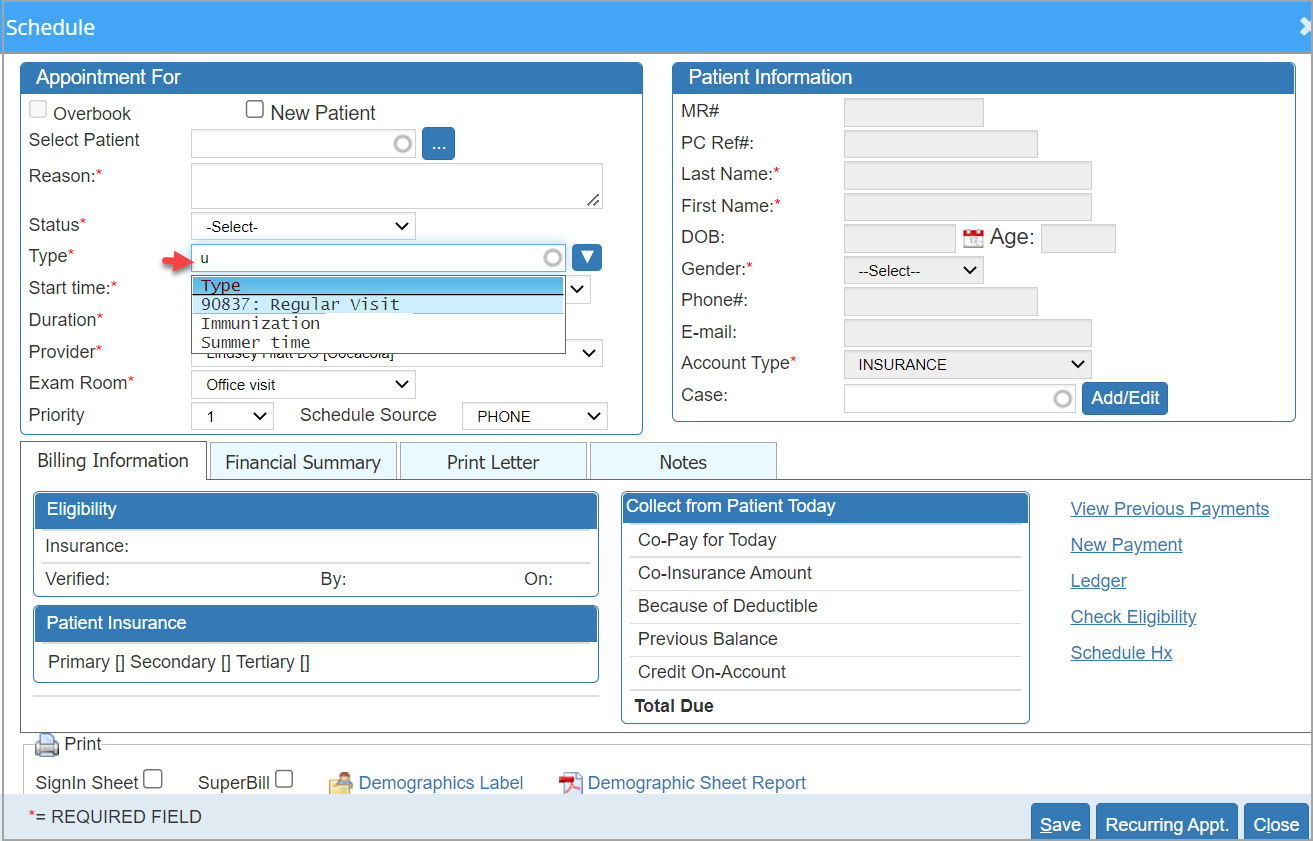
The appointment type field in the scheduler entry screen has been changed to searchable ajax. Users can type the whole or part of a keyword to bring up the results. The down arrow placed towards the right of the field can be used for listing all available options in the field (please see Image 1.1.2).
1.1.3 Patient Alert Indicator
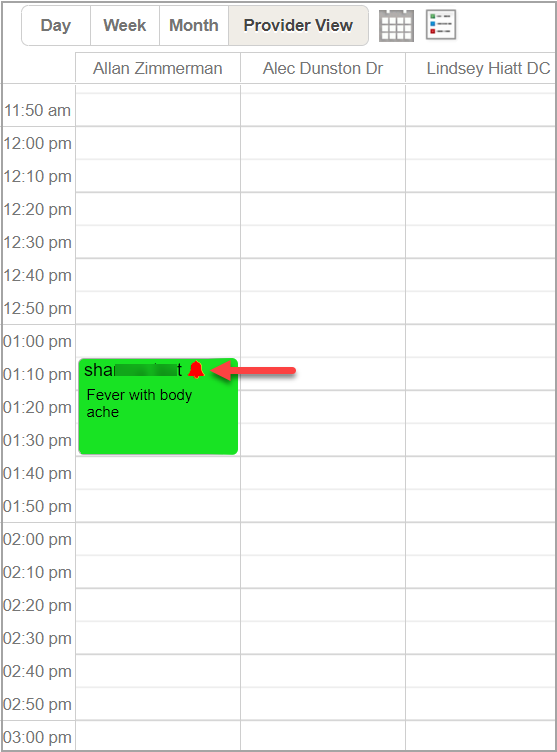
For patients having alerts added in their account, a bell icon will be visible in the information area of the appointment slot (see Image 1.1.3). This is to indicate that the patient has an active alert. Additionally, clicking on the bell icon in the appointment shortcut menu opens the patient alerts screen.
1.1.4 Provider Multiselect Checkbox
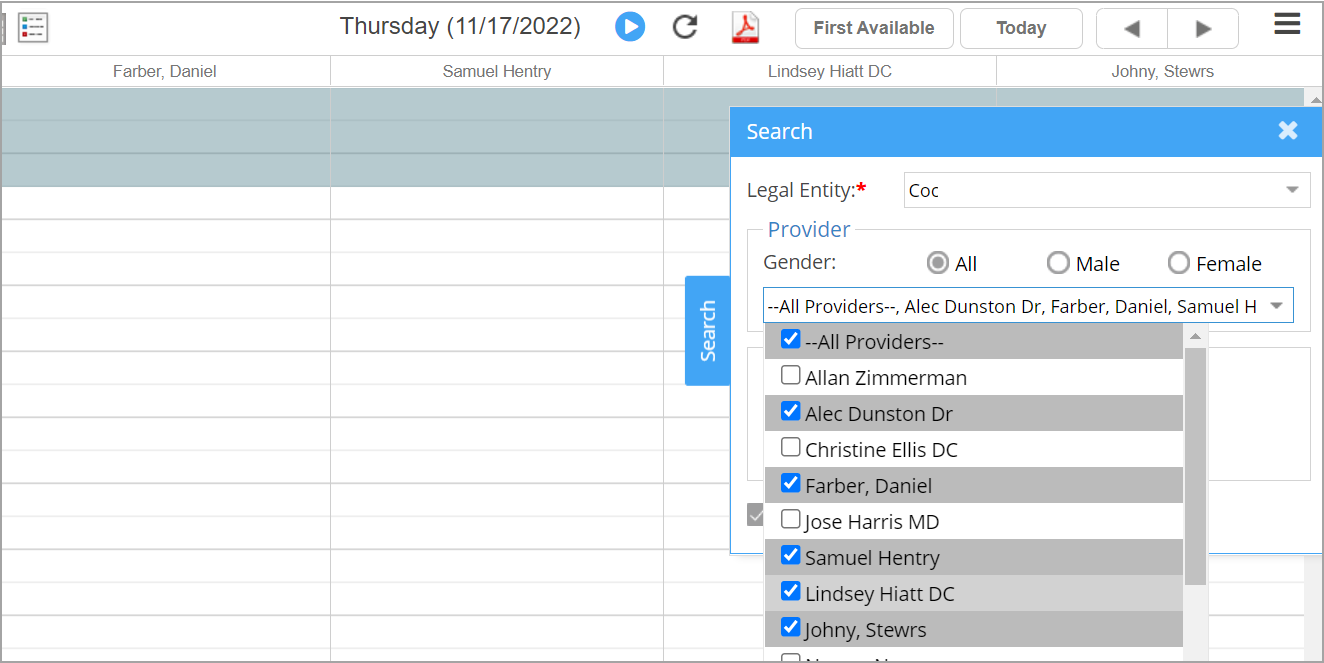
For easier filtering of providers on the scheduler, the provider selection in the Search popup has been made a multi-select checkbox (refer to Image 1.1.4).
1.2 Patient Statements
1.2.1 Excel Export of Patient Listing
On the Patient Statement screen (C2. Generate Patient Statement Report), an excel export option has been made available for users to extract the list of patients and lines present in the current statement list. Additionally, a new column named “Last Statement Date” has been added to the statement listing screen (refer to Image 1.2.1).

1.2.2 Statement DoS to Display Line Level DoS
All statement outputs including the ones sent to the clearinghouses will have the procedure level “From” and “To” date of service instead of the encounter date of service. This applies to CSV, PDF, and any other formats available.
1.3 Quick Help Tooltip for Reports
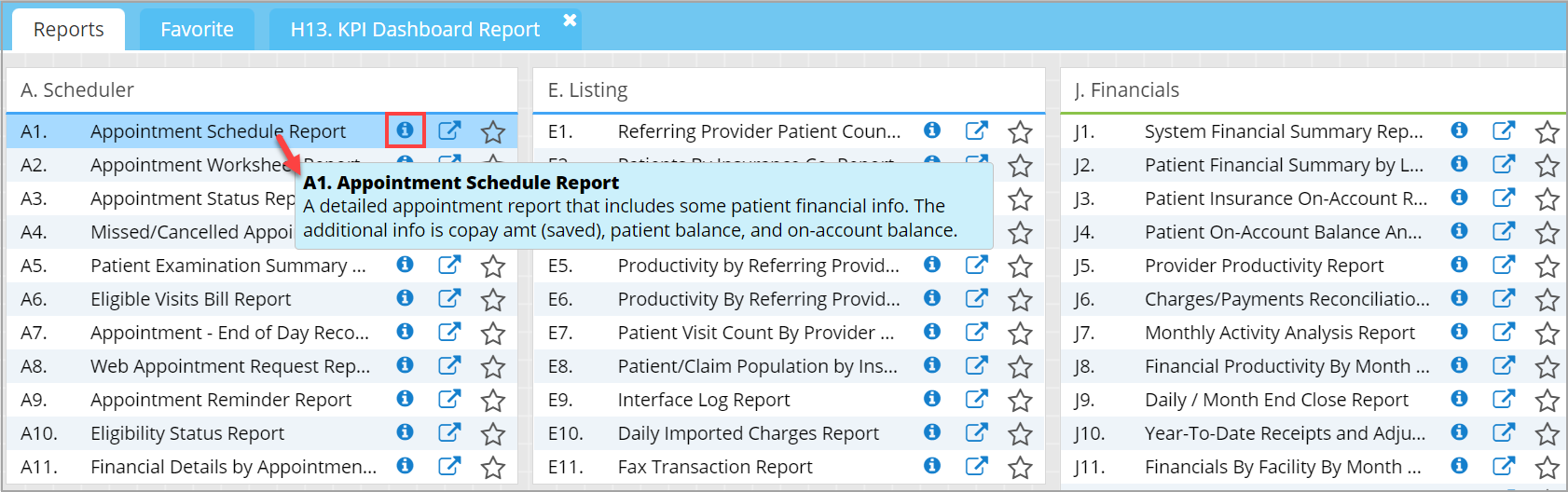
In the Report Central screen, mouse over a report to bring up a quick help tooltip providing a brief description of the report. Additionally, a help icon has been placed next to the report that opens the help academy page for a detailed description (see Image 1.3).
1.4 2023 ICD 10 Codes
The ICD-10 repository has been updated with the 2023 codes. The updated codes are effective from October 1, 2022.
1.5 Case Switch of Patient Lines- Auto Rebill
In the event the case for an encounter is switched from a Cash case to an Insurance type of case, the line(s) in the encounter will automatically be placed in a RE_BILL_TO_PR (rebill to primary) status.
1.6 Collection Manager
1.6.1 Prior Claim Info. to be Shown in Collection Manager
Claims rebilled to the same insurance level and payer will display the previous activity info in the Collection Manager claims listing and show the following info – Sub Status, First Follow-up Date, and Last Follow-up Date. When the payer level changes or when submitted to a new payer, these fields will no longer display the previous activity info.
1.6.2 ‘Units’ Column in Excel and CSV Outputs
The excel and CSV outputs generated from the Collections Manager screen will include the procedure units.
1.7 New EDI Rules
Please note that the EDI rules only impact electronic claims and paper claims remain unaffected.
1.7.1 POS Override Rule Modified
The POS rule made available in a recent release to override the code at the claim level has been extended to override at the line level. Use the syntax below to add this rule:
<PAYERID>:POS:<POSCODE>
1.7.2. Use Group EDI Claim Rule without NPI
Leaving the NPI number blank for the group EDI claim rule will override just the group name ( billing provider name) without affecting the NPI. Where the NPI is left blank in the rule, the number will populate from the info saved in LE/Practice setup. The group name entered in the rule for the payer id(s) is populated in the billing provider segment (Loop 2010AA NM103 – corresponds to Box 33 Billing Provider Name in the CMS claim form).
Rule Syntax: <PAYERID>:GROUP:<NPI>:<GROUP NAME>
e.g.- 60054:GROUP::My Demo practice
1.7.3 Rule to Override Service Location in Claims
Use this rule to override the location info (Loop 2310C – corresponds to Box 32 Service Facility Location Information in the CMS claim form) for specific or all payers.
<PAYERID>:SL:<NPI>:<LOCATIONNAME>:<Address>:<City>:<State>:<ZIP>
To blank the location NPI for specific or all payers, use the rule as in the example below:
<ALL>:SL::Test Location name:test address:test Address:FL:333232
1.7.4 Rule to Populate Supervising Provider
The following rule if added with the TRUE flag will force populate the supervising provider name and NPI in the claims for the payer id. Conversely, using the FALSE flag will prevent the info from populating in the claim.
<PayerID>:SUPERVISING:<TRUE/FALSE>
1.7.5 Rule to Add/Remove Service Location for Prof/UB04 Claims
<PAYERID>:SL:<TRUE/FALSE>
Note that this rule will work for both UB04/Institutional and Professional electronic claims.
1.8 Added Four New Clinical Quality Measures
| Quality ID | Description |
| 282 | Percentage of patients, regardless of age, with a diagnosis of dementia for whom an assessment of functional status is performed and the results reviewed at least once within a 12 month period |
| 283 | Percentage of patients, regardless of age, with a diagnosis of dementia and for whom an assessment of neuropsychiatric symptoms is performed and results reviewed at least once in a 12 month period |
| 293 | All patients with a diagnosis of Parkinson’s Disease (or caregiver(s), as appropriate) who had rehabilitative therapy options (e.g., physical, occupational, or speech therapy) discussed in the last 12 months |
| 386 | Percentage of patients diagnosed with Amyotrophic Lateral Sclerosis (ALS) who were offered assistance in planning for end of life issues (e.g., advance directives, invasive ventilation, hospice) at least once annually |
Table 1
1.9 Mass Write-Off Screen-Insurance Listing
The primary, secondary, and tertiary insurance in the Case will now be displayed on the Mass Write-off screen. Also, users can mouse over the insurance to view the subscriber#. Additionally, the other info that can be seen are – Case#, DOS, PoS, SL, and insurance. Please refer to Image 1.9.

1.10 Mass Posting Screen -“Auto-Populate Paid Amount” for Insurance Lines
When the checkbox “Auto-Populate Paid Amount” is used for posting insurance lines, the paid amount will get auto-populated similar to how they work for patient lines.
1.11 Numbering in Patient Portal- Kiosk and Consent Forms
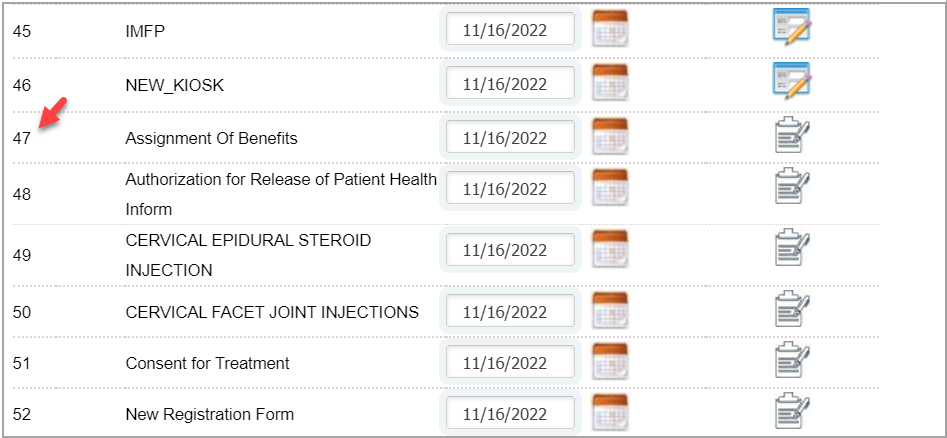
Patient Kiosk and Consent Forms will follow a continuous numbering sequence instead of having separate numbering.
Part – 2 Reports
2.1 Report Central- Report Number Included in Tab Header
Opening a report from Report Central will display the report number along with the name on the tab header. Previously, only the report name used to show on the header.

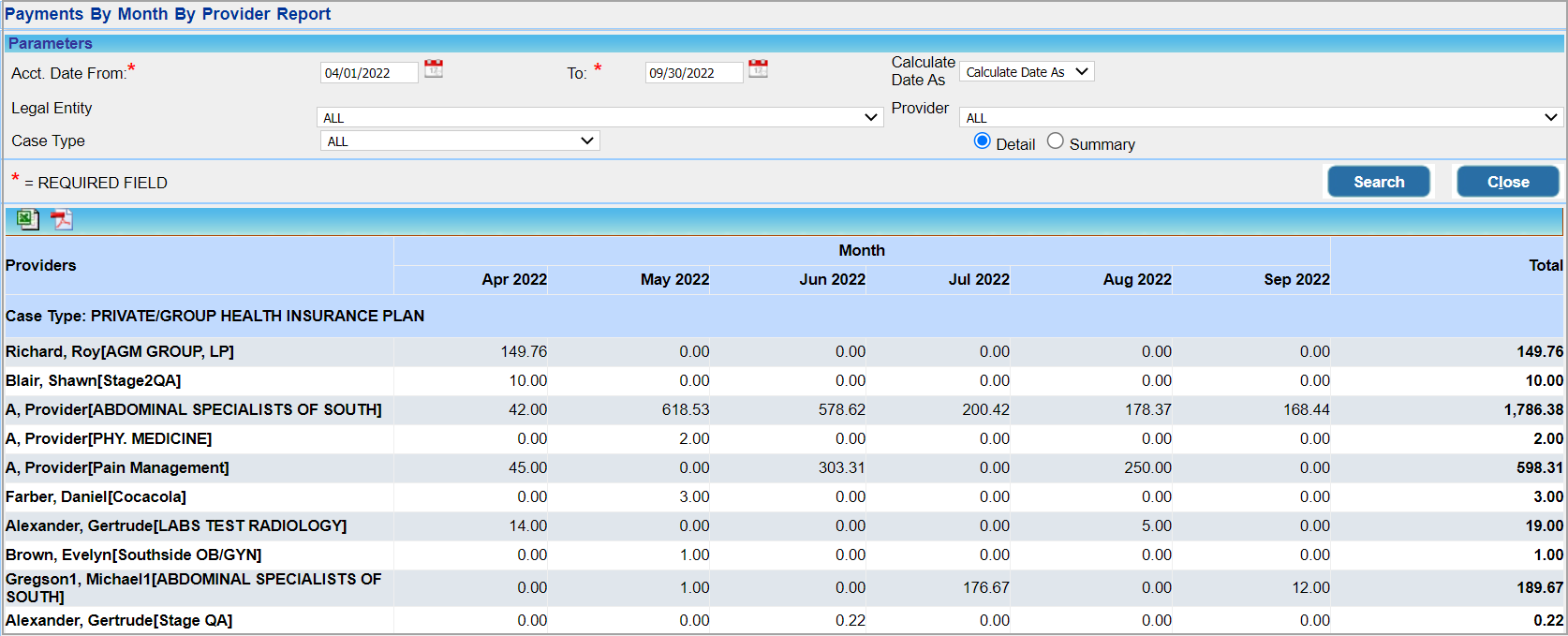
2.2 ‘J16. Payments By Month By Provider Report’
For better readability, the Provider and Month fields have been flipped with the months shown in columns and provider data in rows. This change was made as the previous version used to be a little difficult to read when there were multiple providers on the report.
2.3 I8. Summary Encounter Line Activities Report
I8 report now includes additional fields in the CSV, Excel, and offline report versions. Please see Table 2 for the complete list of changes in this release.
| New Field Added | Detailed Excel | Detailed CSV | Offline |
| Last Claim# | √ | √ | √ |
| Line Note | √ | √ | √ |
| Resubmission Code | √ | √ | |
| Original Ref# | √ | √ | |
| Adjustment Reason | √ | (already added in previous releases) | |
| Copay | √ | √ | |
| Deductible | √ | √ | |
| Co-insurance | √ | √ | |
| 12 DX codes | √ | √ | |
Table 2
2.4 KPI- Two New KPIs Added
Two new Key Performance Indicators- “Total Deposit” and “Change in A/R based on Total Deposit” have been added to the H13. KPI Dashboard Report. Additionally, three of the existing KPIs have undergone a small change in how they are calculated in the report. Table 3 displays the formula for the affected KPIs.
| KPI | Date Reported | Monthly | 6-months Average | Year-to Date |
| Newly Added KPIs | ||||
| Total Deposit | Acct. date | Total Deposits for the month | (Total deposits for the prev. 6 months) / 6 | Total Deposits for YTD |
| Change in A/R based on Total Deposit | Acct. date | Total deposit-total payment-total adjustment for the month | (Total deposit-total payment-total adjustment for the prev. 6 months)/6 | Total deposit-total payment-total adjustment for YTD |
| Formula Update for Existing KPIs | ||||
| Avg. Reimbursement Rate per Claim | DOS | Total Paid amount / Total Encounters.
The total paid amount is the total of all payments up to the current date for encounters with dos 90 days behind for a period of 1 month |
Finds the total of avg. reimbursement for the previous 6 months (with a 90-day look back) and divide by 6 | Total Paid amount / Total Encounters
The total paid amount is the total of all payments up to the current date for encounters with dos 90 days behind from year start for a period of 1 month |
| Days in A/R | DOS |
(Total charge for the DOS period -total payments for the DOS-total adjustments for the DOS)÷(Total charge for the DOS
period/No of days)
DOS period: From the start till the end of the selected month
|
(Total charge for the 6-month period -total payments for the 6-month period-total adjustments for the 6-month period)÷(Total charge for the 6-month period/No of days)
|
Total charge for YTD -total payments for YTD-total adjustments for YTD )÷(Total charge for the YTD /No of days)
|
| First Pass Resolution Rate(5 month look back) | Claim Date |
[(Total Number of lines resolved ( paid + deductible) on the first submission) ÷ Total Number of
lines resolved during same period)]*100
|
Find the total of the First Pass resolutions for the previous 6 months and divide by 6 |
[( Total Number of lines resolved ( paid + deductible) on the first submission) ÷ Total Number of
lines resolved during same period of time)]*100
|
Table 3
2.5 D2. Detailed-Insurance Aging Report
Payer Type info added to the excel and the detailed CSV outputs.
Part – 3 Resolved Items
3.1 Collection Manager
3.1.1 ‘Resolved’ Status for ‘New’ Charges
Resolved the issue where the charges in “New” status in Collection Manager could not be assigned “Resolved” status.
3.1.2 Denial Category Filter
The Denial Category filter failed to fetch any results for the no responses. This is now resolved.
3.1.3 Corrected the Errors in Excel and CSV Outputs
The excel and CSV outputs of the Collection Manager failed to show any data when the “Show Reminders” option was checked and had inaccurate results when filtered with certain other criteria. These issues have been resolved.
3.2 C6. Patient Details Report Issue
C6 report errored when the patient’s race had multiple values in the demographics. This was due to the field size issue and has now been corrected.
3.3 Referring Provider Count Issue in E6 Report
In ‘E6. Productivity by Referring Providers Report (Summary)’, an error was identified in calculating the referring provider count when the referring provider was selected with the option “Same as Rendering Provider”. This is resolved.
3.4 Scrolling in Patient Ledger
If there were a large number of data in the patient ledger, the bottom-to-top scroll would lock up on the screen. This is now resolved.
3.5 Ending A/R mismatch Between J32 and J9 Report
In certain borderline scenarios, the J32. Detailed System Financial Report and J9. Daily/Month End Close Report had a mismatch in the ending a/r numbers. This has been addressed.
3.6 G5 Offline Report Issue
The G5 offline report generation issue has been resolved.