Practice Management System
Release Note
Product Release Version: v20.0.0
Product Release Date: Dec 2021
© 2021 Practice Management System
Disclaimer: All rights are reserved. No part of this work may be reproduced in any form or by any means through graphic, electronic, or mechanical, including photocopy, recording, or information storage and retrieval systems – without written permission of the publisher.
The products that are referred to in this document may be either trademarks and/or registered trademarks of the respective owners. The publisher and the author make no claim to these trademarks.
While every precaution has been taken in the preparation of this document, the publisher and the author assume no responsibility for errors or omissions, or for damages resulting from the use of information contained in this document or from the use of programs and source code that may accompany it. In no event shall the publisher and the author be liable for any loss of profit or any other commercial damage caused or alleged to have been caused directly or indirectly by this document.
Printed Dec 2021 at PracticeSuite, Inc.3206 Cove Bend Dr Suite A Tampa FL 33613
Part – 1 Enhancements
1.1 Practice Management System Implements Two-Factor Authentication
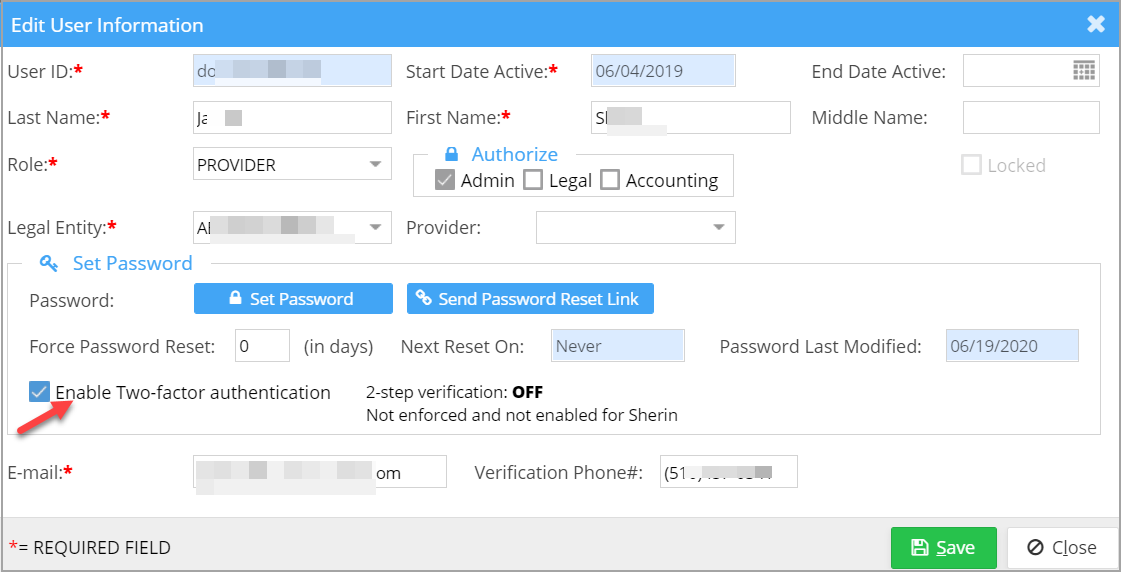
Practice Management System has rolled out two-factor authentication for users. Practice administrators can enroll for 2-factor authentication from the user setup screen. A new checkbox – “Enable Two-factor authentication” is made available in the user setup under Security to enable this feature for the required users. Here are the steps to enable 2FA in the system:
A. Admins will need to check the box “Enable Two-factor authentication” as in Image 1.1a.
B. Users that have the 2FA enabled on successful login will be prompted to set a 2FA key by clicking on the Enroll option in the 2FA pop-up window; refer to Image 1.1b.
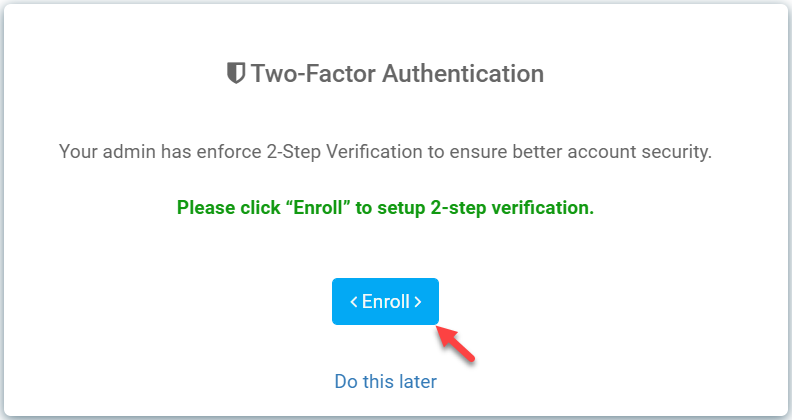
C. On clicking Enroll, the user is redirected to the 2FA setup screen to complete the setup (Image 1.1c).

D. Follow the instructions and click on Assign MFA to set the key for the user.
E. Thereafter, the user is prompted to complete the secondary verification to log in to the system.
F. Users can change the 2FA anytime by repeating the same setup process.
1.2 RCM WorkQueue
1.2.1 Rank Based Prioritization of Insurance A/R
Practice Management System has rolled out a new rank-based prioritization and queuing for open insurance claims in the Workqueue screen. Identical to Collection Manager, claims get pushed to the queue and are assigned to the user’s worklist for follow-up action. Additionally, the claims are ranked based on priority determined by predefined payer thresholds and the “Time Left” parameter using either the remit date or date of service.
1. The formula for calculating “Time Left” is given below:
a) Time Left= DOS Time Limit – (Today’s Date – Date of Service)
b) Time Left= Remit Time Limit – (Today’s Date – Payment Date).
2. Rank is determined by the “Time Left” and the following defines the ranking order:
| Rank | Criteria |
| 5 | Less than 0 days left |
| 4 | Less than 15 days left |
| 3 | Received payment / claim back > 50 days ago from today |
| 2 | Received payment / claim back between 40-50 days from today |
| 1 | Received payment / claim back between < 40 days ago from today |
1.2.2 Provision to Assign Workqueue Category (Worklists) to a User
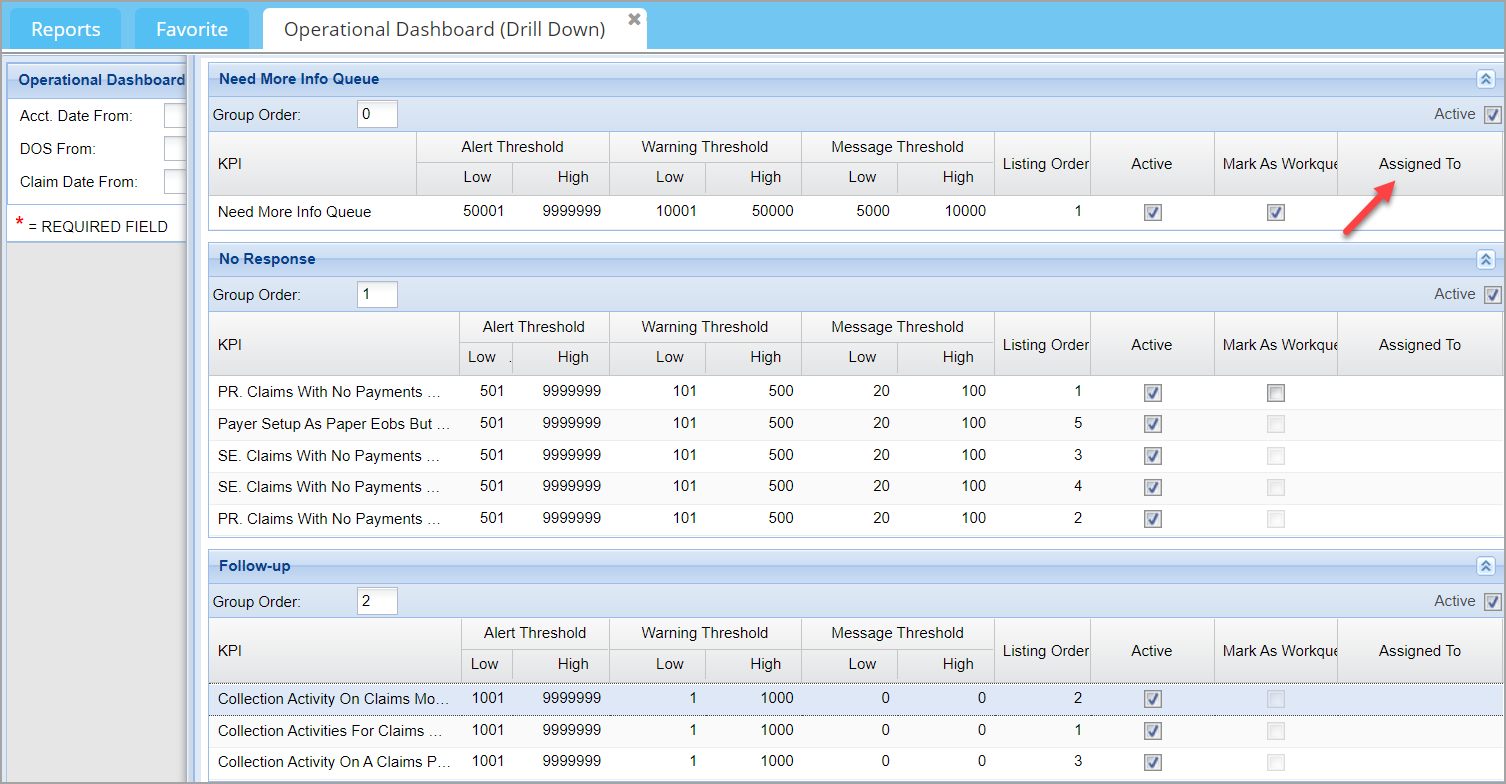
Users can now be assigned to specific work queue categories and this setup is done from H2 Operational Dashboard (Drill-down). The “Assigned To” field in the drill-down report can be used for mapping users to categories; see the highlighted in Image 1.2.2. If a category is assigned to a user, all claims/items for that category will automatically fall into the user’s worklist/ownership.
1.2.3 Patient Collections WorkQueue
This new workqueue helps Practices to work and follow-up on their patient a/r. All patient balances and collection lines are pulled into this worklist. Users can view detailed charge and payment activities and add notes working the a/r.
1.2.4 Tasks in the Workqueue Screen Will default to the User Logged In
Logged in users in default view will see the tasks assigned to them when they open the Workqueue screen.
1.3 E-Fax Feature Extended to Claims Workbench and Collections Manager
E-Fax: E-Fax has undergone a major upgrade in this release. Firstly, the feature has been extended to both Claims Workbench and Collection Manager screens. Additionally, the maximum number of files that can be sent in one transmission has been increased and so is the permitted file types. The main Efax window is as shown in Image 1.3a.
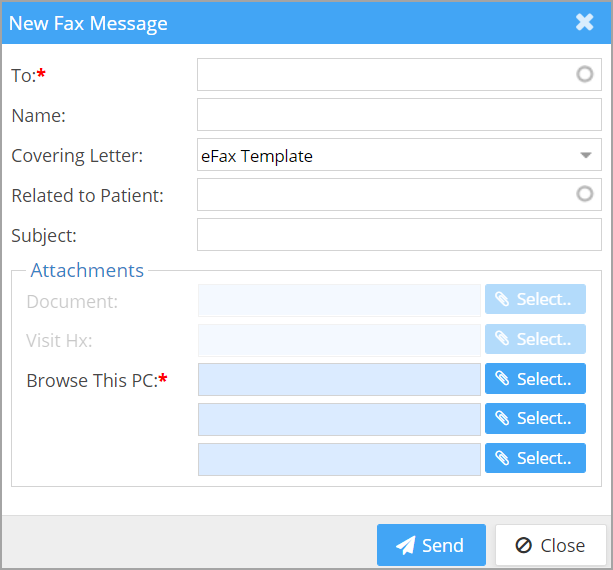
Table 1.3 describes each field in detail.
| Field | Description |
| To | Enter the fax number/referring provider name. If the selected ref provider has a fax number associated, the number will be populated into this field. |
| Name | Once the user selects a ref provider, the corresponding provider name will appear in the Name field or else user can enter any name here for reference |
| Covering Letter | Choose a covering letter from the drop down. The selected Covering letter will be appended with the fax document. Custom covering letters can be created from Letter Master. |
| Related To Patient | Choose a patient by searching with Name or MR# to map to this fax. |
| Subject | Enter the Fax Subject for reference |
| Attachments | |
| Document | Disabled by default, this will be enabled on selecting a patient in ‘Related to Patient’ field. This option allows the users to choose Documents from Document Manager section. One document can be attached. |
| Browse This PC | User can choose and attach up to three additional files. |
Table 1.3
Document supported: IMAGE|JPG|JPEG|PNG|GIF, HTML, TXT, PPT, PPTX, XLS, XLSX, PDF (currently DOC/DOCX not supported).
Documents can now be faxed from Claims Workbench and Collections Manager Screens apart from the eFax main window.
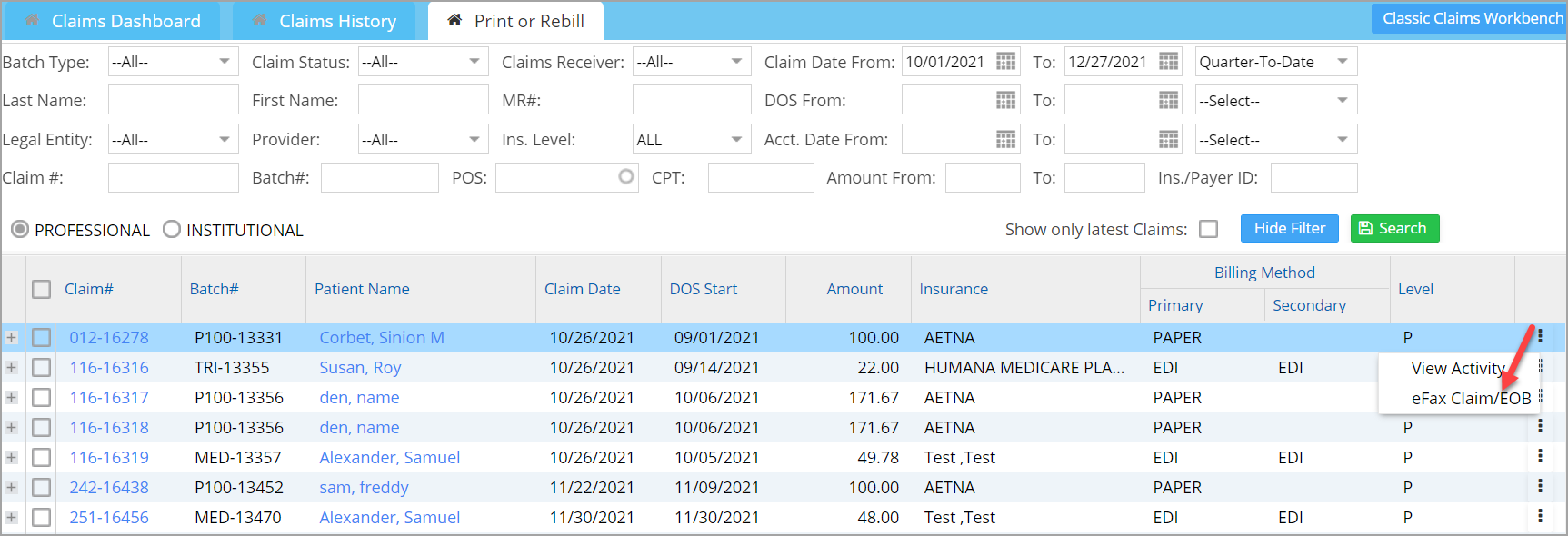
To Access Fax Window in Claims Workbench: Navigate to Print/Rebill Tab in Claim workbench. Search for a claim and choose the 3-dot menu and then select eFax Claim/EOB(highlighted in Image 1.3b).
To Access Fax Window In Collections Manager: Navigate to Collection Manager and search and select a claim, This will open the collection Manager window where the eFax option is provided at the bottom left (see Image 1.3c).
Once the user clicks on eFax, the eFax Compose window will open up.

Fax Compose Window of Claims Workbench & Collections Manager
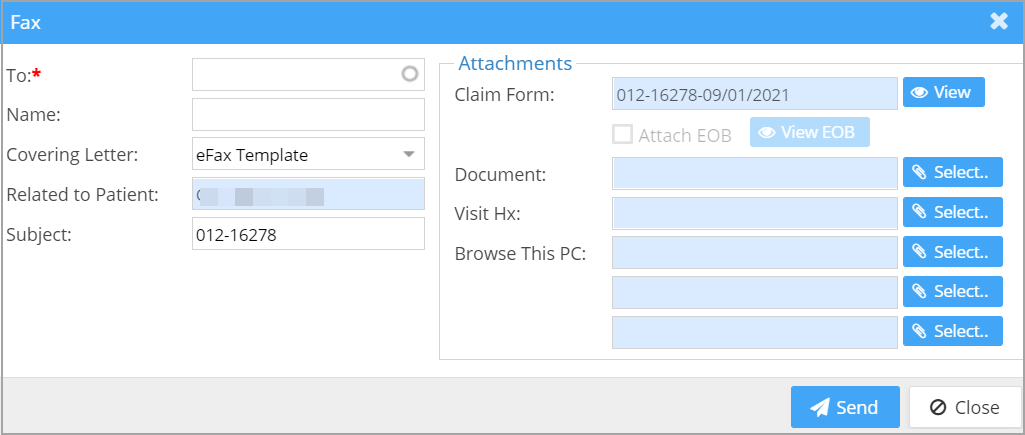
Additional attachments that can be included in the fax message from Workbench and Collections Manager are Claim Form and EOB (see Image 1.3d):
Claim Form: This is the CMS 1500 form for the selected claim. User can view the claim from by clicking the View button. The claim# and DOS will appear in the text area.
EOB: If the claim has an EOB, then the users can select the same by checking the checkbox. View EOB button allows them to view the file. If the claim doesn’t have an EOB, this field will be disabled.
Related to patient – This field will be automatically populated by the patient in the claim. It is not an editable field.
Subject – The subject field automatically populated with the claim# – This is an editable field; users can change the subject if needed.
1.4 XSuperbill
1.4.1 Inline Edits Permitted for BILL_TO_PR and REBILL_TO_PR Statuses
XSuperpbill extends the inline editing feature to lines in BILL_TO_PR and REBILL_TO_PR statuses. Lines in these statuses can be edited from XSuperbill akin to NEW, HOLD and BILL_TO_PT buckets.
1.4.2 Legal Entity Search in XSuperbill is now a Multiselect Box
Legal entity drop down in the search filter section of XSuperbill has the following updates made:
a. LE is now a Multiselect field wherein user can select multiple LEs at a time.
b. User can type in the first few characters and filter the LEs; refer to Image 1.4.2

1.5 Case Switch- Practice Management System Permits Case Switching of paid encounters Even when Primary Payers Differ
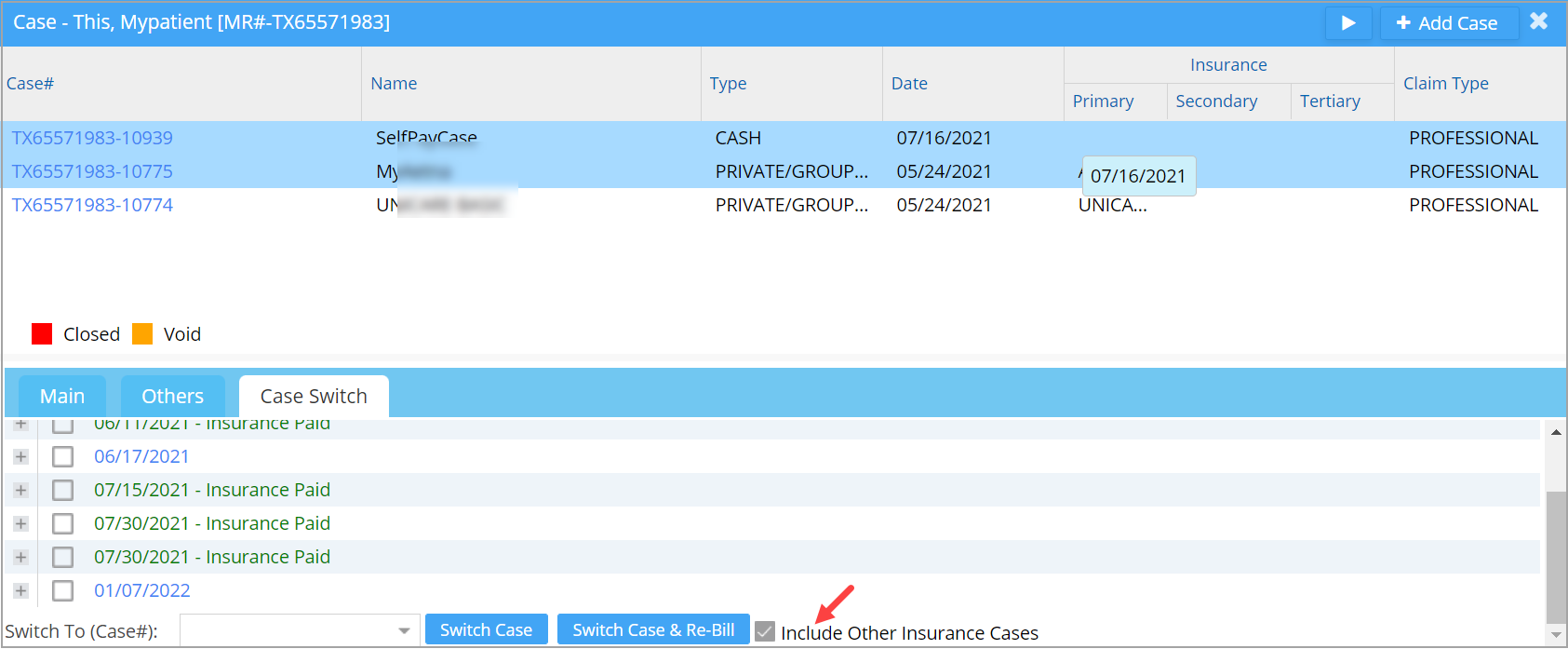
Practices can now perform case switching of paid encounters even when the primary payers of both cases are different. Case Switch screen now has ‘Include Other Insurance Cases’ check box (see Image 1.5) which can be enabled to populate Switch To (Case #) drop-down with cases of other insurances with different a primary payer. However, if secondary payments are done for the encounter, the system will not permit the case switch.
1.6 ERA
1.6.1 Posting Large ERAs Now Made Easier
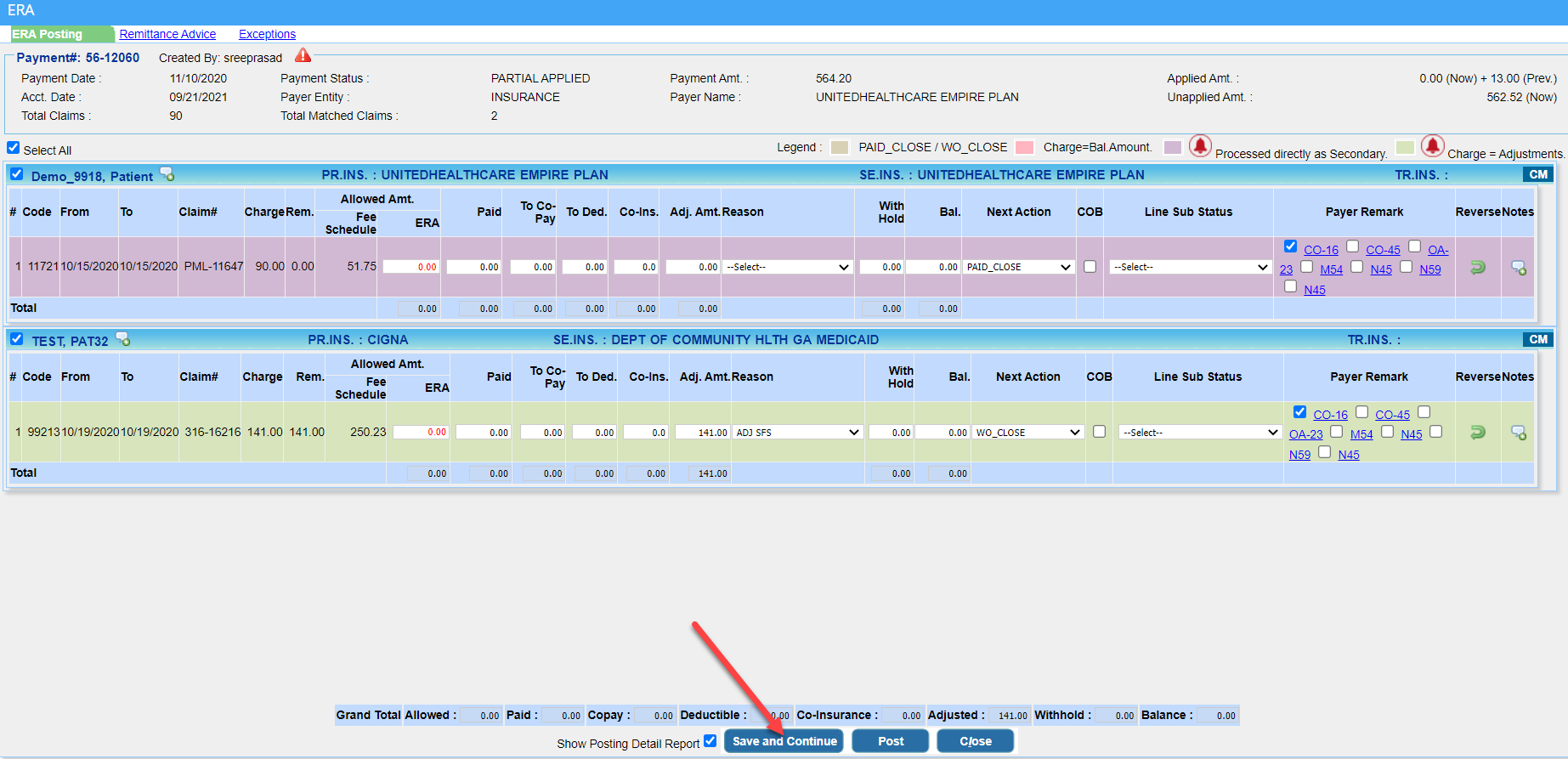
Users now have the option to post ERAs in parts. ‘Save and Continue‘ button introduced to achieve this. The ‘Save and Continue’ button will save the lines already filled up and show the remaining lines to be posted and the user can continue posting in small chunks; specially useful in case of very large ERAs.
1.6.2 Remark Codes Will be Available in ERA Print
Remark codes will be available in the print option from ERA listing page.
1.6.3 Adjudication Codes Not To Be Considered As Adjustments-CO-109, CO-B9 and PI 204
These are not to be considered as adjustments. The code descriptions are provided beneath.
CO-109: Claim not covered by this payer/contractor. You must send the claim to the correct payer/contractor.
CO-B9: Patient is enrolled in a hospice program.
PI-204: “This service/equipment/drug is not covered under the patient?s current benefit plan”
1.7 MIPS Dashboard
1.7.1 MIPS 2021 Updates
Quality and cost undergoes change in weight whereas others remain unchanged.
| Performance Category | Performance Year 2021 Weight |
| Quality |
40% (from 45%) |
| Cost |
20% (from 15%) |
| Promoting interoperability |
25% (no change) |
| Improvement Activities |
15% (no change) |
1.7.2 Two New Clinical Quality Measures Added
Two new quality measures related to diabetic Retinopathy (Quality ID #19) and Diabetics Eye Exam(Quality ID #117) added.
| Quality ID | Measure # | NQF ID | Description |
| 19 | 142 | 0089 | Percentage of patients aged 18 years and older with a diagnosis of diabetic retinopathy who had a dilated macular or fundus exam performed with documented communication to the physician who manages the ongoing care of the patient with diabetes mellitus regarding the findings of the macular or fundus exam at least once within 12 months |
| 117 | 131 | 0055 | Percentage of patients 18-75 years of age with diabetes and an active diagnosis of retinopathy overlapping the measurement period who had a retinal or dilated eye exam by an eye care professional during the measurement period or diabetics with no diagnosis of retinopathy overlapping the measurement period who had a retinal or dilated eye exam by an eye care professional during the measurement period or in the 12 months prior to the measurement period |
1.8 Mass Write-Off- Contractual Adjustment Amounts Can be Entered
A new field added to Mass Write Off Screen for entering the Adjustment amount. If an amount is entered in the field, the specified amount will be deducted from each line in the screen; if no amount is given, system will work as before i.e., the full amount in the line is written off(Image 1.8).

1.9 New Place of Service (POS) Added
A new Place of Service with POS code 10 and description ‘TELEHEALTH PROVIDED OTHER THAN IN PATIENTS HOME’ added to be used for professional claims.
1.10 UB04 Charge Entry- Default UOM Can be Set for Revenue code
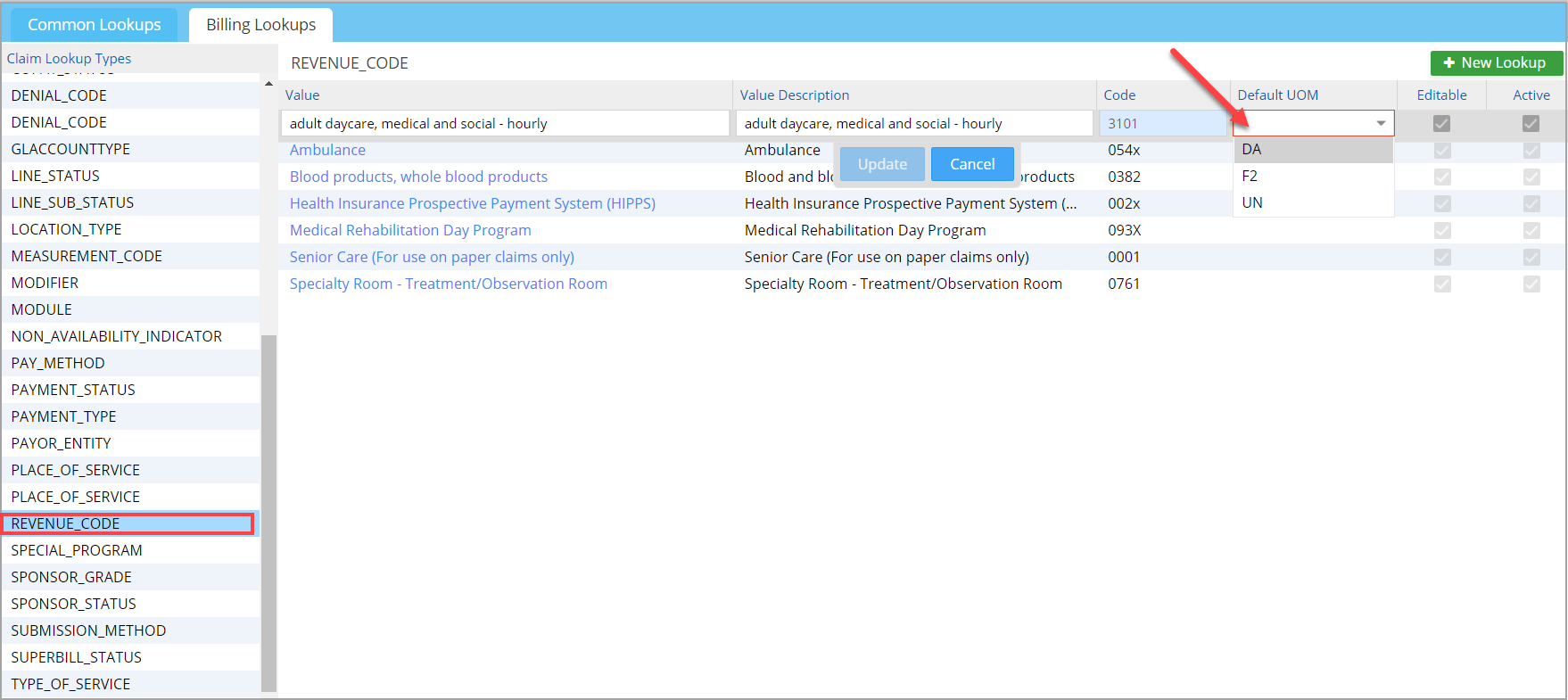
Practices can now set Default Unit of Measure(UOM) for Revenue code (see Image 1.10) from the ‘All Lookups’ under Advanced Setup. The default value for Revenue Code will have precedence over HCPC/Procedure code default UOM.
1.11 Patient Portal- Patients can now Book Multiple Appointments on the Same Day
Patients can now Book appointments from the Patient Portal on the Same Day of the appointment. Practices need to do the following set up in order to allow patients to book on the same day of appointment.
From the Portal Options page, in the ‘Allow Online Bookings Only‘ field, select value ‘0‘ from the drop-down; see Image 1.11

1.12 Consent Forms– Indicator to Identify Fill-up Status of forms
As in the case of Kiosk forms, filled and submitted consent forms will have a green tick mark; refer to Image 1.12.

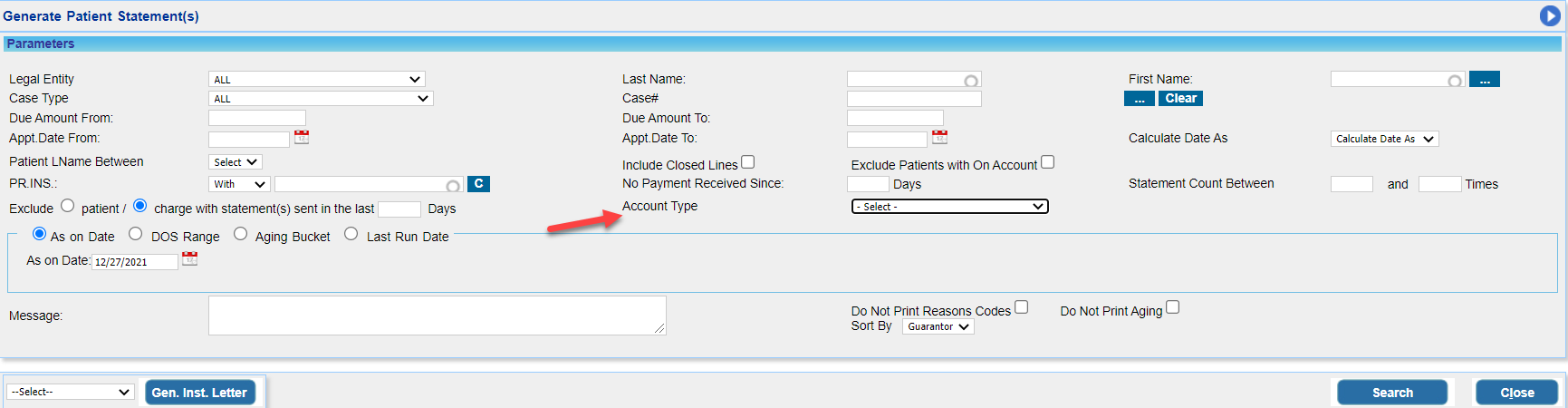
1.13 Patient Statement- Statements Can be Generated for Specific Account types
Statements can be exclusively generated for the specified account types. An ‘Account type’ search filter (highlighted in Image 1.13) added to the statement generation screen for this.
1.14 Provision to Populate Line Level REF IDs in Electronic Claims
Added provision to populate line level REF IDs in electronic claims by entering the ID in Line Notes in given format
REF:<Qualifier>:<ID>
Allowed Qualifiers are ‘9B’,’9D’,’G1′,’2U’,’6R’,’EW’,’X4′,’F4′,’BT’.
For eg. in order to populate Additional/Referring CLIA# on electronic claim should enter the ID in format REF:F4:<CLIA#> to the Line Note. Table 1.14 describes the qualifiers used.
| Qualifier | Description |
| 9B | REPRICED LINE ITEM REFERENCE NUMBER |
| 9D | ADJUSTED REPRICED LINE ITEM REFERENCE NUMBER |
| G1 | PRIOR AUTHORIZATION |
| 6R | LINE ITEM CONTROL NUMBER |
| EW | MAMMOGRAPHY CERTIFICATION NUMBER |
| X4 | CLINICAL LABORATORY IMPROVEMENT AMENDMENT (CLIA) IDENTIFICATION |
| F4 | REFERRING CLINICAL LABORATORY IMPROVEMENT AMENDMENT (CLIA) FACILITY IDENTIFICATION |
| BT | IMMUNIZATION BATCH NUMBER |
| 9F | REFERRAL NUMBER |
Table 1.14
1.15 Charge Entry Screen- ‘Narration’ Relabelled as ‘Clinical Notes’
The ‘Narration’ link in the Charge Entry screen is now ‘Clinical Notes’; refer to Image 1.15.

1.16 Patient Demographics- Guarantor Screen Updates
In case when patient is the guarantor itself, guarantor phone number is no longer mandatory.
1.17 Payments- Payment Receipt Attachments to emails Replaced with Link
Payment Receipt emails will have a link (see highlighted portion in Image 1.17) that, when clicked, will open the payment receipt. This is in replacement of the PDF attachment of payment receipt that was being sent earlier.

1.18 EDI
1.18.1 Rules set to Make Eligibility Check Solo or Group Billing
a. EA:<PAYERID>:SOLO:<NPI>:<LAST NAME>:<FIRST NAME>
This rule will send the eligibility check request with SOLO Provider Name and NPI
b. EA:<PAYERID>:GROUP:<NPI>:<GROUPNAME>
This rule will send the eligibility check request with Group Name and NPI
1.18.2 Rule set to Accept Annual Wellness Code from Ability CH
Payer specific rules set to accept Annual Wellness Code from Ability CH in Eligibility Response.
EA:<Payer ID>:CPT:<if multiple procedure codes must be added, separate them with a comma>
Part – 2 Reports
2.1 Charge Productivity Report- A New Report Added
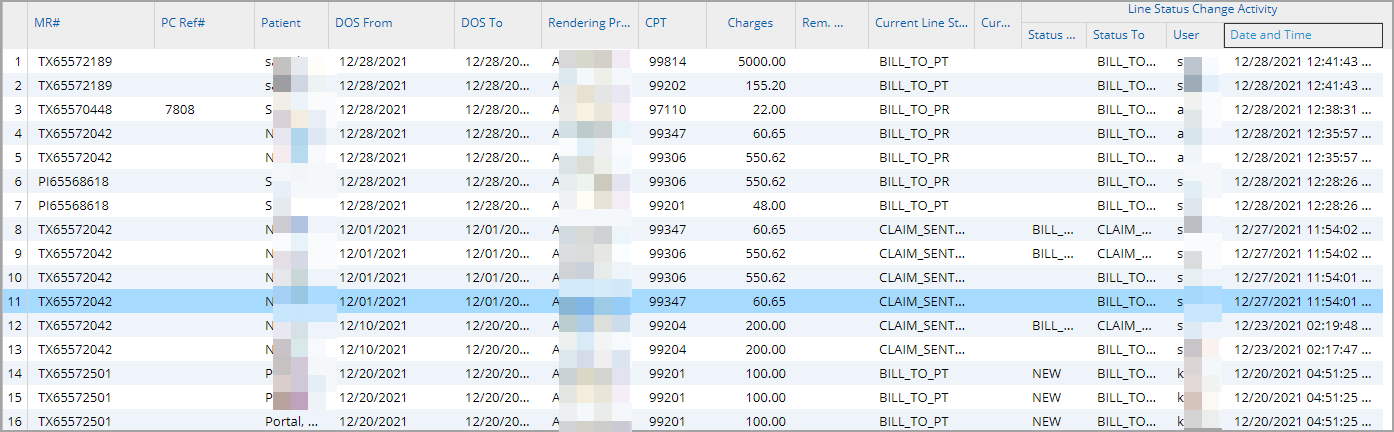
Significance: ‘I26. Charge Productivity Report’ is Practice Management System‘s latest addition to Report Central; this report will query the activities for charges on each update on the line status (from creation to current status). It can be used to analyze productivity of billing specialists and tracks how much is being billed by them from each of the buckets.
Search Parameters for the Report: Activity Date(mandatory), User, LE, Provider, Accession#.
Important Columns in the Report: MR#, PC Ref#, Name, DOB, DOS From, DOS To, PR. INS. Name, SE. INS. Name, TR. INS. Name, Case#, Case Type, Service Location, Encounter Level Provider, Line Level Provider, Revenue Code, CPT, Rem. Amt, Current Line Status, Current Line Sub Status, Line Status Change Activity : Status From, Status To, User, Date; refer to Image 2.1.
2.2 K1 Report Renamed
K1 report is renamed as ‘EHR Visits- Superbill Reconciliation Report’. Earlier it was Uncharted Visits by Provider Report.
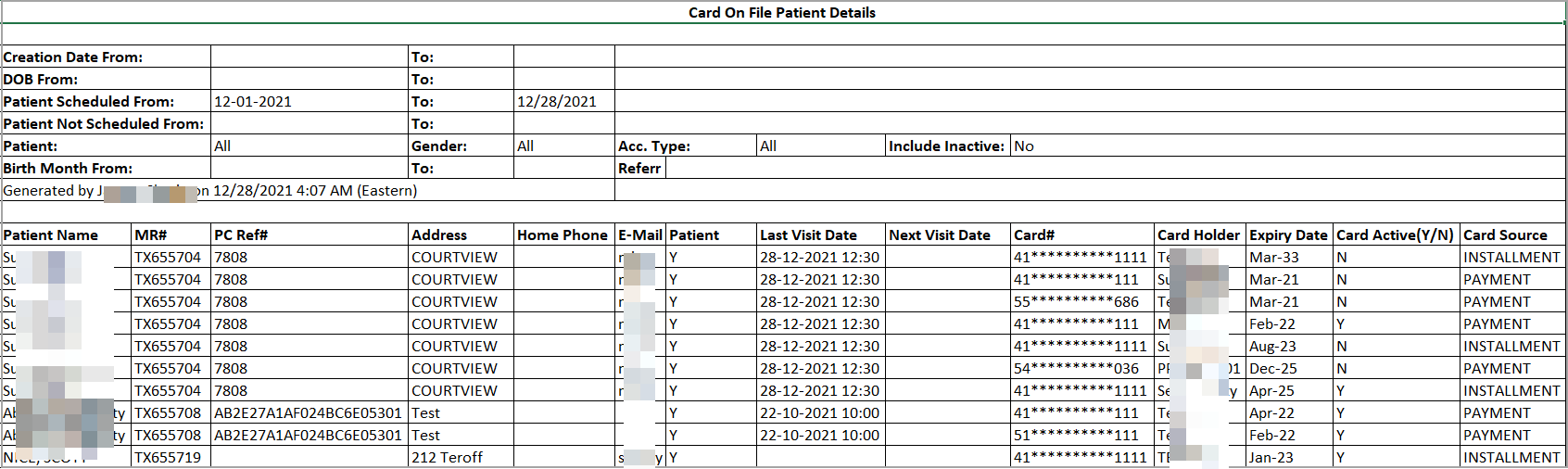
2.3 ‘C6. Patient Details Report’-New Excel to Display Patients with Credit Card Info
A new excel output created for C6 report to extract the details of those patients whose credit card information is saved in the system (see Image 2.3). The file shows the details on the card including the expiry date and will prompt the user to update the card when the expiry date arrives.
2.4 ‘I20. Payments By Month By Provider Detailed Report’
A new excel output created for displaying Sum of Receipts and On-Account Amount month-wise.
2.5 ‘Payment Method’ Search Filter Added in ‘I4 and I6 Reports
‘I4. Payment Deposit Report’ and ‘I6. Posting Detail Report’ now have a new search filter added for payment method (cash/ check/ EFT/Credit card).
2.6 A7. Appointment-End of Day Reconciliation Report- ‘Appointment Type’ Search filter Added
An ‘Appointment Type’ search filter added for users to filter A7 report by Appointment type; see Image 2.6.

2.7 ‘K3. Patient Clinical Analysis Report’ -Added Column for PCRef#
PCRef# will be displayed along with other patient details in the excel output of K3 report.
2.8 ‘J9. Daily/Month End Close Report’
The report will now include a count to display the number of charges which are on HOLD.
2.9 Payment Screen from ‘I18. Credit Card Transaction Report’ Switched to New UI
The payment screen that pops up when the Payment# field hyperlink in the I18 report is clicked, is now changed to new UI.
Part – 3 Bug Fixes
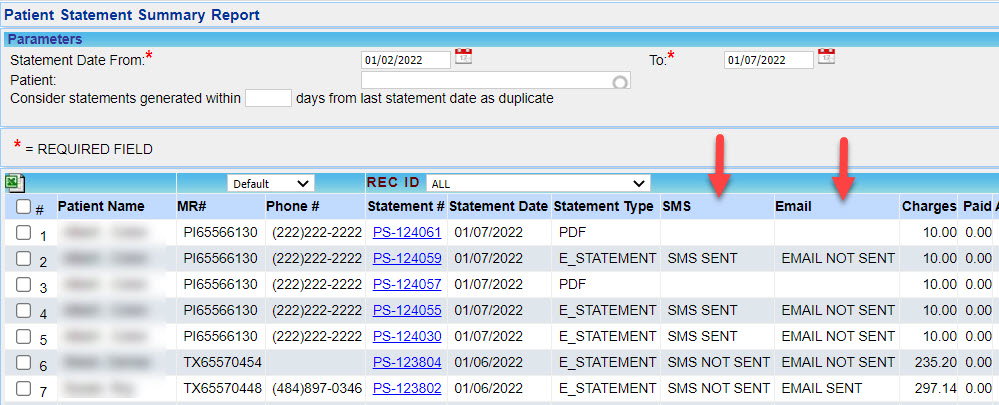
3.1 E-statement Email/SMS Failure Rectified
In case of failed e-statement emails or SMSs, the failure will be notified in the response message and the details of the failure will be available in the C3 report. see Image 3.1.
3.2 TeleMed Compatibility Issue Corrected
TeleMed Compatibility issues with Mac Computers and IPad is fixed.
3.3 C-CDA output File of K3 Report Now Generates Data Appropriately
Though K3 report had appropriate data loaded, its CCDA output file was blank. This is now rectified.
3.4 Lines under ‘Hold_’ type Buckets now Displayed Correctly
Lines moved to ‘Hold_’ type buckets were not displayed under the respective category in Claims workbench and XSuperbill screens. This is rectified and the buckets accurately display the lines under them.
3.5 XSuperbill – Tabs Switching Issue Corrected
While doing search in the Charge entry screen, XSuperbill screen switched to Charge master tab. This is now resolved.
3.6 I4. Payment Deposit Report Now Working Fine
I4 report was fetching records according to payment entry date instead of payment date. Now the report accurately fetches the results according to payment date.
3.7 Issue with a Few Procedure codes not Crossing Over to the Billing Side Resolved
A few procedure codes did not crossover to superbill due to duplicate entries. This is now corrected.
3.8 Autopost Functionality in the Charge Entry Screen Now Working Fine
Users were not able to create payment entries and enable ‘auto posting’ while creating a charge in the Charge entry screen. This is now resolved.
3.9 Issue of Missing ICD codes in Fax Documents Rectified
In the Fax documents for Lab and Radiology orders, ICD codes were not listed though displayed in Practice Management System. This is now resolved and ICD codes are now appearing in the fax.