Insurance Information
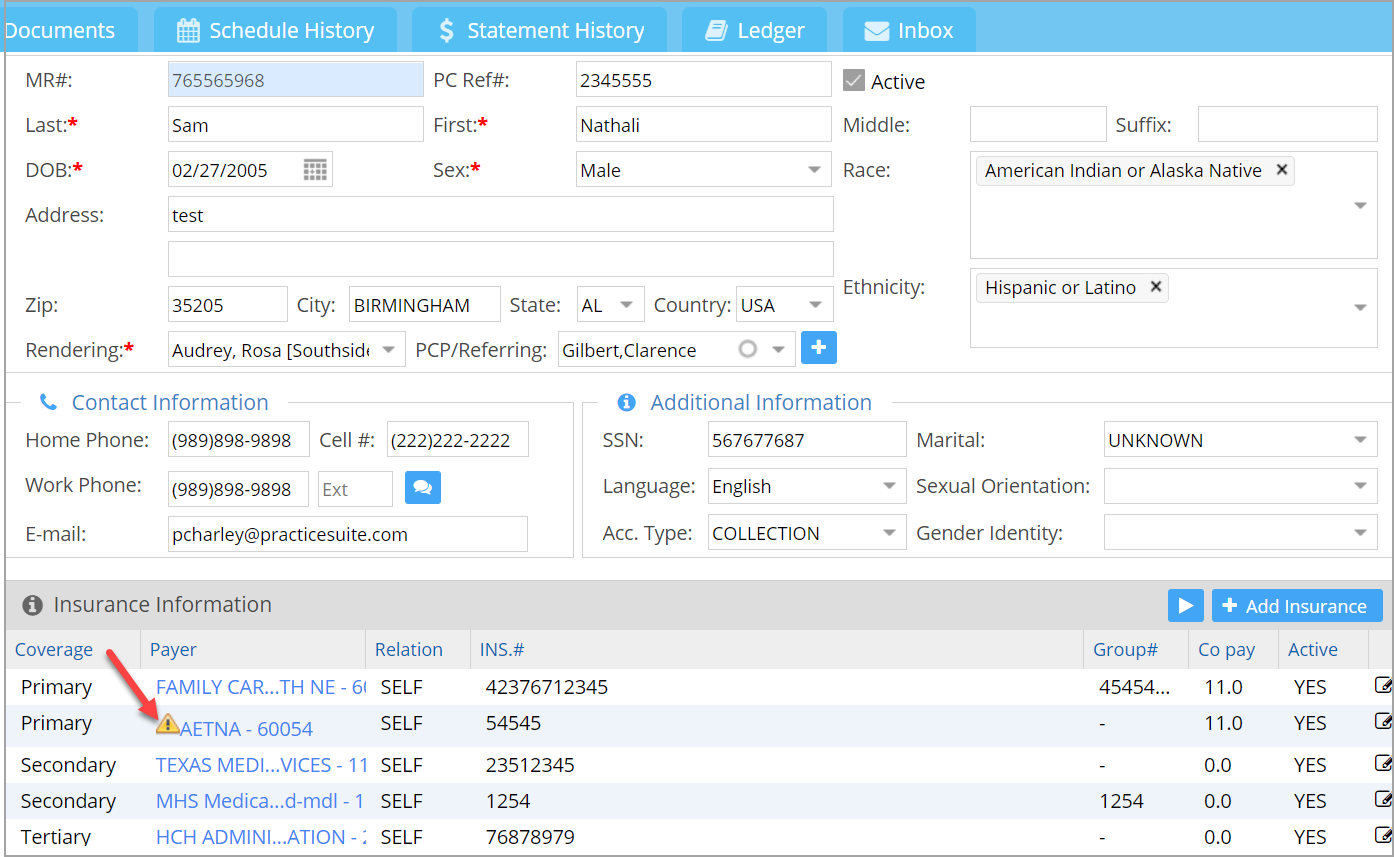
- Beneath the demographic details of the patient, all insurances related to the patient are listed (see Image 1).
- A warning
 is displayed (highlighted in Image 1) beside the insurance listing in the patient demographics screen if the plan is no longer active in the insurance master setup.
 - Multiple primary, secondary, and tertiary insurances can be set up for a patient.
Insurance Listing in Demographics Page
Add Insurance for a Patient
To add insurance details for the patient, click on  button. The Insurance screen has two tabs: Insurance & Insurance Card.
Insurance Tab
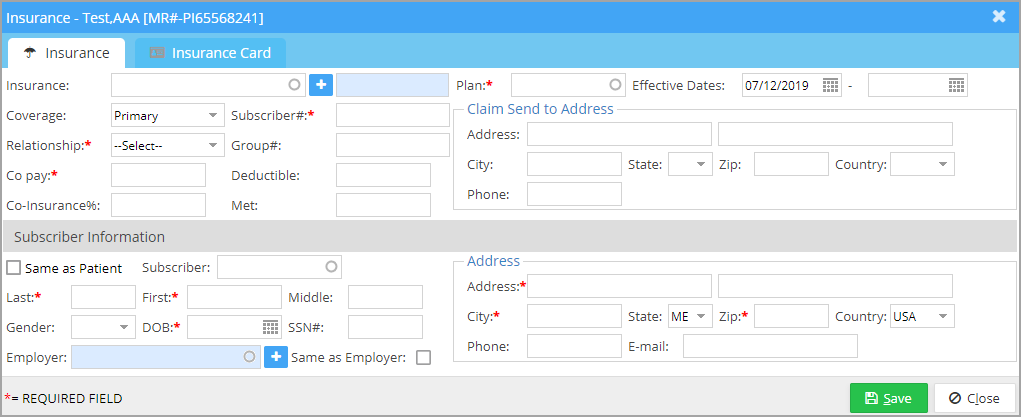
| Field | Description |
| Insurance | Insurance company name; Type in the first few letters and select the needed one from the drop-down. For entering a new insurance company not existing in Practice Management System, click on  icon beside the insurance name. Insurance information screen opens up, where you can enter the details, which will be saved in Insurance Master. icon beside the insurance name. Insurance information screen opens up, where you can enter the details, which will be saved in Insurance Master. |
| Subscriber# | Mandatory; the unique member ID provided by the insurance |
| Relationship | Mandatory; select SELF if the patient is the subscriber. |
| Plan | Mandatory; Select the plan subscribed to. |
| Coverage | Primary/Secondary/Tertiary |
| Group# | Size: 50 characters |
| Co-pay | Mandatory; Enter the amount as per the plan selected. |
| Deductible | Enter deductible (if any). |
| Co-insurance% | Enter Co-ins (if any). |
| Met | |
| Effective dates | Provide the start date; the end date is to be provided only when the patient is no longer subscribed to this insurance. |
| Claim send to Address | Address of the insurance provided in Insurance Master |
| Subscriber Information | If the subscriber of the insurance is the patient himself, then select SELF from the Relationship drop-down: all the subscriber information fields will be populated with patient details. For all other cases, enter the details in the Subscriber Information section. The checkbox Same as Patient copies some of the patient data onto the subscriber fields, like last name, middle name, address, etc. This is useful when the subscriber is the patient’s father, mother, sibling, etc. After entering the insurance and subscriber information, click on ‘Save.’ |
Insurance Card Tab
This tab is for saving the scanned copy of the insurance card of the patient in the system. Both front and back images of the card can be saved into the system (refer to Image 3).

To save both the front and back images of the card, click the respective Browse buttons and select the file path containing the scanned copies.