Description
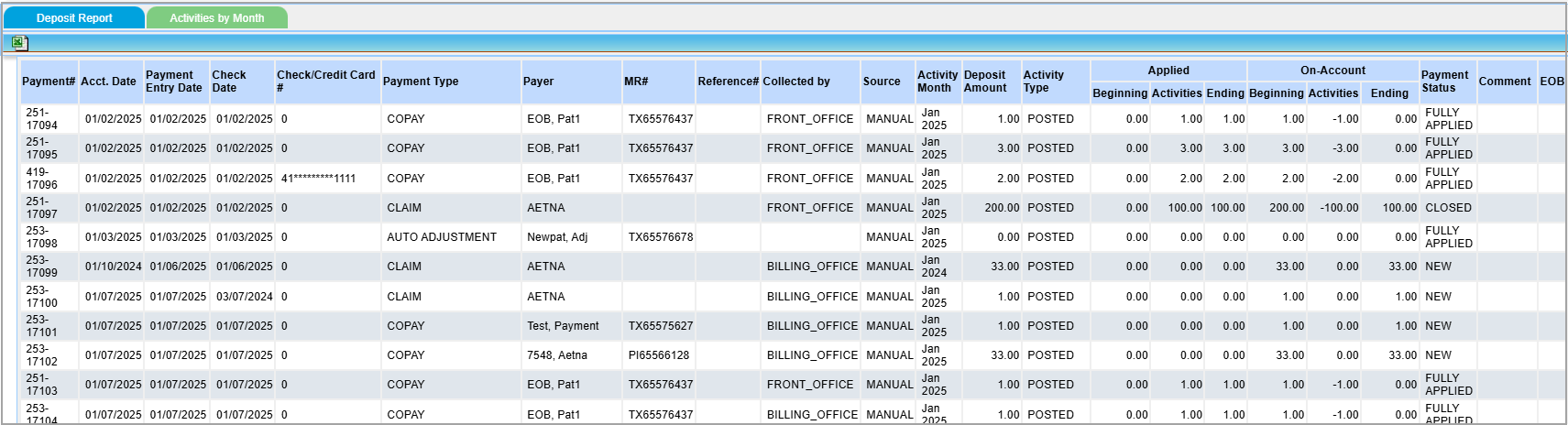
The report shows the deposits posted for the month with the applied and unapplied, payment method, type, and payment date. The report is useful for daily deposit tracking and payment reconciliation.
Significance
1. The I4 report shows you all the deposit entries. It can be used to view the insurance checks and patient payments received and shows you how much of it is applied and unapplied.
2. It displays a deposit summary at the header and shows whether the deposits applied are in the current month or another month. The deposit report also includes two additional columns to show this information. Another field Other Month On-Account shows the unapplied amount in other months.
Utility
1. To view the payments (checks) made by insurances, select Insurance in the payer filter and the report would display all the insurance payments. To view patient payments, select Patient in the payer filter.
2. Provide a check number, and the report will display the payment status, how much was applied and unapplied, etc.
3. It displays the total deposit amount; how much amount was collected through checks; how much came through cash, and amount collected via card payments and EFT.
4. It allows you to analyze the payments made in the system, how much is applied, and how much remains unapplied.
5. It has columns depicting how much is applied in the same month, and how much is applied in another month. This split-up would help practices to decide whether to account or to exclude the payments in the current month reporting.
6. The EOB flag can be used to check whether the payment has an EOB attached. A Y indicates an attachment exists, and an N denotes that EOB is not attached.
7. The Deposit Report Excel output has provider and legal entity as separate columns akin to the main report, and also has the Payable To address field.
Search Filters of I4 Report
| Field | Description |
| Acct. Date | Accounting Date |
| Creation Date | Payment Entry date |
| Check date | Date specified in the check |
| Payment Date | Provided at the time of payment entry |
| Legal Entity | To view results pertaining to a specific legal entity |
| Provider | To filter results for a specific provider |
| Payer | Select payer type from drop-down and provide payer name in the adjacent field to filter results for a specific payer. |
| Payment Type | Select payment type from drop-down (copay/claim/deductible, etc.) |
| Check# | Provide Check number to view details of a specific check |
| Collected By | Select who collected the payment. The options include kiosk, portal, collection agency, Front office, etc. |
| Source | Manual/ ERA |
| PSTS# | If a PSTS# was provided at the time of payment entry, you can provide it here to search for the payment |
| Detail/Summary | Select one depending on whether a detailed report or a summary is required |
| Include Void | Check this box to included voided payments in the search result |
| Payment Method | Select one from the drop-down; Cash/check/Credit Card/EFT Pay |
| User | The user who entered the payment in the system can be selected from the drop-down. |
| Sort By | If you want to have the results sorted by the dates or payment #, select either acct. date, payment date, check date or creation date or the payment#. |
Table 1
Search Screen of I4 Report

There are two tabs for the I4 deposit report.
Deposit Report Tab

Month-wise Activity Tab
Possible Outputs of I4 Report
| Output | Download and View Sample |
| Activities By Month Excel |  |
| Deposit Report Excel | |
 |