Generating Letters from the Scheduler
To generate a letter from the scheduler, it must first be created and saved in the Letter Master under the group code PATIENT_ENCOUNTER_FORMS. Only letters associated with this group code will appear in the scheduler for selection. Once saved, these letters can be generated directly from the scheduler as needed.
Follow the steps below to create a letter and generate it through the scheduler.
1. Select the Advanced Setup module from the menu on the left and click on the Letter Master to add/edit letters.
2. Select the letter from the drop-down or create a letter using the  icon.
icon.
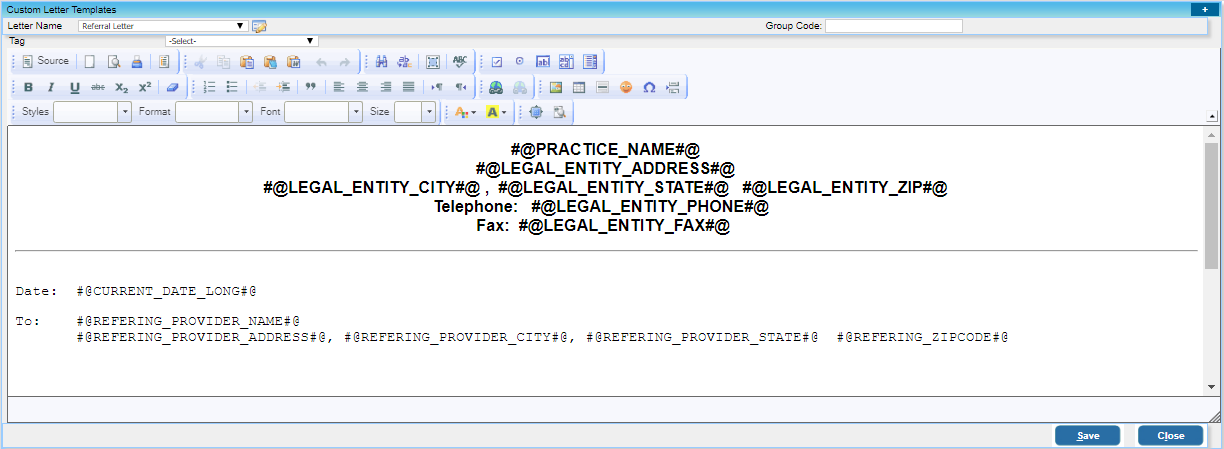
. Enter the Group Code of the selected letter as PATIENT_ENCOUNTER_FORMS.
4. Save the letter master by clicking on the Save button.
5. Select the Scheduler module from the main menu on the left.
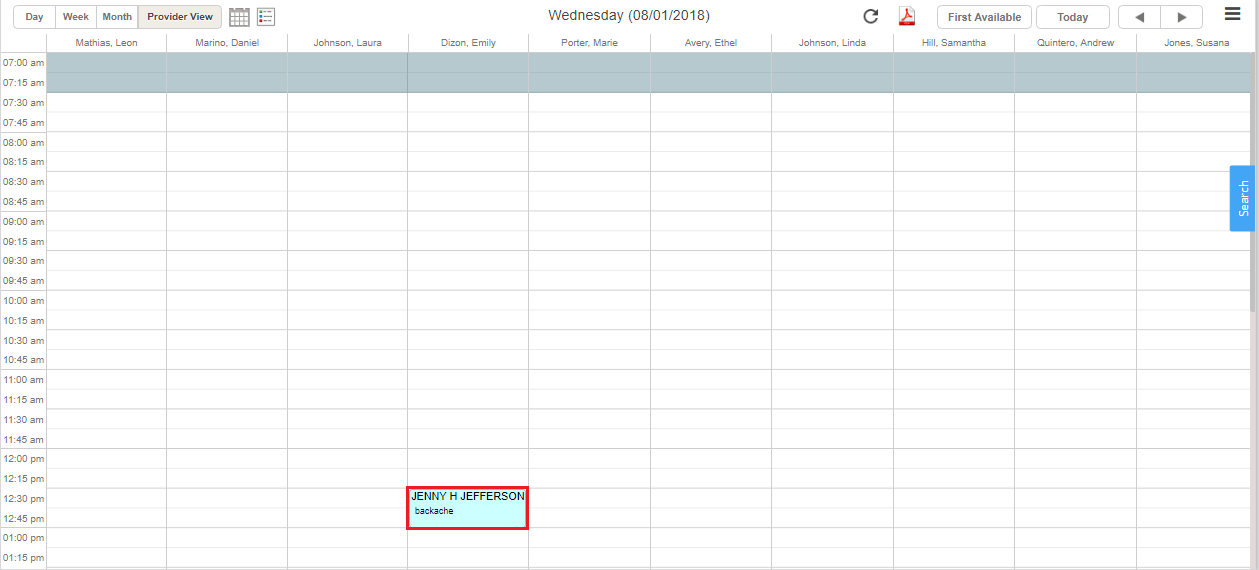
6. Select the appointment for which the letter has to be generated by clicking on the name of the patient from the Appointment Scheduler screen. If the appointment does not exist, click on the required time slot to create the appointment.
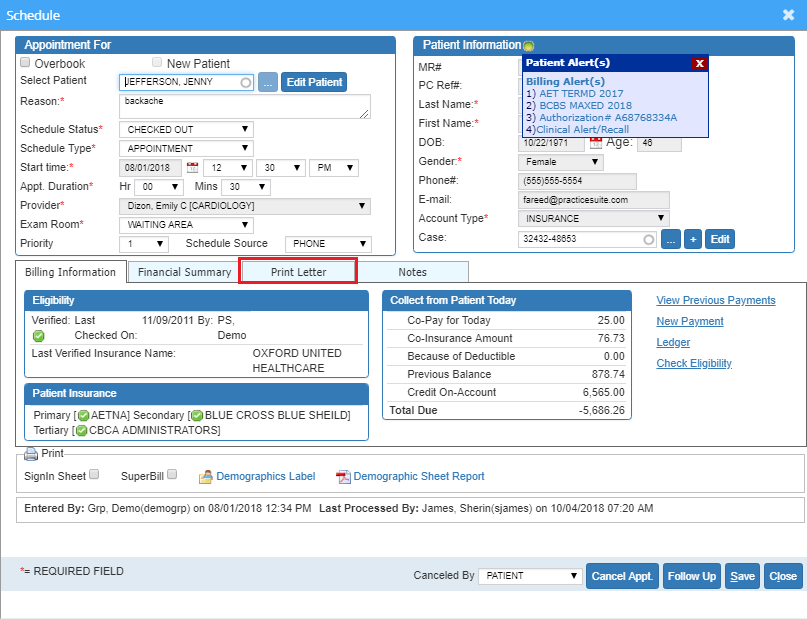
7. The schedule screen opens up. Enter the required information and click on the Print Letter tab(highlighted in Image 3).
8. Select the required letters by checking the corresponding checkbox.

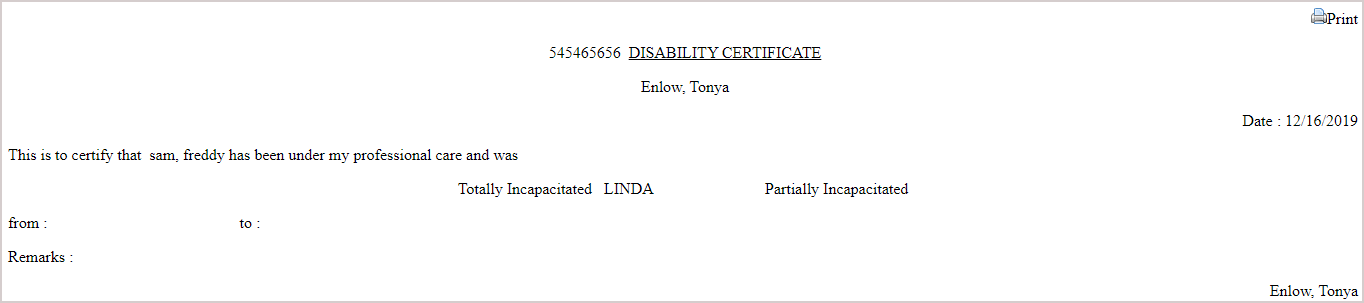
9. Click on the Save button to generate the letter and save the changes. Image 5 is a sample letter generated from the scheduler.