1. How Can I add a Procedure Code?
A procedure code can be added only to standard Fee Schedule. To open the Fee Schedule, go to the Setup menu and choose Fee Schedule.
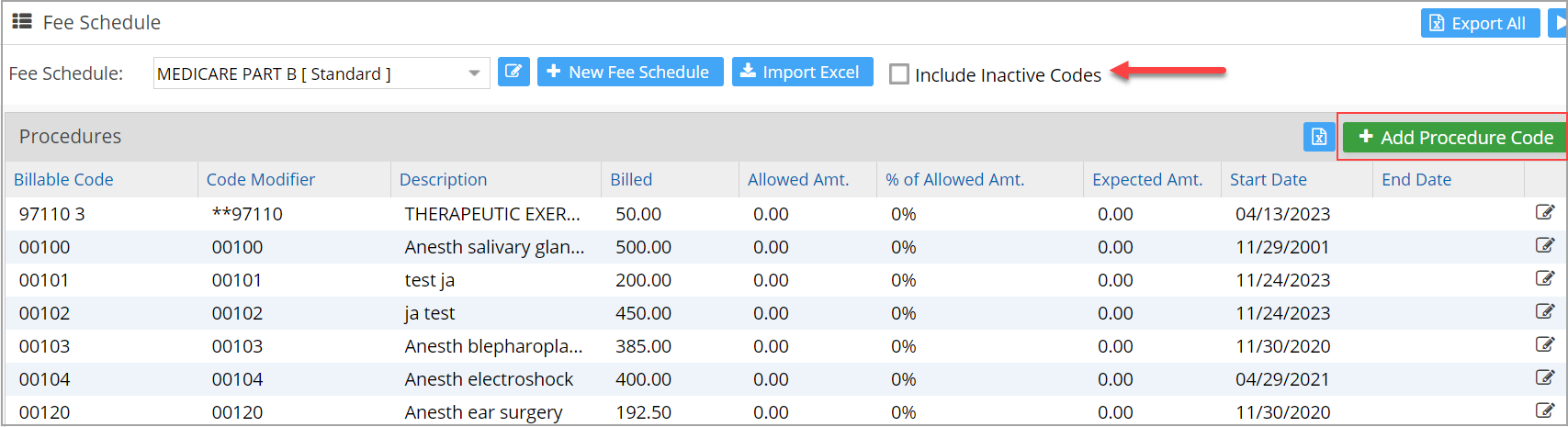
Click on the  button (highlighted in Image 1).
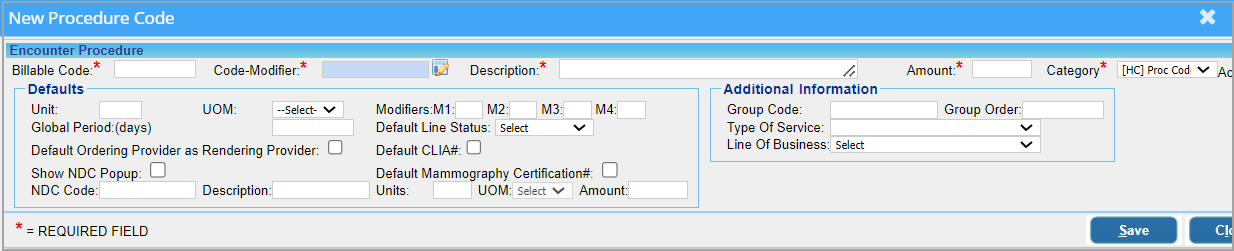
Fill in all the mandatory fields to create a procedure code-
- Billable Code (A procedure code or A HCPCS code)
- Billable Code Description
- Billable Amount
- Category (Category of the Billable code and it may either be a procedure code or an HCPCS)
Click on the Save button to save the procedure code into the Standard Fee Schedule.
2. How Can I Edit a Procedure Code?
Go to Setup from the main menu and choose Procedures.
Type in at least the first character of the procedure code in the Billable Code field and click on Search. From the list that appears, identify the procedure code to be edited and click on the  icon.
icon.

Encounter Procedure Screen appears as a pop-up.

Do the required edits and click on Save.
3. How Can I Change the Price of a Procedure Code?
Go to Encounter Procedure Screen as explained in the previous FAQ. Update the Amount field with the new value and click on Save.
4. How to attach an NDC code to a procedure?
Go to Encounter Procedure Screen as explained in FAQ 2. Update the NDC Code, description, Units, UOM, and Amount fields with the new values and click Save. Note that UOM for NDC can also have Ea as the value.
5. How to default a line status for a procedure?
Go to Encounter Procedure Screen as explained in FAQ 2. From the Default line Status drop-down, select the required status and click on Save.