ERA Screen
The ERA screen displays the details of an ERA. The Payment Entry Section is located at the top left, while payer and payee details appear on the top right. The claims are listed below these sections. Filters are available to refine or expand the list of displayed claims.
Payment Creation
1. Begin ERA posting by creating a payment entry.
2. The payment entry screen has fields similar to the Payment Master.
3. Enter the payment details. The user need not go to the Payment Master screen to create the payment.
4. The legal entity for ERA payments will be based on the legal entity associated with the majority of claims within the ERA file.
5. Click the Process button to generate a payment number.
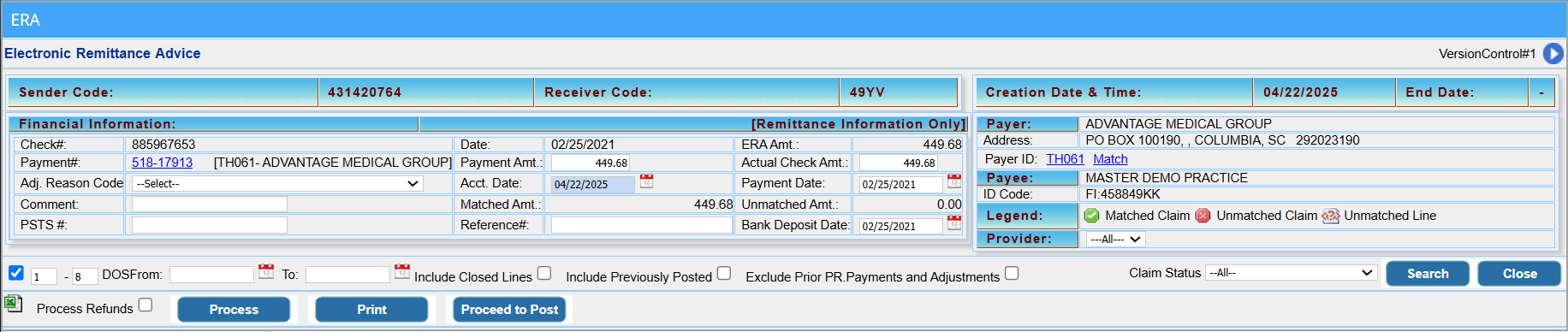
6. After processing, check the Matched Amt. and Unmatched Amt. fields. Unmatched Amt. refers to claims not submitted through PracticeSuite and cannot be posted.
7. Change the payment amount to match the Matched Amt.
8. Click on Process again to update the payment with the new amount.
9. Now proceed to post.
Note:
1. For ACH payment types, the Bank Deposit Date (a newly added field) and the Accounting Date will auto-populate based on the check date (payment date).
2. For all other payment methods, the Accounting Date will default to the current date, and the Bank Deposit Date will remain blank.
| ERA Payment Type | Bank Deposit Date | Accounting Date |
| ACH | Populated from the check date field | Populates from the Check Date |
| NON / CHK | Remains blank for the user to input | Default as the current date (this can be changed) |
Filters
| Filter | Description |
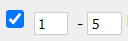 |
To check and uncheck the claims easily; provide ordinal number in both fields. e.g., if the user provides the number as in the given image, claims in the position 1 to 5 will be checked |
| DOS | Provide the DOS date range |
| Include Closed Lines | If checked, closed lines of the claims will also be listed |
| Include Previously Posted | If checked, previously posted lines will be listed |
| Exclude Prior Pr. Payments and Adjustments | If checked, Primary payments and Adjustments will not be added to the paid and adjustment amounts. |
| Claim Status | To filter claims by their status: Processed as primary, Processed as Secondary, Denied, etc. |
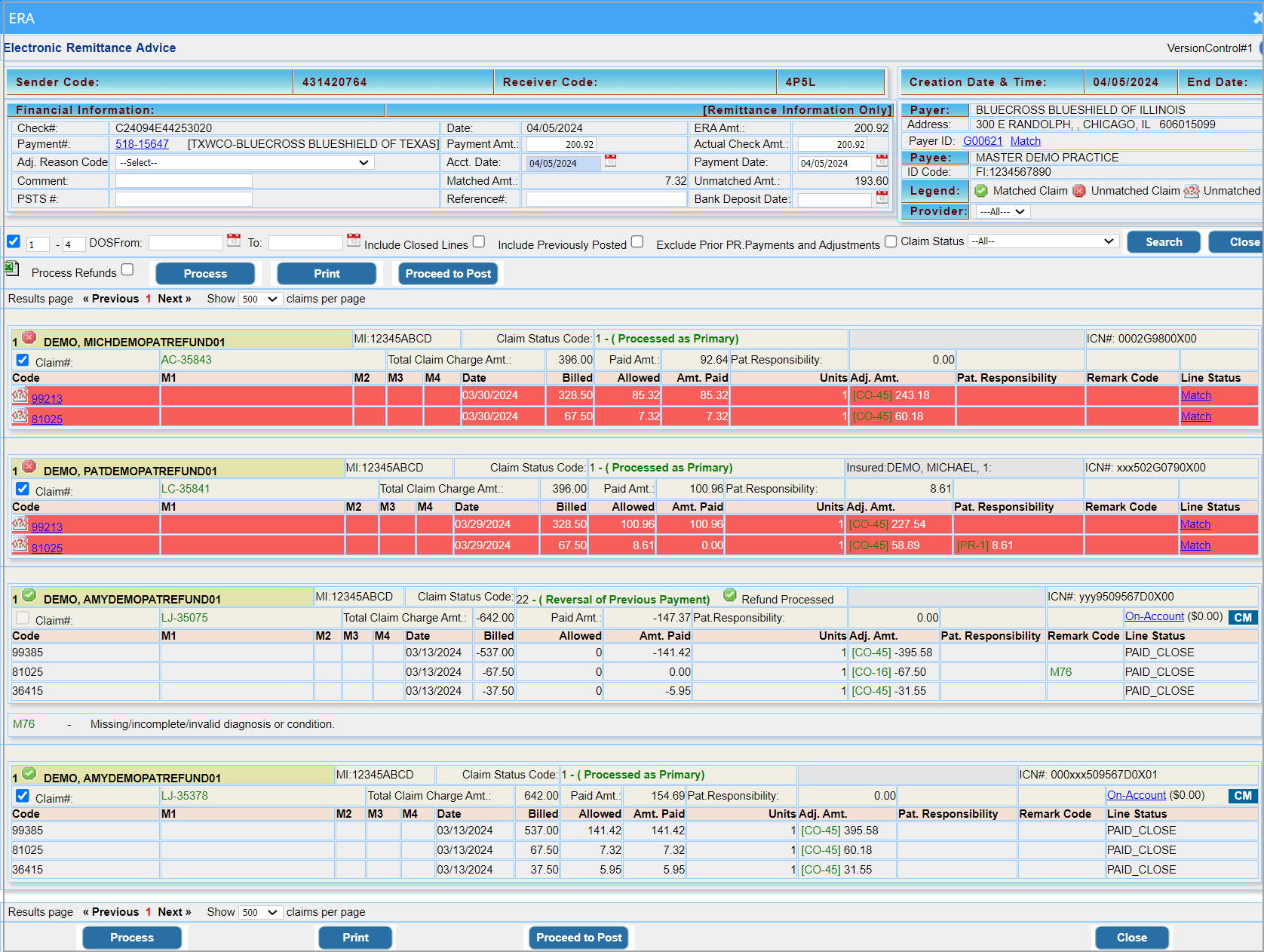
A Sample ERA page
Posting ERAs
1. Click on the Payer or the Open ERA button for the ERA to be posted. This opens the ERA page as in Image 4.
2. Initially, each patient record in the ERA page has a  mark to indicate that it is an unmatched claim. Click on
  button to create a payment entry and to match claims. Once processed, all matched claims will have a
  mark and all unmatched lines will be highlighted in Red as in Image 5.
3. All records in the ERA, regardless of whether procedure codes are present or not, can be exported to an Excel file using the  beside the Process Refunds checkbox.

COB Automation
When the claim status code indicated is 19 ( CoB is for a crossover claim) and if the secondary insurance indicated in the ERA is not present in the patient’s record, so as to facilitate the COB posting & to efficiently move the line(s) to secondary responsibility, the system will automatically create the secondary insurance for the patient as part of the auto-posting process.
For the above automation to occur, in the Billing Options set up page, ‘Auto create COB payer From ERA’ option should be set to YES. The adjacent field named Default COB Payer Name will have the pre-set value “Default from ERA”. Practices can change this to any payer of their choice.
If Default from ERA option is selected, the system will use the secondary insurance name and patient insurance id presented in the electronic remit to create the secondary insurance for the patient.
However, if the practice provides an insurance name in the Default COB payer name, this payer will be picked up for creating secondary payer instead of the payer in the COB info.
If the secondary insurance is already present in the patient demographics, the system will automatically associate it with the case.
In the process of adding secondary insurance for the patient, if the insurance company is not present in the insurance master, the system will first auto-create the insurance company with generic information. Please note – users will need to complete any missing secondary insurance information in both the insurance company master and inpatient insurance records.

Negative payments
To prevent inadvertent auto-posting of negative amounts by users that can result in posting errors, the claim selection checkbox in the ERA screen is disabled when a negative amt is present in the remit. Below are the couple of the negative amount ERA posting scenarios where the system will prevent selection of the claim for auto-posting –
1. If the claims status code is 22 (indicating negative payment or adjustment)
OR
2. If the Paid Amt. is a negative amt; see Image 5.1.

However, if the sum of adjustments is a negative value, the claim can be selected for posting but the system will display a warning in the ERA posting screen. Users will need to make necessary corrections and post the ERA.
Exception: ERAs with CO-144 and OA-94 negative adjustments can be auto-posted.
3. Click on  button. The ERA Posting screen opens for the patients having mark, as shown in Image 6.

4a. User can selectively check the items for posting. Check boxes are provided (see item marked 8 in Image 6) so that users need not post the ERA completely in one go; they can select the items that needs to be posted and complete the rest Later. This is helpful when the ERAs are large. But users have to exit and reopen the ERA to continue posting.
4b. Another method by which users can conveniently post large ERAs in parts is by using the new “Save and Continue” option (highlighted in Image 6b) added to the ERA Posting screen. Users can click on this option to leave the ERA partially posted and return later to complete the posting from where they left off. Users can continue posting the remaining payments without having to exit the ERA posting screen.
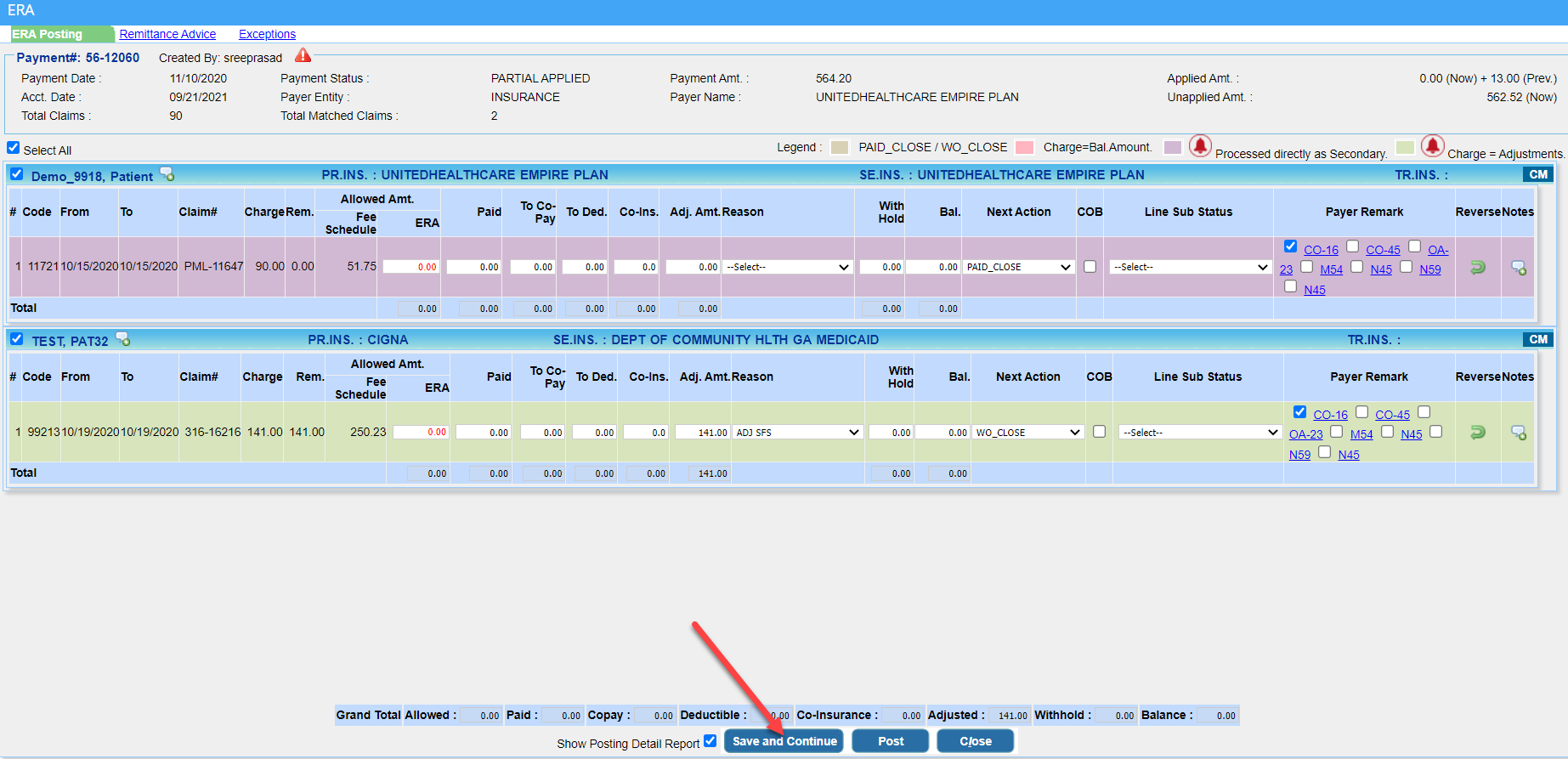
5. Allowed Amount (ERA) will be red-texted if less than the calculated allowed amount based on the fee schedule and orange-texted if it is higher. Also, mouseover on ‘Allowed Amt (Fee Schedule)’ will display per unit allowed amount and the calculated allowed amount based on the number of units.
6. Click on  at the bottom of the screen to post the ERAs. To view Posting Detail Report immediately after posting the items, check the box Show Posting Detail Report; this action opens the report as in Image 5.
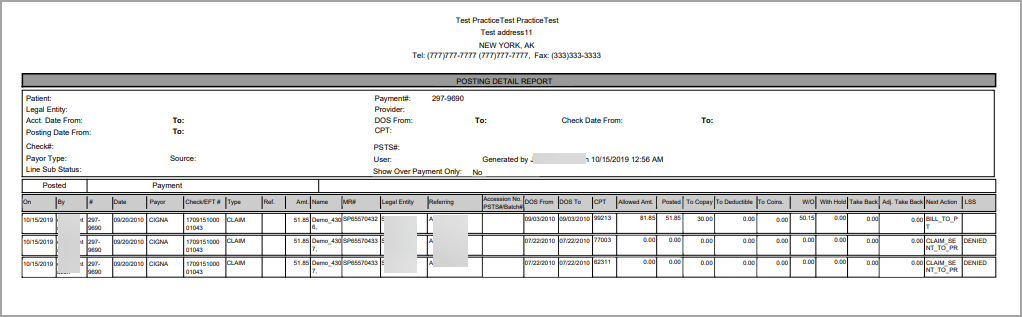
7. When denials are auto-posted from the ERA, the system will ignore the contractual adj code (CO-45) or a patient responsibility code ( PR-1; PR-2; or PR-3) and instead attach the subsequent remark code.
Options/Links available in the ERA Posting Screen
Each posting line in this screen is colored according to the legend given in Table 2.
| Color | Description |
 |
PAID_CLOSE / WO_CLOSE |
 |
Charge=Bal.Amount |
 |
Processed directly as Secondary |
 |
Charge = Adjustments |
Table 2
Different options/links available in the ERA Posting screen are labeled in Image 4 and described in Table 3.
| Option/Link | Description |
| 1 | This link at the top-left part of the screen takes the user to the ERA screen. It can be used for reference. |
| 2 | Opens the Recalls & Alerts screen |
| 3 | Payer Remark |
| 4 | Reverses the payment |
| 5 | To add line notes |
| 6 | Exceptions link to a page where all unmatched claims are listed. This separate listing helps users to quickly identify claims that failed to match/post from the ERA. |
| 7 | Link to Charge Master |
| 8 | To select the items for posting; |
Table 3