Partner Academy

Demographic Sheet Report

/Patient & Patient Account /Demographic Sheet Report

About Demographic Sheet Report

Demographic Sheet Report displays the demographic information of a patient in a printable form to get the signed consent of the patient regarding treatment costs. To access a patient’s demographics report, follow these steps.

How to Access

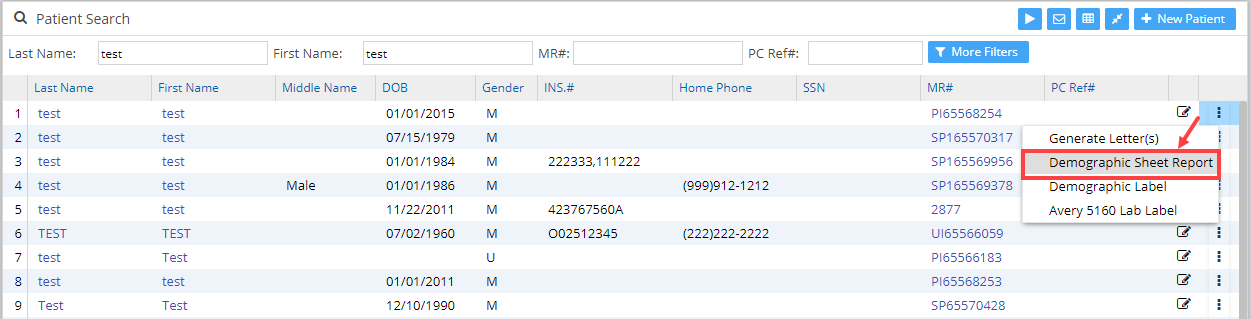
1. Select Patient from the main menu. The Patient Search screen opens up. Search for a patient by typing in either patient’s Last Name, First name, MR#, etc. In the patient list, towards the rightmost end of each line, there is an ellpsis menu    that provides options as in Image 1.

Image 1

2. Select the Demographic sheet report from the drop-down to open the Demographic sheet Report of the patient (see Image 2).
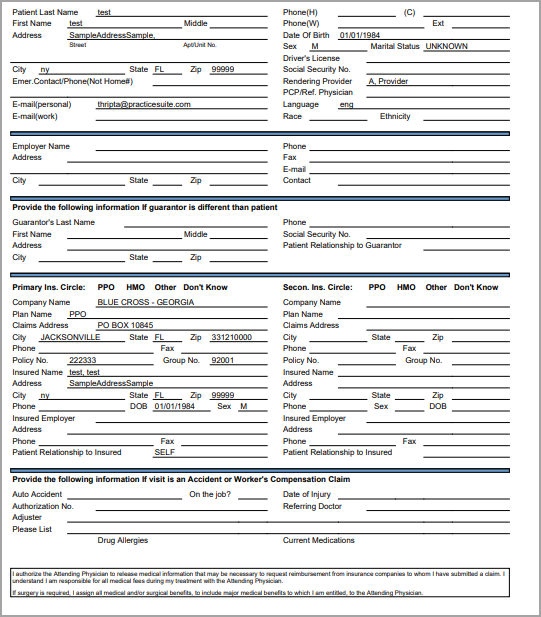
Image 2


API Menu

  • Patient Search
  • Patient C-CDA
  • Patient CCDS
  • Terms of Service

PS Academy

Categories

  • Introduction to Practice Management system 5
  • Authorization 3
  • Security 6
  • Scheduler 29
  • Setup & Advanced Setup 42
  • Patient & Patient Account 31
  • Patient Portal 14
  • Charges & Claims 39
  • Referrals 1
  • Payments 22
  • Add-On Services 4
  • Report Central 141
  • Collections 5
  • HIPAA Office 6
  • Inter-Office Messaging 4
  • Time Card 1
  • Product Release 60
  • FAQs 109
  • Miscellaneous 5
  • Training Videos 1

Popular Articles

  • Create Custom Superbills
  • System requirements
  • Initiating Practice Management system
  • ICD-10 Lookup
  • Payment Entry from the Posting screen
  • Charge Entry
  • How To Use ICD-10 From Charge Master Screen?
  • How To Use ICD-10 From Charge Entry Screen?
  • Welcome to our Practice Management system
  • Payment Master

Latest Articles

  • Setup Secondary ID for Providers
  • Personal Profile Page
  • Portal Access
  • Protected: Product Release Document v25.15.0
Copyright © 2026 All Rights Reserved.
  • Home
  • Practice Management PRD
  • Interface PRD