Credit Card QuickPay from Portal
Quick Pay permits you to make a payment without having to log in to the patient portal. You can now conveniently make your co-payments or prepayments directly through the Patient Portal’s Quick Pay screen.
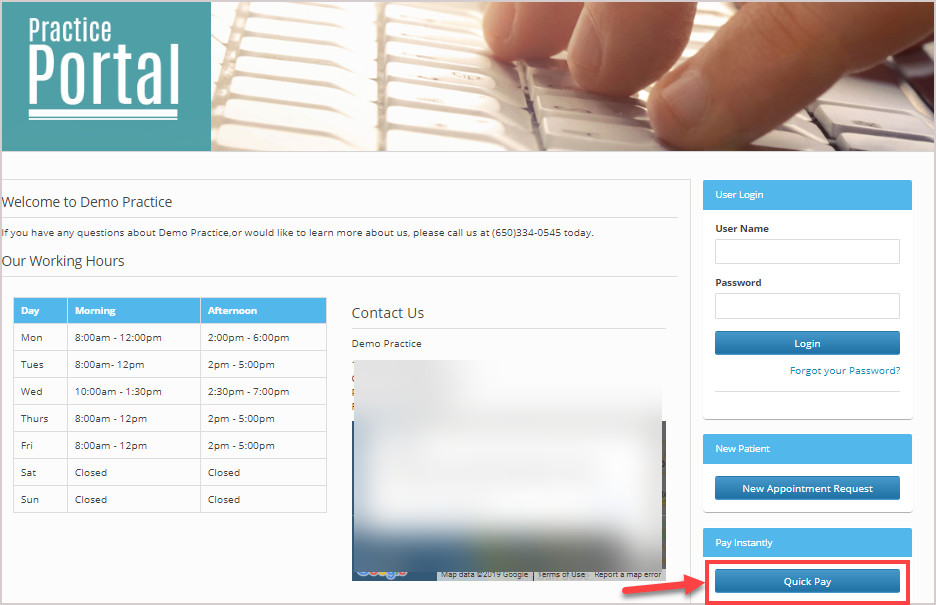
1. Open your Patient Portal page and click on the button  on the portal page.
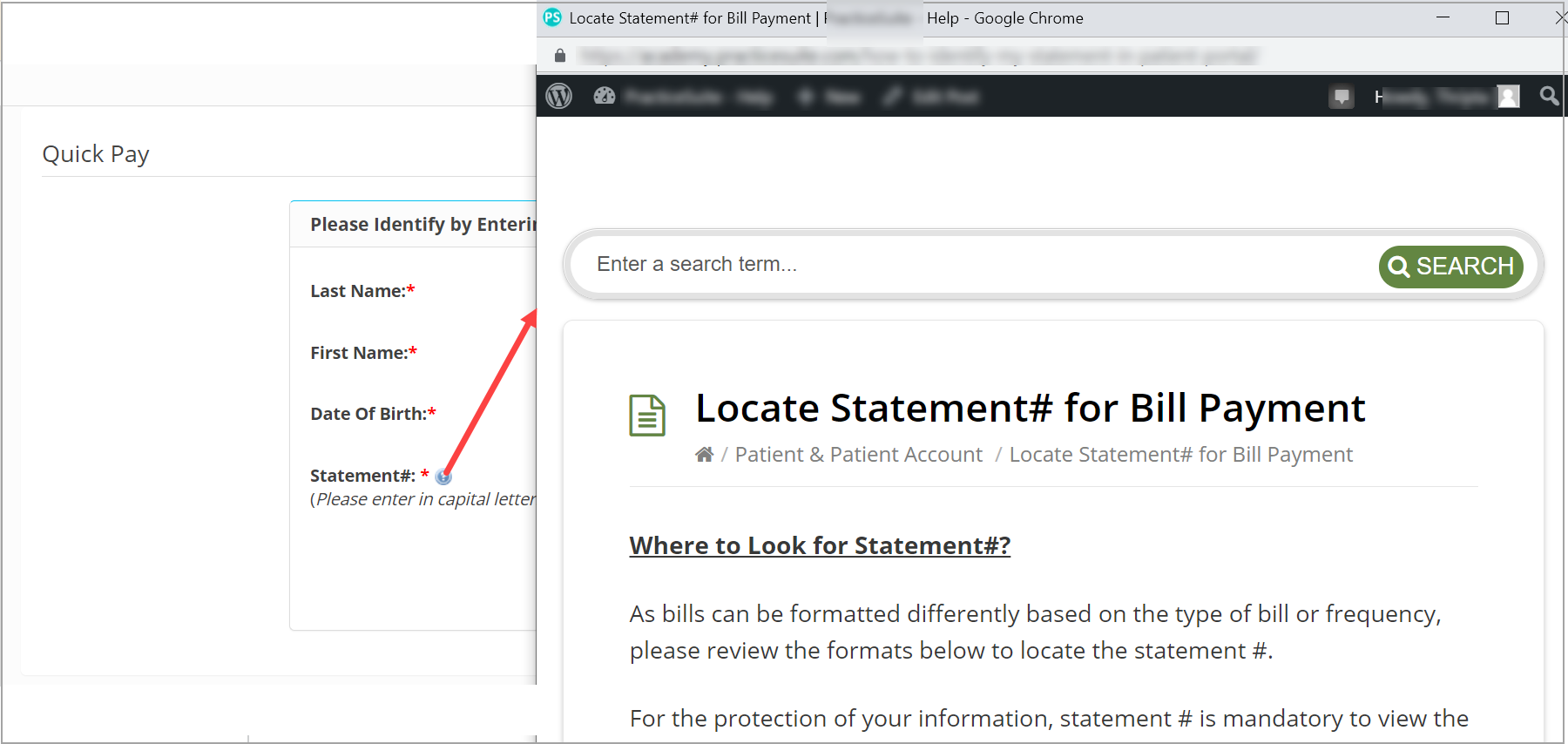
2. This would bring up the Quick Pay patient validation screen. Enter the following mandatory info:
- Patient Last Name
- Patient First Name
- DOB
- Statement #: The format of statement # is alphanumeric, with two letters and “-” (hyphen) followed by a number, for example, PS-12345. Practice Management System permits flexible entry of statement # and supports inputs with or without hyphens, spaces, or case sensitivity.
3. Hit Proceed to Pay Button. For accounts that have not enabled the credit card payment gateway, the button caption will read “View My Statement”.
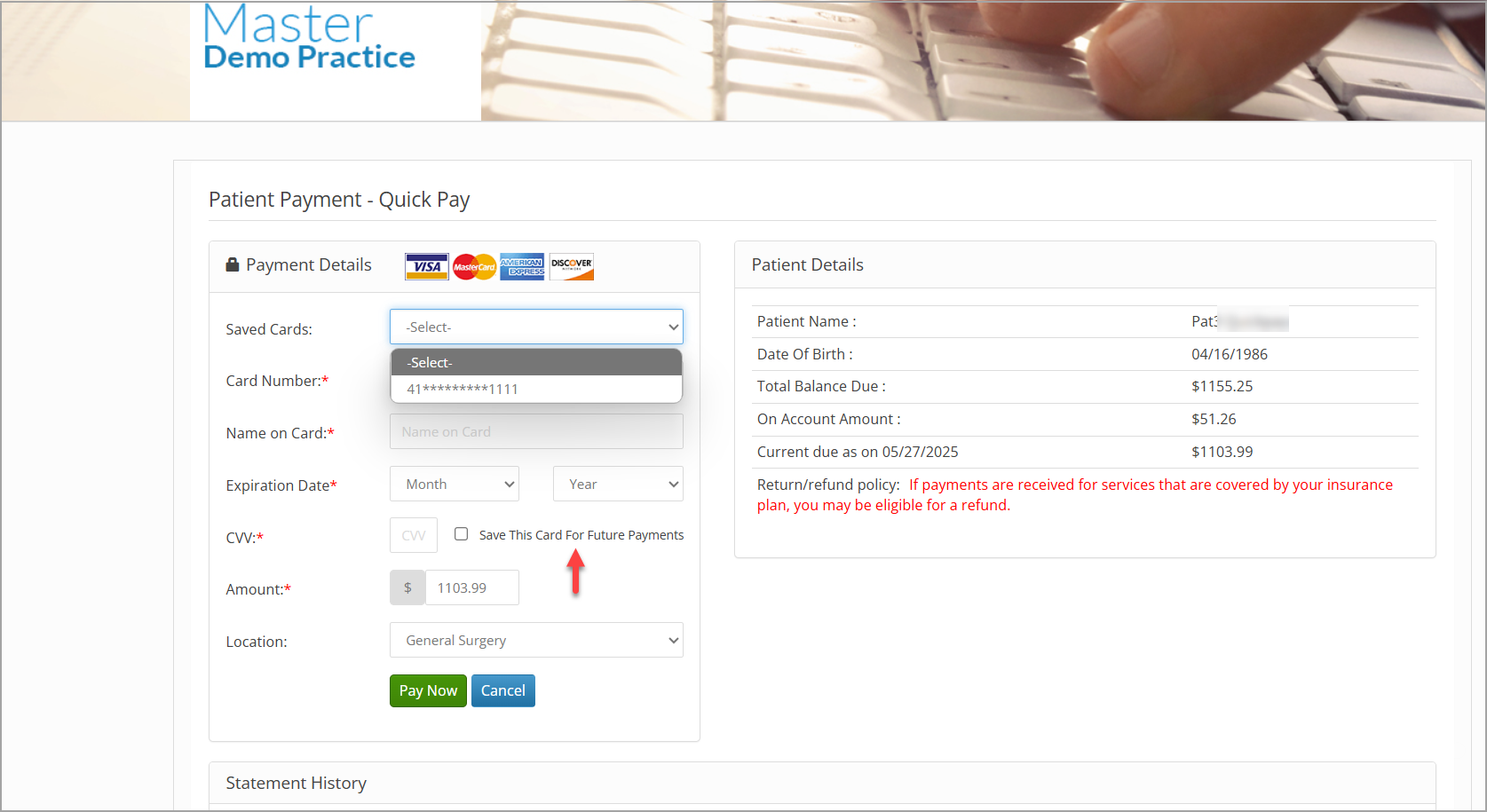
4. Once the validation is complete, you will be taken to the payment entry screen where you can enter the card information. Enter card details and click on Pay button to complete the transaction. This screen would also show the patient’s balance, on-account amount (if any), and statement history.
* Patients can now save payment card details securely for repeated payments, accessible both in Patient Portal and QuickPay.
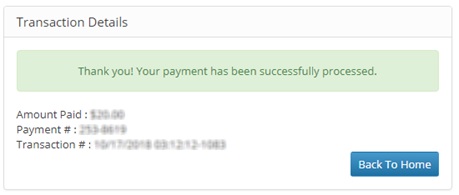
5. On successful payment, transaction details are displayed on the screen.