Configuring User Access
In our Practice Management system, once a user is created assigning appropriate Admin, Legal and Accounting rights, access configurations for the user need to be setup. The Configuration has mainly two components. They are
1. Remote Access configuration
2. Menu access configuration.
They are represented by gear icons as highlighted in Image 1.
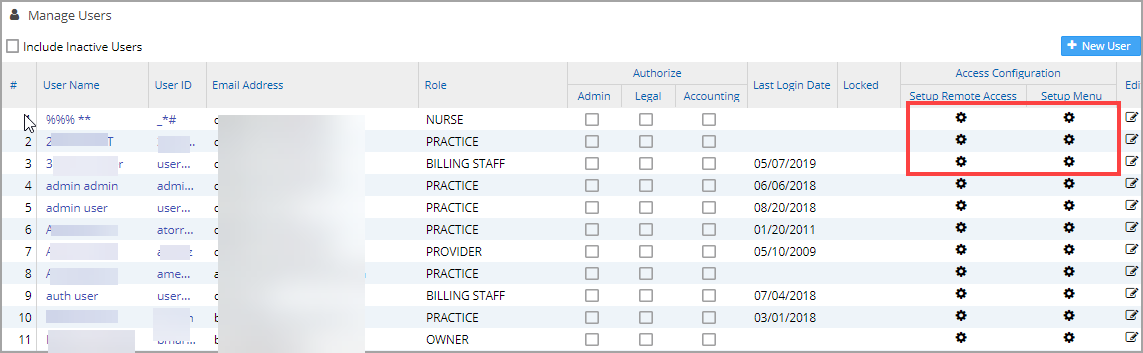
1. Remote Access Configuration
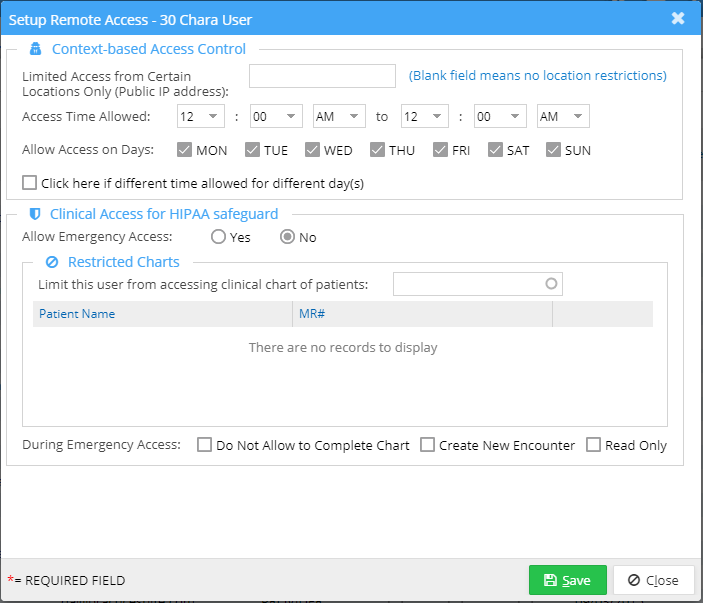
Remote access for a user needs to be configured to restrict the time and days on which a user can access the system remotely. Moreover, IP addresses can be given to restrict a user to those machines while accessing the system remotely. On clicking the Setup Remote Access gear icon  , the screen, as in Image 2, shows up.
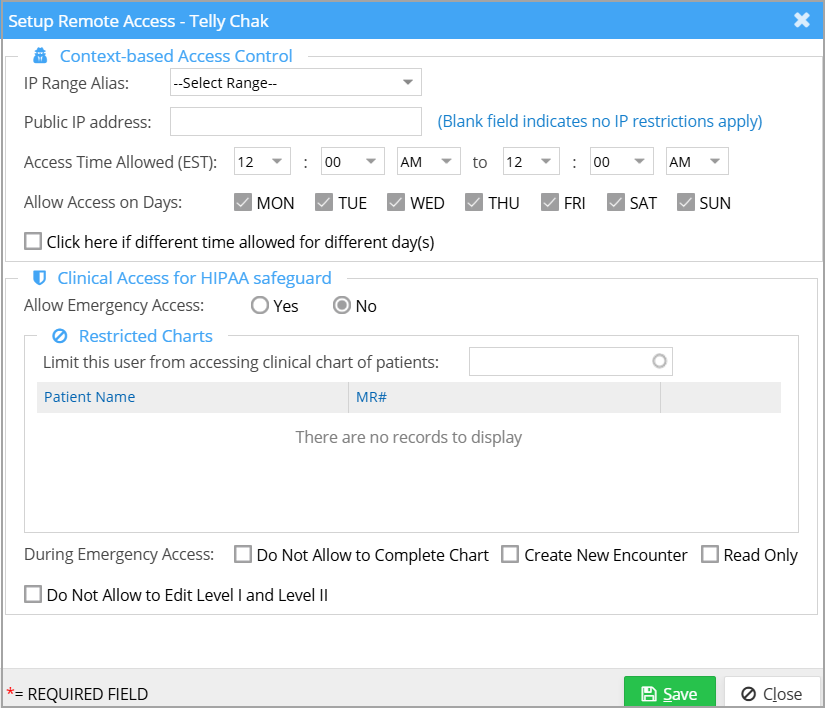
a) Context-Based Access control
ii) To enable the Time/Day based access for the user
Set the Access Time Allowed for the user using the Time Allowed From and Time Allowed To boxes.
From the Allow Access on Days select the days on which remote access is allowed. To prevent access on any particular day, leave the checkbox corresponding to the day unchecked.
If remote access timing is required to be different for different days, then select the checkbox Click here if different time allowed for different day(s). A list of days will be displayed below with the option to set individual timings for each day as shown in the image below. Set different access times for the user using the options provided.
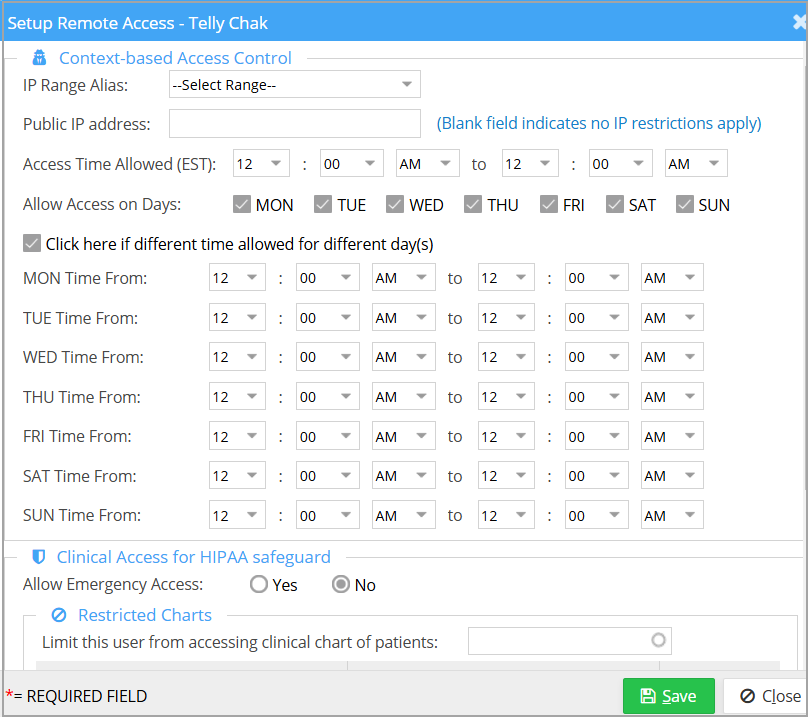
ii) From the IP Range Alias drop-down menu, select PRACTICE_ALLOWED_IP_RANGE to apply practice-level IP permissions to the user (practice-level IP permissions can be viewed at Security->Preferences screen). If the option is left at Select Range, it allows the administrators to enter the specific IP addresses in the Public IP Address field.
If ‘Public IP Address’ field is empty, the user can access the system from any IP address without any restrictions.
After entering all the necessary information, click on the Save button. The remote access for the user gets configured.
2. Menu Access Configuration
Menu access permissions for a user are set according to the role of the user in the system. The role is specified at the time of creating the user. Further permissions/restrictions can be given by Setup Menu Access gear icon in the Manage Users page. On clicking corresponding to a user, the screen as in Image 5 opens up.
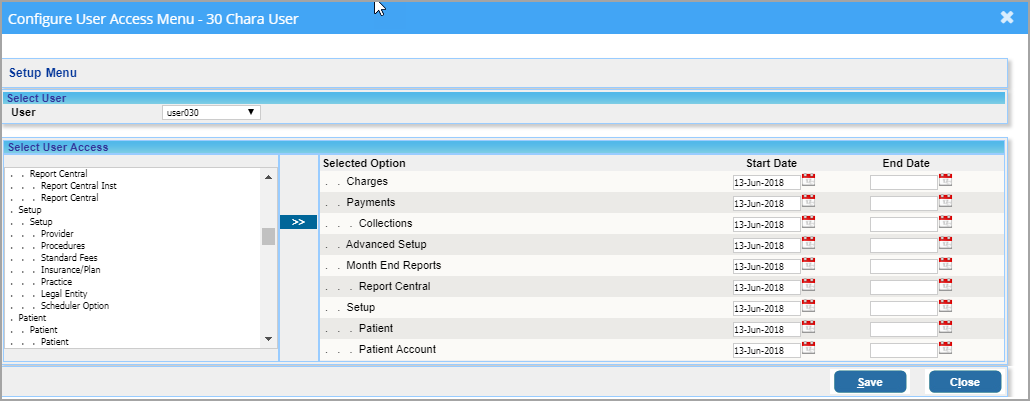
The left pane displays the main menu and the sub-menus. The permitted menu options for the selected user is given on the right. Start Date displays the date on which the menu access was given. End Date can be given (optional) to specify the date unto which the access is given. Select a Menu displayed on the left side and click the assign button  to assign the menu for the user. On assigning the Start Date defaults to the current date. Provide an End date, if necessary, and click on Save.