Configuring Default Schedule Status in the Scheduler
The scheduler comes with predefined schedule statuses to help categorize and track appointments. However, clinics often have unique operational workflows that require more flexibility. The system allows authorized users to modify these default schedule statuses—adding new ones, renaming existing ones, or assigning custom color codes. This ensures that the scheduling interface aligns with the clinic’s specific needs and enhances visibility and workflow efficiency.
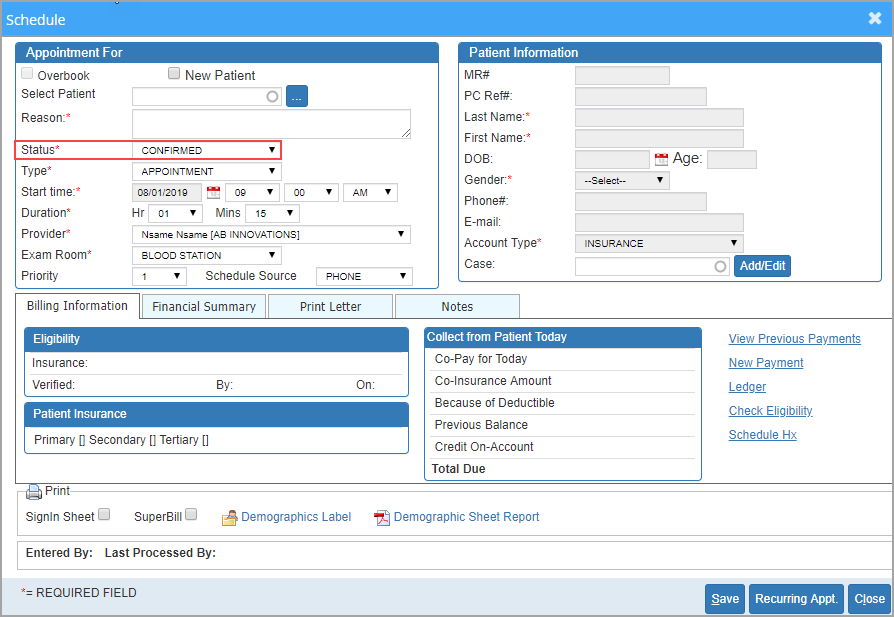
Practice Management System allows users to modify the default schedule status used in the scheduler. Follow the steps below to update or customize the default status as needed.
1. Select Scheduler from the main menu.
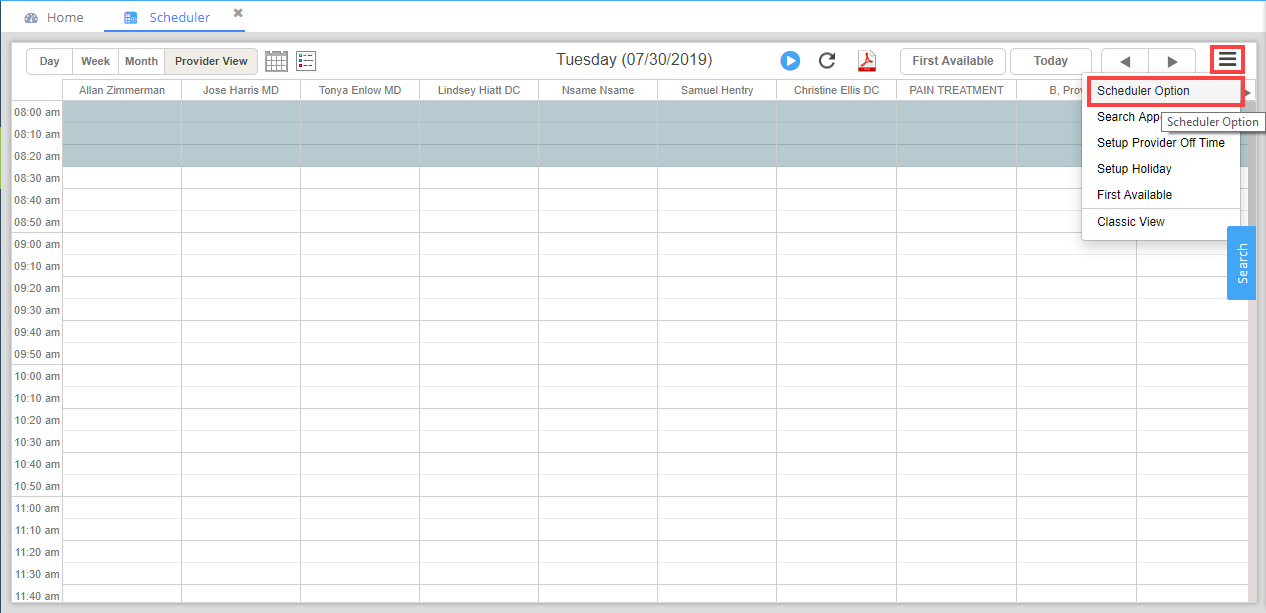
2. When the scheduler screen opens, click on the  button seen on the upper right corner of the Scheduler screen (highlighted in Image 2). On clicking the button, a drop-down list appears. Select the Scheduler Option from the drop-down, as shown in Image 2.
3. The scheduler status defaults to SCHEDULED when a user creates an appointment. To change the default status, select the appropriate value from the drop-down.

4. Click on  button, and the default scheduler status will be updated accordingly.