How to Bulk Reverse a Payment
For bulk reversal, go to Payments from the main menu and choose Enter/Edit Payments.
Look up the payment entry and use the Bulk Reverse button.

Click on the Bulk Reverse option after entering the details.
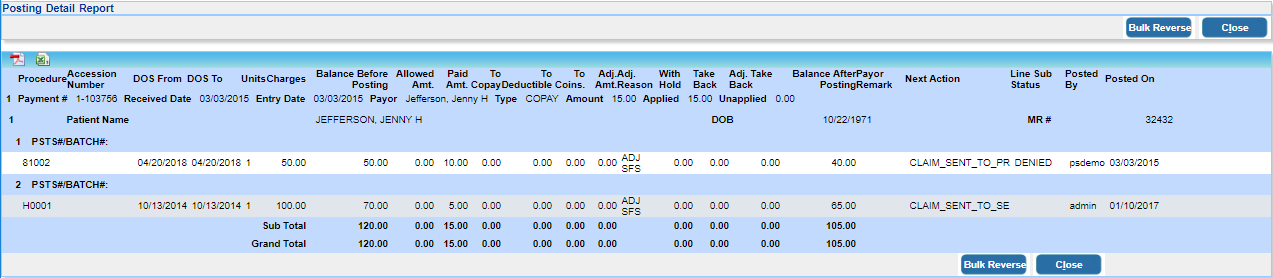
Bulk Payment Reversal for Refunds and Transfers
The bulk payment reversal is now enhanced to support payments with associated refunds and transfers.
For Refunds:
• For refunds in an open accounting period, the system voids the refund entry and restores the amount to the original payment
• If a refund is in a closed accounting period, it is excluded, and users are notified with an alert.
For Transfers:
• If transferred funds remain unapplied (on account) on the receiving payment, those amounts are reversed back to the original payment
• Transferred amounts that have already been applied from the receiving payment are not reversed. Users are notified via an alert.
Upon successful reversal, users see a confirmation: “Payments reversed successfully. Payment status reset to ‘New.’” The system clearly alerts users about any transactions excluded due to closed accounting periods or applied balances