How to Add Attorney Information
Attorney information of the patient can be added to the Practice Management system. The following explains the steps in doing so.
1. Choose the patient record to whom the attorney is to be added.
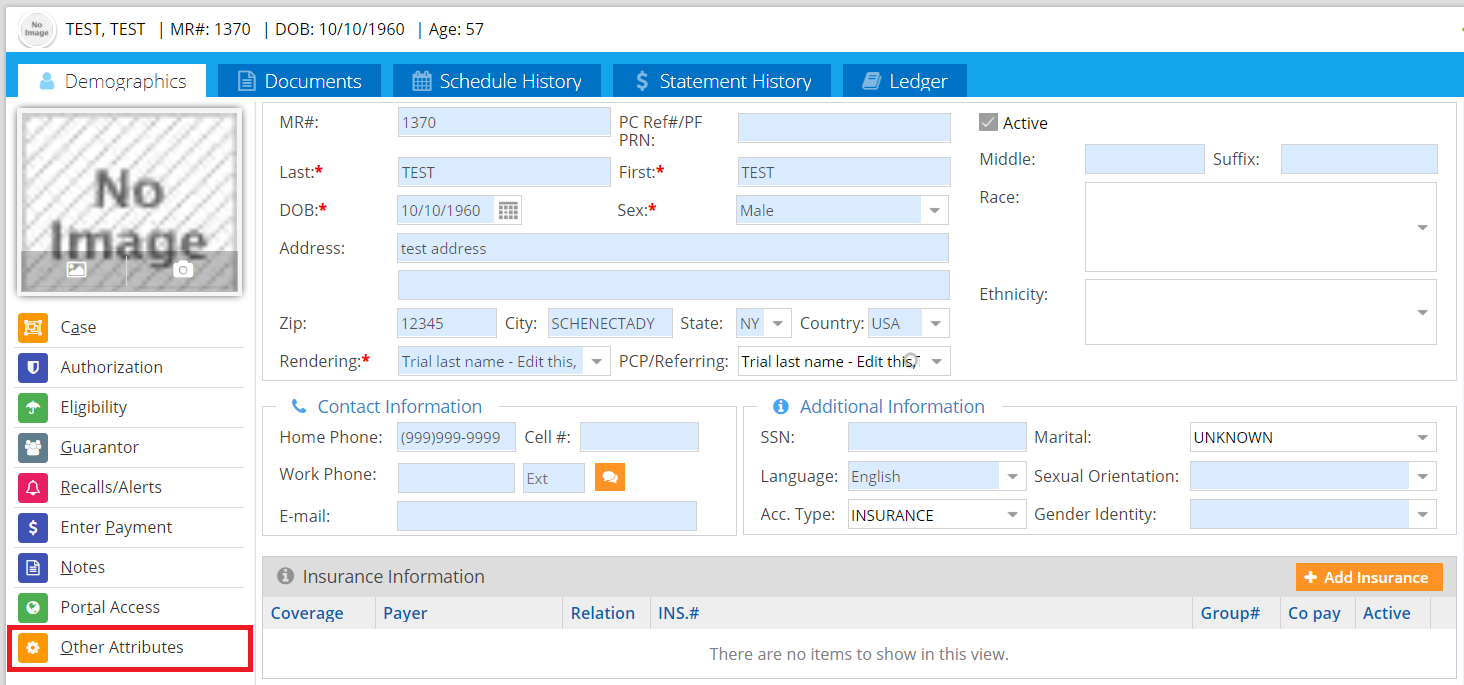
2. Click on the Other Attributes (highlighted in Image 1) to update the attorney information.
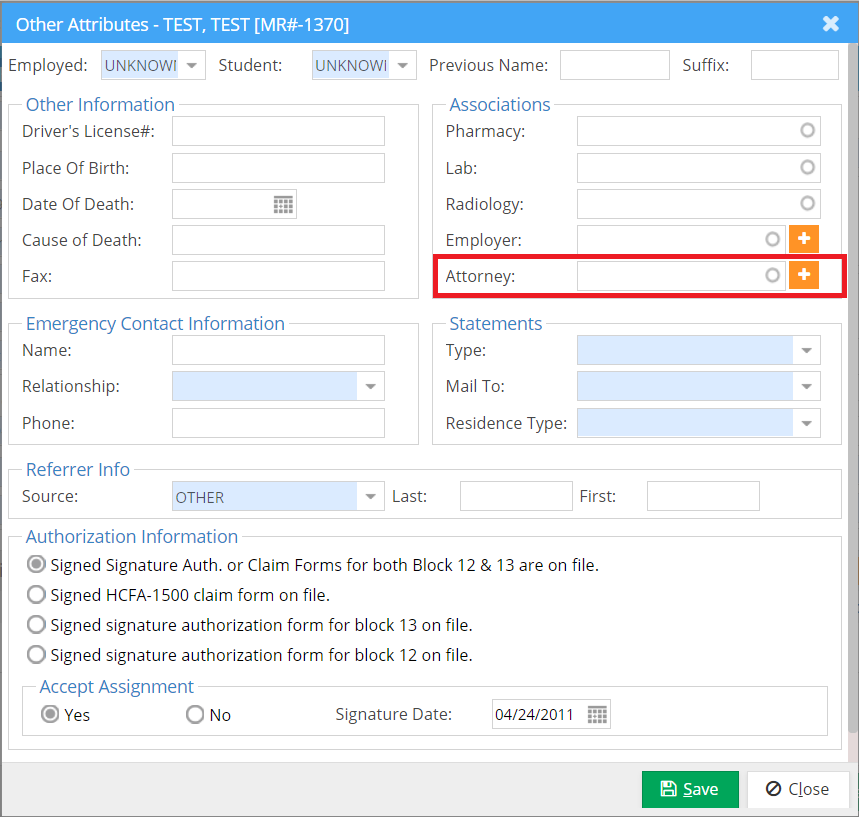
3. When Other Attributes page opens up, type the first three characters of the attorney name in the field highlighted in Image 2.
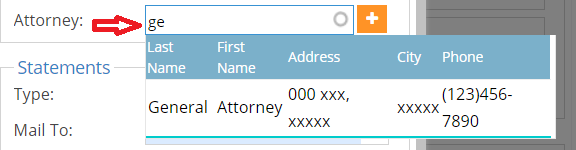
4. As you type the attorney name, a list of existing and matching attorney names will be shown as a drop-down list from where an appropriate attorney can be selected (see Image 3).
5. If the attorney is not in the list, add a new attorney by clicking on the button. This opens up a window for adding a new attorney (refer to Image 4).
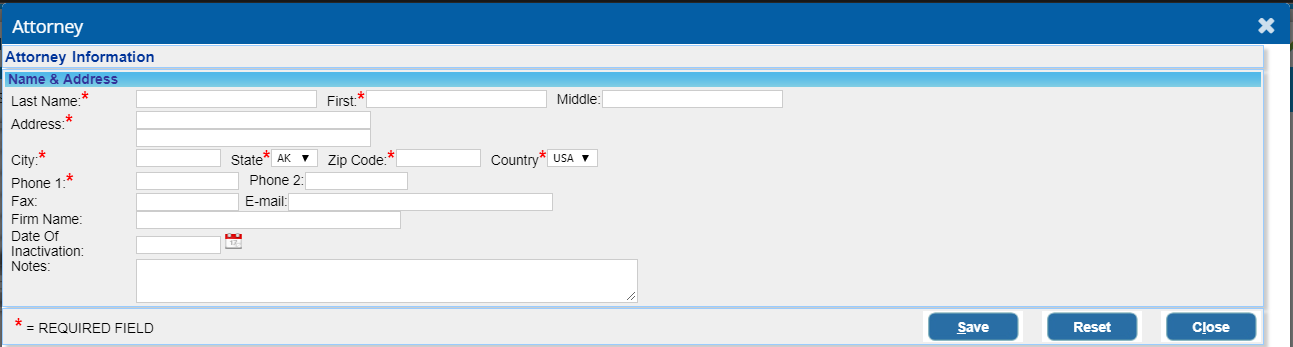
6. Enter the Name, Address, City, State, Zipcode and Country of the Attorney.
7. Click on the Save button, and the Attorney details get saved into Practice Management software.
8. Click Save on the Other Attributes page to save the attorney for the patient.