Product Release Version: v25.14.0
February 2026 Product Release
© 2026 Practice Management System
Disclaimer: All rights are reserved. No part of this work may be reproduced in any form or by any means, graphic, electronic, or mechanical, including photocopy, recording, or information storage and retrieval systems, without written permission of the publisher. The products referred to in this document may be either trademarks and/or registered trademarks of the respective owners. The publisher and the author do not claim these trademarks. While every precaution has been taken in preparing this document, the publisher and the author assume no responsibility for errors or omissions or for the damages resulting from the use of the information contained in this document or the use of programs and source code that may accompany it. In no event shall the publisher and the author be liable for any loss of profit or any other commercial damage caused or alleged to have been caused directly or indirectly by this document. Please note that some of the features and functionalities referenced in this document may not be included in standard offerings and may incur separate fees.
1. Practice Management
Enhancements
1E.1 Bulk Charge Upload Wizard
The existing bulk charge entry process has been enhanced by replacing manual entry with an intelligent, guided Upload Wizard. This feature allows users to import large volumes of charges via CSV/Excel files directly into the X-Superbill screen, with built-in validation to reduce errors (see Video 1E.1).
Key Functional Improvements
Wizard-Driven Upload: Replaces manual entry with a guided, user-friendly, drag-and-drop wizard accessible via the “Upload Charge” button in the X-Superbill screen.
Template Support: Provides downloadable CSV/Excel templates, ensuring data is formatted correctly before upload.
Intelligent Field Mapping: Features a “Map Fields” interface, allowing users to align uploaded data with system fields via dropdowns, with a mapping dashboard for reference.
Pre-Upload Validator: Includes a validation tool to check data integrity before processing.
Detailed Validation Summary: The wizard provides a final summary, identifying eligible records, providing reasons for excluded records (e.g., missing data, invalid codes).
Video 1E.1
1E.2 Claims –Multi-Attachment Support for Primary Claims
This enhancement allows users to submit multiple clinical attachments with primary insurance claims. All uploaded documents are automatically linked to the relevant patient encounter, enabling centralized document management within the billing workflow.
The claim attachment information screen can be accessed from the Charge Master via the  icon. Users can add and delete attachments and manage key metadata, including the Attachment Control Number (ACN), Report Type Code, and Transmission Code.
ACN: The system generates a unique ACN that is user-editable.
Report Type Code: This indicates the type of document.
Transmission Code: is the mode of transmission of attachments (mail, electronic, fax, etc.).
Click Save after all attachments are uploaded (refer to Video 1E.2).
Image 1E.2
1E.3 ERA –Sequential Auto-Posting for ERAs Lacking Procedure Details
The system now features an automated sequential posting logic that applies payments to charge lines based on outstanding balances when ERA service line details are missing. The paid amount is distributed across claim lines in order until the payment is fully applied, ensuring successful financial reconciliation and auto-posting completion. This enhancement maintains standard logic for ERAs with full data while ensuring high-volume claims are processed accurately despite missing procedure details.
1E.4 Manual Posting- Multi-Denial Support for Manual Posting
The manual posting screen has been enhanced to allow users to record multiple denials for a single claim line. This update ensures that all relevant denial reasons from an EOB are captured accurately during the manual entry process.
1E.5 Claims- New Rule for Supervising Provider
To streamline high-volume billing for accounts with multiple providers, a new rule has been implemented that automatically sets the Supervising Provider on claims. This eliminates the need for manual selection of the supervising provider across a large number of records.
<PAYERID>:SUPERVISING:[<Provider_NPI>:<Provider_lastname>:<Provider_firstname>]
1E.6 Charge Master- Hover-Display for Expected Reimbursement
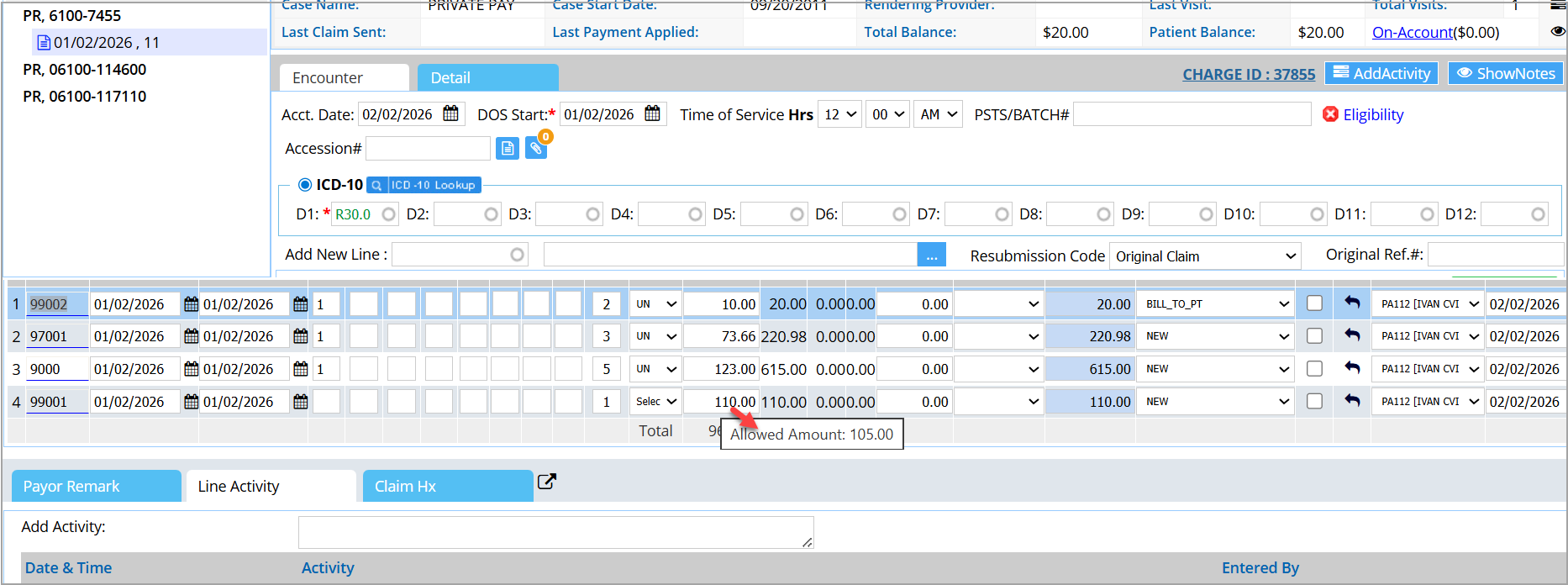
The Charge Master screen has been enhanced to display the Expected Amount from the applicable fee schedule as a tooltip when hovering over the Charge Amount. This provides users with immediate visibility into expected reimbursement versus billed charges without navigating away from the screen.
Resolved Items
1R.1 XSuperbill-Sorting Issue Fixed
We fixed an issue in the XSuperbill screen where sorting only applied to individual pages, causing inconsistent ordering. The system now performs global alphabetical sorting across the entire result set, ensuring patients are correctly ordered across all pages.
2. General
Enhancements
2E.1 Patient Portal- Automated Posting for Patient Payments
The system has been updated to automatically post payments made through the patient portal directly to the corresponding patient-responsible charge lines. Once a statement is generated, any portal payments are immediately allocated to the outstanding balances to ensure real-time financial reconciliation.
2E.2 Patient Demographic Label Redesign
The patient demographic label has been redesigned with dedicated sections for patient, insurance, and provider information for improved clarity. As part of this update, the SSN and Practice Name fields have been removed, and the current date is now displayed at the bottom of the label.
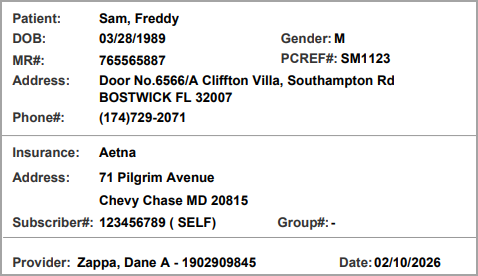
Image 2E.2
3. Reports
Enhancements
3E.1 G3, G5, and G6 Reports to show Insurance Amount Breakup
The following reports will display Primary Paid, Secondary Paid, and Tertiary Paid instead of a single Insurance Payment column.
G3. Collector Productivity Report
G5. Collector Worklist Report
G6. Work Queue Productivity Report
* G6 report also shows the patient paid amount.
3E.2 I4. Payment Deposit Report
The legal entity and provider will be shown as two separate fields in the I4. Payment Deposit Report. Also, the Excel output will show the Payable To address field.
3E.3 I8 Report- New Fields Added
I8. Summary- Encounter Line Activities Report will show service location address and guarantor information, such as name, relationship, and address, in its detailed Excel, detailed CSV, and offline reports.
3E.4 E9. Interface Log Report
Resolved Items
3R.1 E9. Interface Log Report
The E9 report has been fine-tuned and enhanced for better performance.