Product Release Version: v25.1.0
September 2024 Product Release
© 2024 Practice Management System
Disclaimer: All rights are reserved. No part of this work may be reproduced in any form or by any means graphic, electronic, or mechanical, including photocopy, recording, or information storage and retrieval systems – without written permission of the publisher.
The products that are referred to in this document may be either trademarks and/or registered trademarks of the respective owners. The publisher and the author do not claim these trademarks.
While every precaution has been taken in the preparation of this document, the publisher and the author assume no responsibility for errors or omissions or for damages resulting from the use of the information contained in this document or from the use of programs and source code that may accompany it. In no event shall the publisher and the author be liable for any loss of profit or any other commercial damage caused or alleged to have been caused directly or indirectly by this document.
Printed September 2024 at PracticeSuite, Inc.
Part 1- Product Enhancements
1.1 Referral Management
1.1.1 Referral Letters
The referral note section within the referral screen has been upgraded. The referral module now includes a text editor, allowing users to type in free form or load referral letters saved in the system via the new ‘Template’ drop-down.
Referral letters must be saved with the group code REFERRAL in the Letter Master for them to appear on the Referral screen. Users can modify the letter within the editor tool and save it. The letter will also appear in the referral report.
Furthermore, this release introduces various tags to populate the referral information, as shown in Tables 1 and 2.
| Tags for Referral In Information | Tags for Referral Out Information |
|
#@REFERRAL_PROVIDER_FROM_NAME#@ |
#@REFERRAL_PROVIDER_TO_NAME#@ |
|
#@REFERRAL_PROVIDER_FROM_ADDRESS#@ |
#@REFERRAL_PROVIDER_TO_ADDRESS#@ |
|
#@REFERRAL_PROVIDER_FROM_CITY#@ |
#@REFERRAL_PROVIDER_TO_CITY#@ |
|
#@REFERRAL_PROVIDER_FROM_STATE#@ |
#@REFERRAL_PROVIDER_TO_STATE#@ |
|
#@REFERRAL_PROVIDER_FROM_ZIPCODE#@ |
#@REFERRAL_PROVIDER_TO_ZIPCODE#@ |
Table 1
Common Tags for Referral In and Out
|
#@REFERRAL_DATE#@ |
|
#@REFERRRAL_REASON#@ |
Table 2
1.1.2 Other Changes to the Referral Module
1. As seen in Image 1.1.2a, a checkmark will appear next to the listing page for the faxed referrals. The user, the sent date, and the time will be recorded in the ‘Remarks’ tab.

Image 1.1.2a
2. Further, the referral report will hereafter display the ICD descriptions. Please refer to Image 1.1.2b.
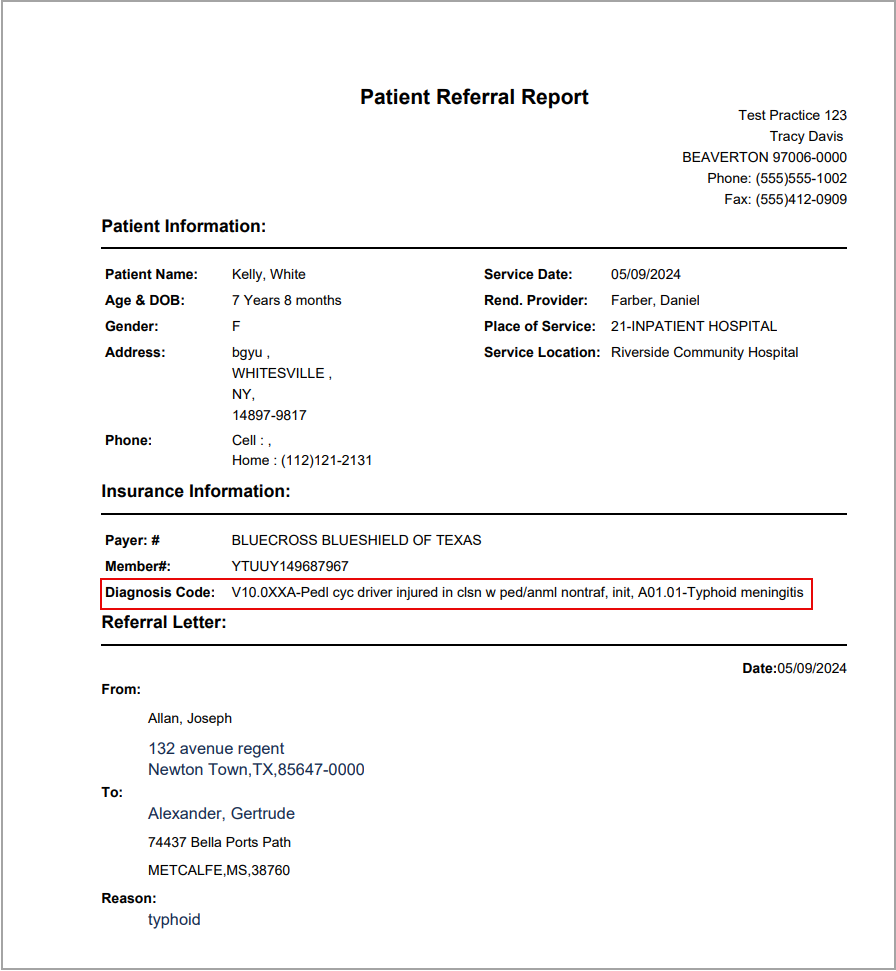
Image 1.1.2b
3. The ‘Remarks’ tab has a new ‘Include Remarks in Report’ checkbox (as shown in Image 1.1.2c). Checking this box populates the referral remarks in the report.
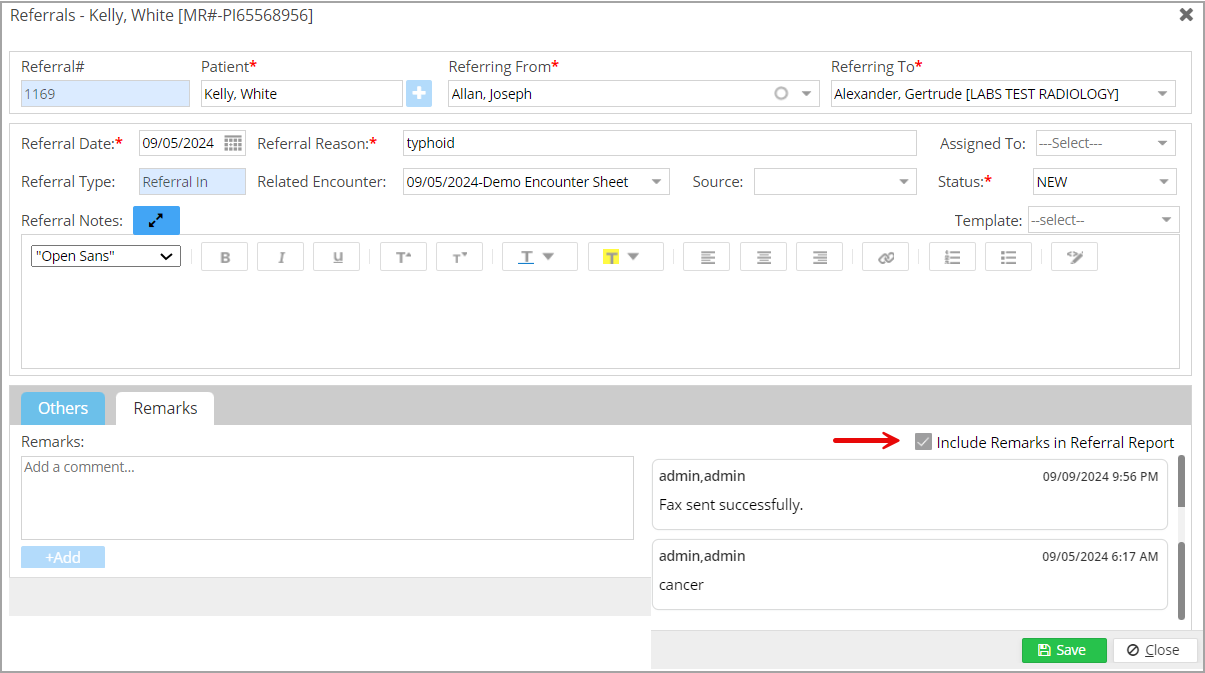
Image 1.1.2c
1.2 Work Queue Upgrades (Function-based)
A. The Work Queue module, previously designed on KPI, has been redesigned to a function-based queue structure. The function lists in the work queue will remain predefined. The following table illustrates the available functions and the categories. The current layout is similar to the previous versions and follows a top-down listing with a few changes in the listing order and the categories.
In terms of the hierarchy, at the top of the tree is the priority followed by functions, and then finally the worklists.
| Key Functions / Categories | |
| Appointments/Scheduler | a. Seen but not billed
b. Missed Appointments |
| Charges | a. Failed and inactive eligibility
b. Unbilled Charges c. Untimely filing d. Errored Charges – CCI and Internal Claim Validation Errors e. All the Hold lists. |
| Claims | a. Error Batch
b. No Response Claims c. Clearing house rejections d. Payer rejections |
| Denials | a. CO 256 |
| Payments | a. Underpayments (Less than fee Schedule expected) |
Table 3
B. Further, the ‘Assigned To’ filter has been made a searchable combo.
1.3 eFax
1.3.1 Attach Clinical Summary PDF
The patient’s clinical summary can now be e-faxed from the system. The ‘Other documents’ drop-down within the faxing screen will have a new choice named ‘Clinical Summary’. Please see Image 1.3.1. When the option is selected for the attachment, the clinical summary pdf will be attached to the message.
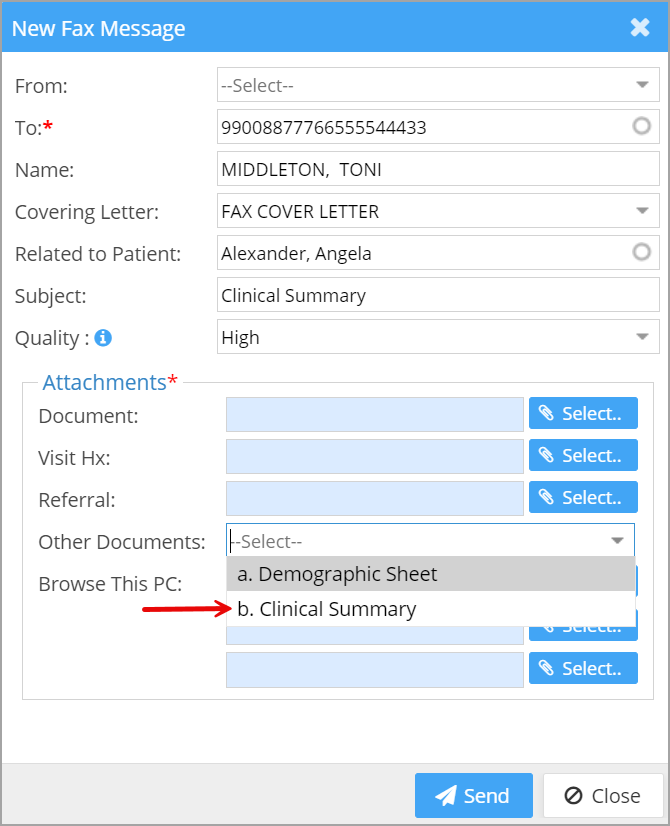
Image 1.3.1
1.3.2 Delivery Failure Reason
An upgrade to the fax response has been made and the exact reason for the delivery failure will be displayed in both the failed and sent faxes list (refer to Image 1.3.2). Additionally, the tooltips have been added to the following columns: Reason, Patient, Receiver Name, and Subject.

Image 1.3.2
1.3.3 Renaming Documents Received in a Fax
Users can hereafter rename documents from any fax folder. Previously, the documents received in a fax could only be renamed after assigning to a user. This is no longer required in the new version and faxes can now be easily renamed directly from the inbox and other folders.
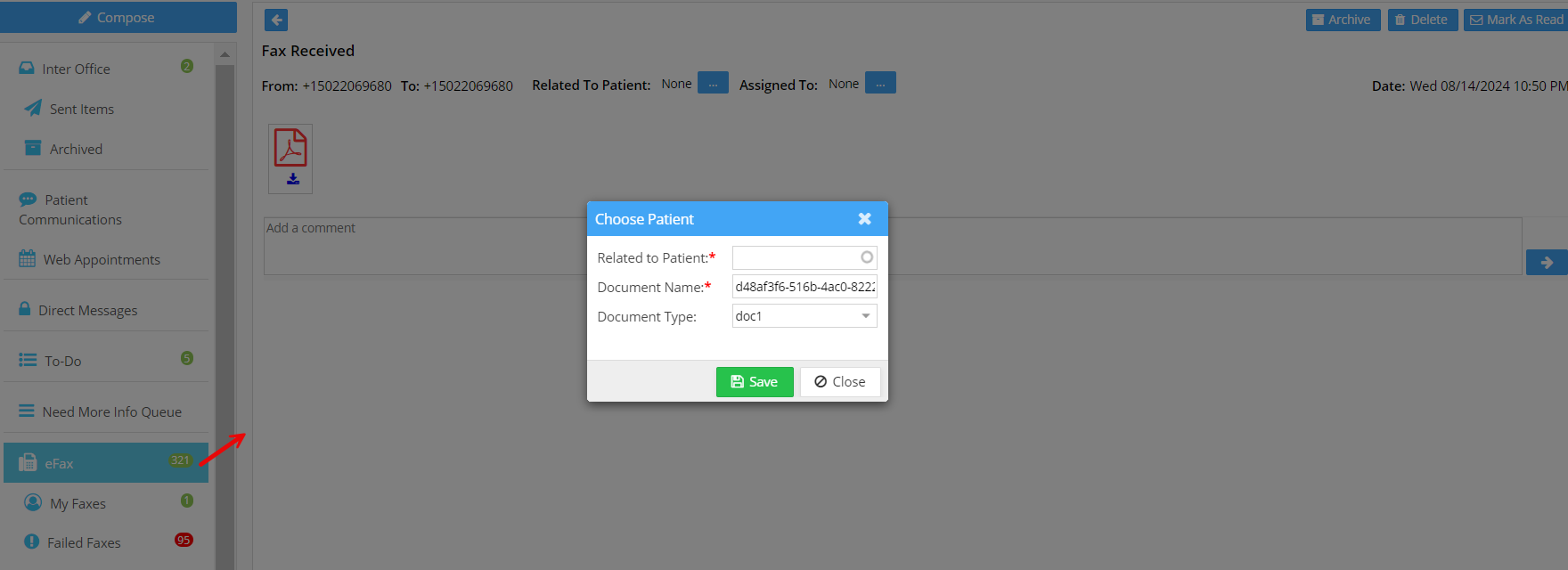
Image 1.3.3
1.4 Two-Factor Authentication
In the previous versions, users could indefinitely skip the two-factor setup for user authentication. From now on, the administrator can set the expiry period within the user configuration screen (Security -> User Preferences) to limit the 2FA override.
After the grace period ends, all users in the account will be required to sign in using the 2FA method. For the users who have not enabled the two-factor authentication, on login into the system, the date (until when they can override the 2FA) will be displayed before it becomes mandatory. Please refer to the setting in Image 1.4.
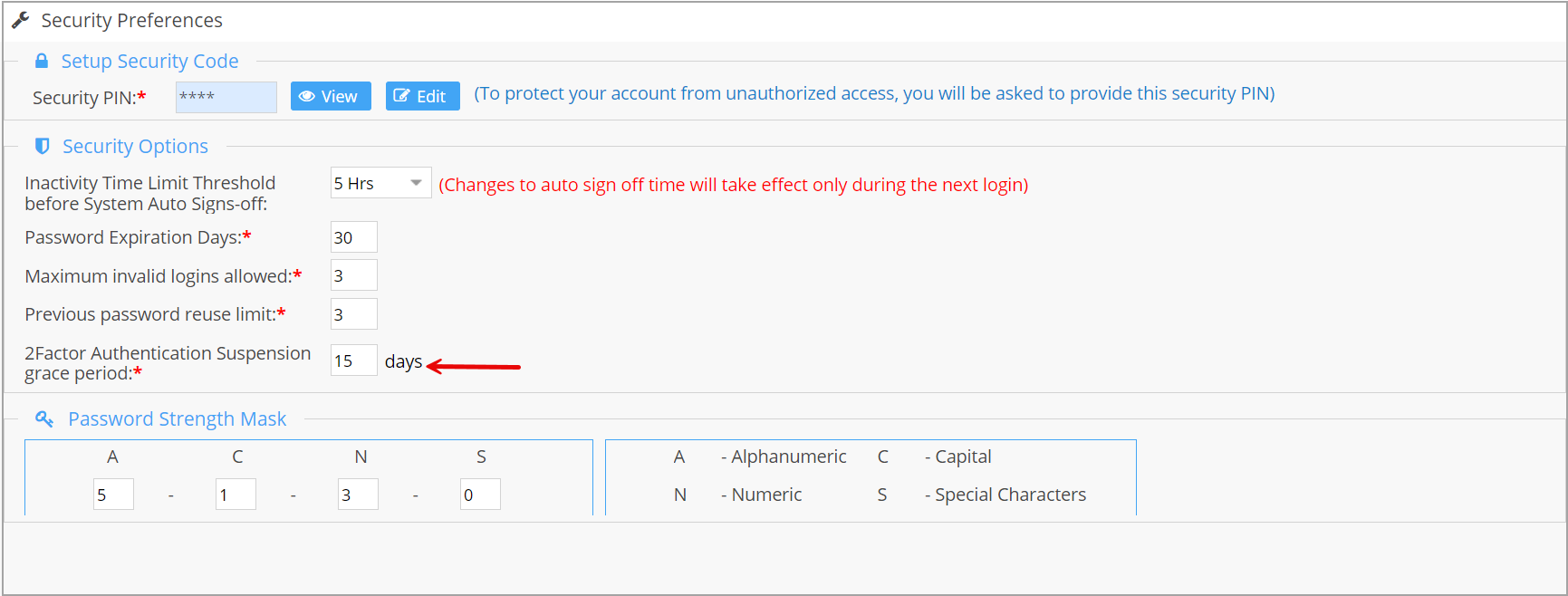
Image 1.4
1.5 New Connectivity Type for Payer Configurations
A new version of the payer connectivity configuration – SFTPV2, is now enabled and available in the Remote Host drop-down menu within the EDI configuration screen. It utilizes SSHJ connectivity.
1.6 Activity Notes: Authorization Entry Tracking
As shown in Image 1.6, when an authorization is entered or modified, this activity will be logged in the encounter activity screen.
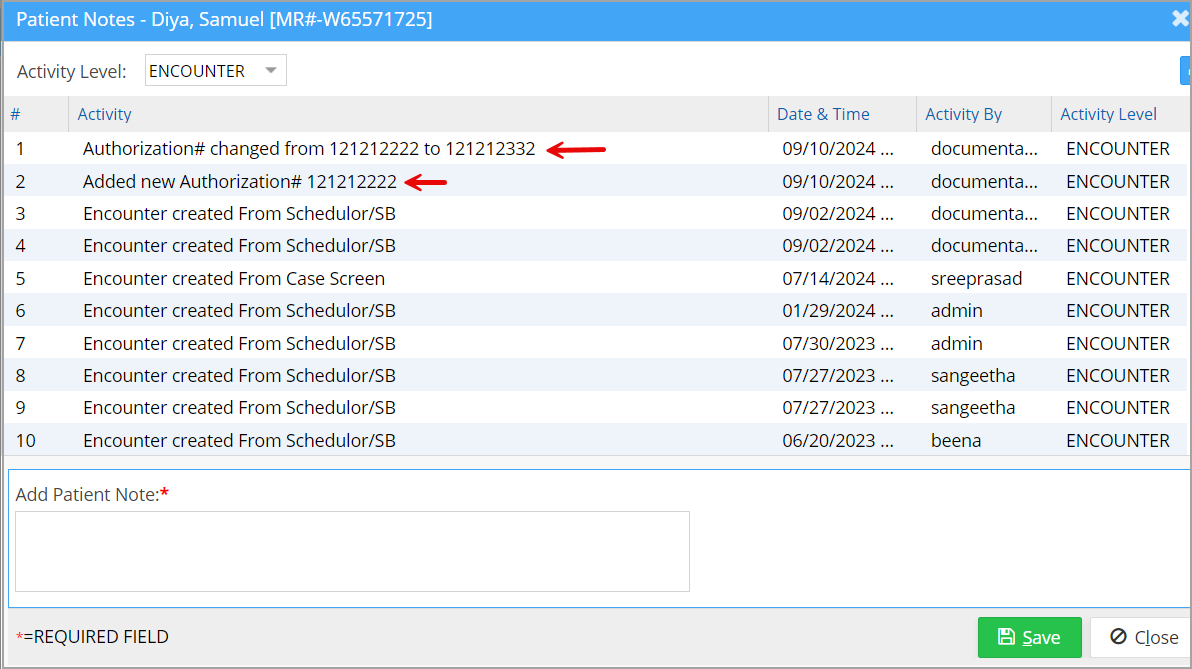
Image 1.6
1.7 Patient Aging: Change in Reporting A/R Days
From now on, patient aging A/R (days in A/R) will be reported based on the date the line was changed to BILL_TO_PT instead of the claim submission date or the date of service. In subsequent releases, this change will be reflected in the patient aging reports as well.
1.8 Payments- Custom COPAY Payments
1. Any custom payment types categorized as COPAY can henceforth be auto-posted from the Charge Entry screen. Additionally, partially applied co-pay payments can now be auto-posted from the screen.
2. Payments applied against custom payment types categorized as COPAY were not being reflected on statements, Pre-Collections, or Collections, resulting in discrepancies in the amounts on the statements. This issue has been resolved
1.9 To-Do Screen
1.9.1 Task Activities Log
As shown in Image 1.9.1, the To-Do screen will henceforth record task activities and maintain the history of the activities.
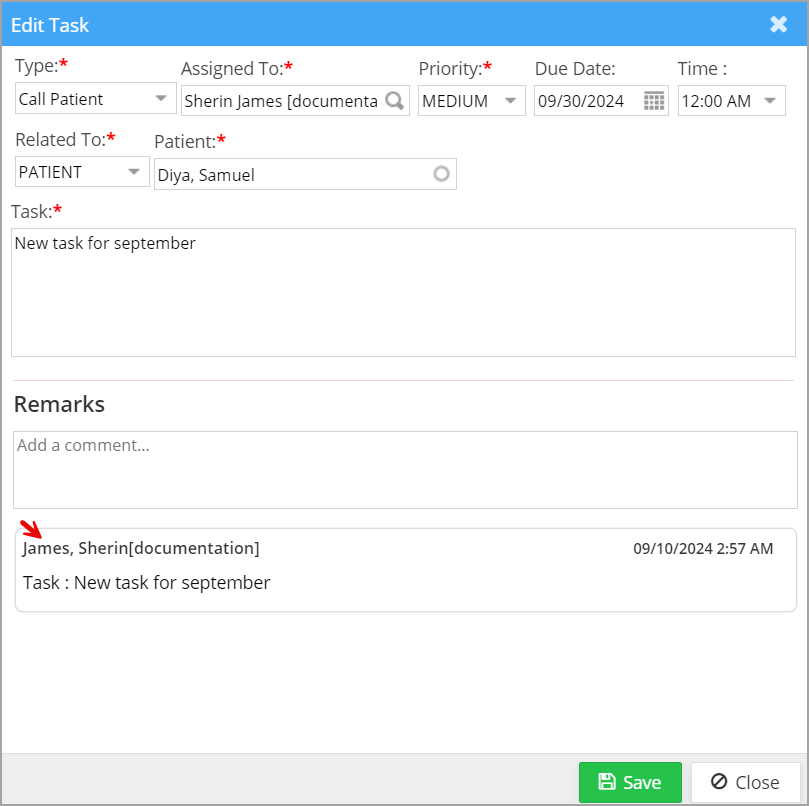
Image 1.9.1
1.9.2 Deleting Comments
From now on, users will only have permission to delete their comments and not those of others.
1.10 Document Manager
1.10.1 Camera Option
A new camera access option has been integrated into the document manager screen, allowing users to quickly open the camera on their device to capture live images.
1.10.2 Displays Username
The Document Manager’s listing screen will display the user who uploaded the file. A new column ‘Created By’ has been added to the screen (see Image 1.10.2).
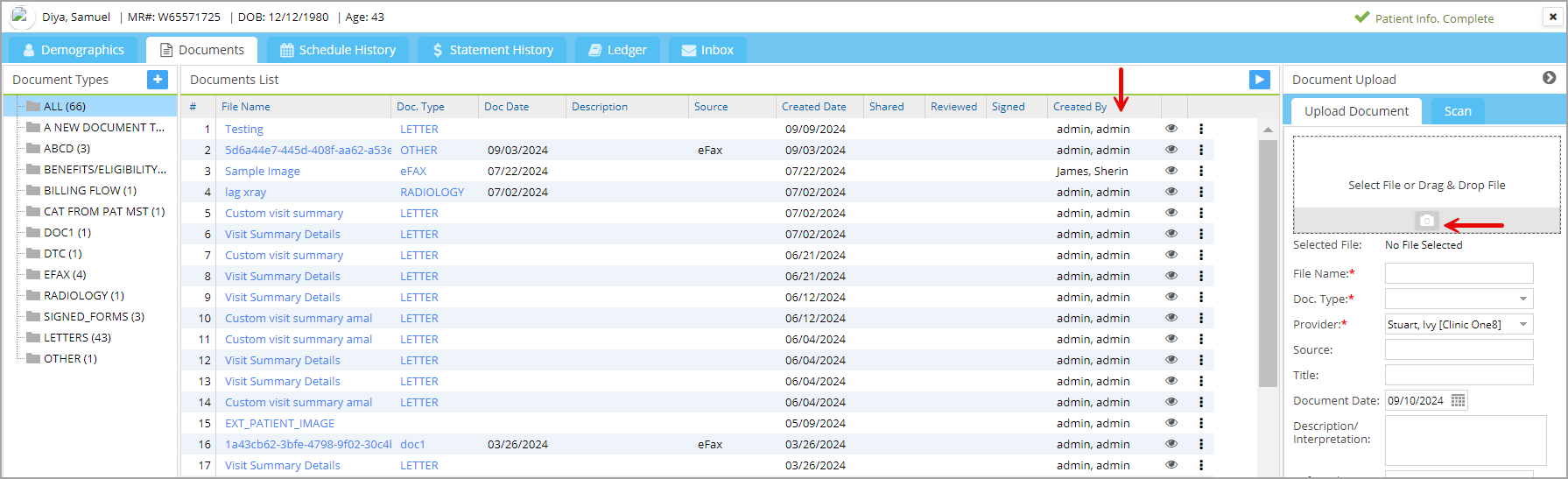
Image 1.10.2
1.11 Patient Ledger: Option to Show “New” Lines
A new ‘Include New Lines” checkbox has been added to the ledger screen to display the lines in the ‘New’ status. This option will be unchecked by default; however, it will be enabled if the login is via single sign-on.
1.12 Scheduler
1.12.1 Tooltip for Provider Name and Count
In the Scheduler calendar, tooltips have been provided at the provider name headers to display the provider’s full name and their appointment count for the day.
1.12.2 Alphabetical Ordering of Provider Names
In both the Scheduler and its search screen, provider names in the drop-down menu will be alphabetically ordered.
1.13 Fee Schedule Export—Three New Fields Added
The Excel output of the fee schedule will hereafter include the expected amount, billable code, and code modifier. These columns were unavailable in the previous versions.
1.14 Claims Workbench
1.14.1 New Search Filters
Two additional filters – Line Status and Line Sub Status have been added to the Claims History tab. Also, the search listing will show the line status and sub-status fields.

Image 1.15.1
1.14.2 Increased the Size of Payer Response Column
The max length of the ‘Payer Response Message’ in the Claims History tab has been increased to 4000 characters. This change would also reflect for the Payer Rejects.
1.15 Letter Master
1.15.1 New Tags for Referrer Info
Three new tags have been added to Letter Master to display the referrer information. The new tags are the referrer source, referrer first name, and last name, and will be available for the letters generated from EHR, Patient Demographics, and Scheduler. The following are the new referrer tags.
REFERRER_SOURCE, REFERRER_LAST_NAME, REFERRER_FIRST_NAME
1.15.2 New Tag for Legal Entity Phone
A new tag is available in the Letter Master to display ‘Phone1’ from the Legal Entity screen. The new tag is shown below.
#@LEGAL_ENTITY_PHONE#@
1.15.3 Provider and NPI tags
From now on, provider and NPI tags can be used in patient demographics, the scheduler, and the EHR. Furthermore, the provider tag #@Provider Name#@ will append the provider title to the end of the name.
Additionally, to replace the provider title alone, use tag #@Provider_Title#@.
1.15 Collections Manager
The checkbox next to the procedure code lines in the Denials Workshop screen has been reinstated.
1.16 Inter-Office Messages
Interoffice messages will now include the patient’s home, work, and cell phone numbers.
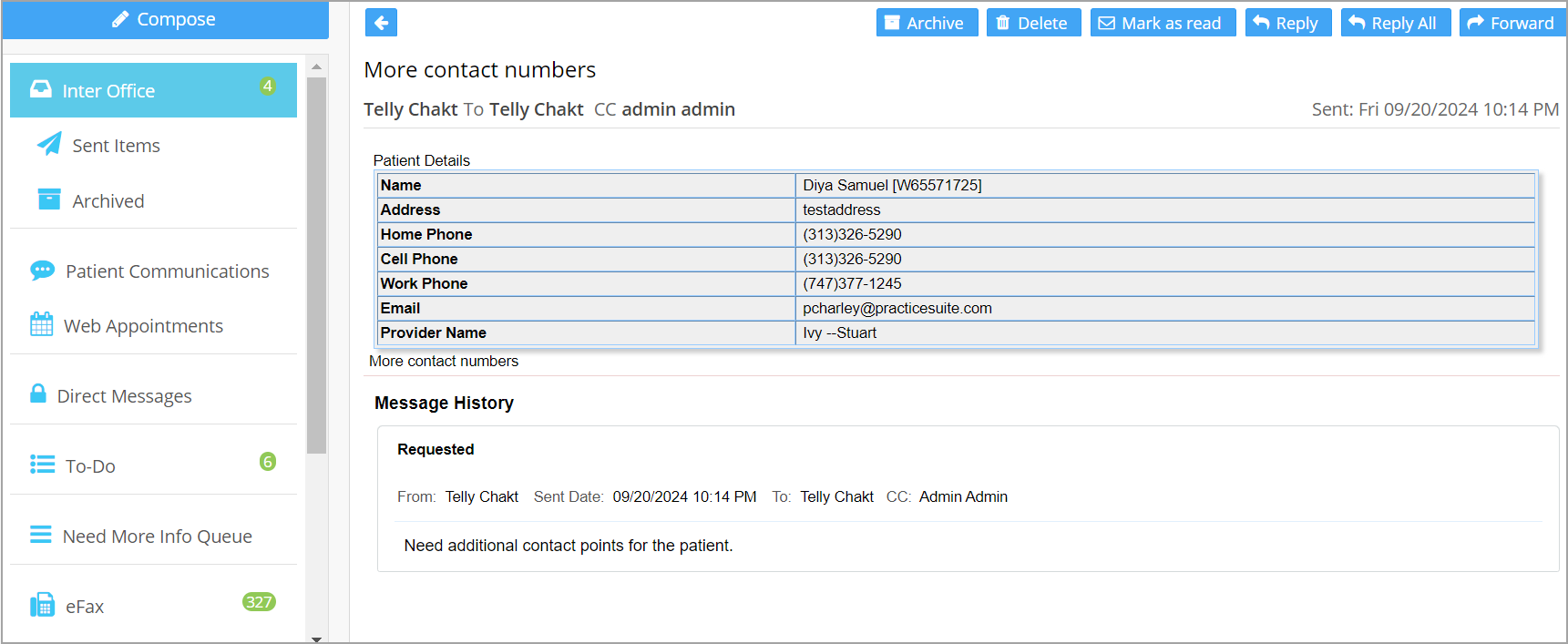
Image 1.18
1.17 Charge Master- Label change
In the line activity tab within the Charge Master screen, any changes made to the procedure line will display the activity as a ‘Procedure Code’ activity.
Part 2: Reports
2.1 ‘I24. Invoice Report’ -Update
1. Two new columns have been added to the I24 report output: LE and PR insurance. The report includes the following columns in the same order as displayed below:
#, Legal Entity, Service Location, Referring Provider, MR#, Patient, PR Insurance, DOS, Procedure Code, and Amount.
2. The invoice PDF has been renamed ‘Service Location Invoice’ and the data in the PDF is grouped by LE and service location.
3. A new PDF output is added and named ‘Insurance Invoice’ and is grouped by LE and insurance.
4. Only lines in insurance case will be shown in the report.
2.2 ‘D3. Summary-Patient/Guarantor Balance and Aging Report’
The A/R aging bucket within the D3 report is now available as an offline download option. Image 2.2 shows the new dropdown option made available for the report.
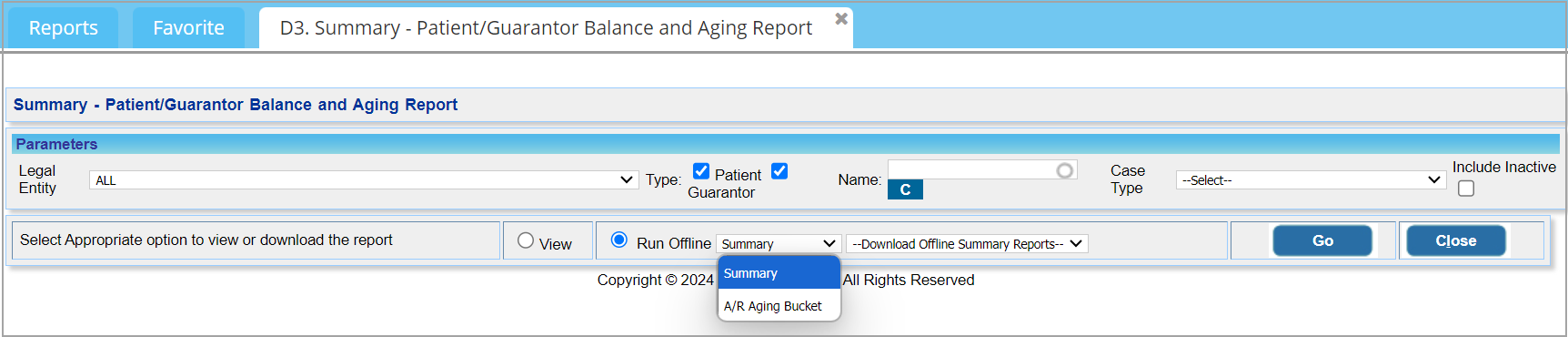
Image 2.2
2.3 ‘I22. Charges and Payment by Referring Physician’- Accounting Logic Change
In the new version, the I22 report will comply with the month-end close protocols and align with the accounting logic followed in other key financial reports.
2.4 ‘C6. Patient Details Report’
2.4.1 Referrer Name Display
The referrer name on the CSV output of the C6 report will be in two separate columns, splitting the last name and first name.
2.4.2 Two New Columns added
Two additional columns have been included in the Excel and CSV outputs of the C6 report to show the created user and the creation date.
2.5 ‘J17. Procedure Count by Month Report’- New search field ‘Creation Date’
A new search filter ‘Creation Date’ is added to ‘J17. Procedure Count by Month’ report. Further, a new ‘Include HOLD Lines’ checkbox has been added to include lines on hold status in the search result. Please refer to Image 2.5.

Image 2.5
Part 3: Resolved Items
3.1 Claims Workbench
3.1.1 HOLD Listing
Resolved the issue with the hold Lines whose sub statuses were changed to ‘HOLD_’, however, they were not showing up under the correct listings within the Claims Workbench screen.
3.1.2 Insurance Filter in Claims Workbench
For the insurances with a generic payer id entered in them, the insurance filter within the Claims Workbench screen failed to pull up these insurances in the search results. This issue has been addressed.
3.2 Auto Patient Payment Posting
The auto payment posting issue has been resolved and the system will now apply all the on-account payments until the patient’s balances are closed. Previously, when this feature was enabled only the first on-account payment was applied to the patient’s balance when the line status changed to Bill to PT.
3.3 XSuperbill- Units Issue
Whenever a procedure code was replaced from the XSuperbill screen, the corresponding units were reset to one unit. This issue has been addressed and the units will remain unaffected by a change in the procedure code.
3.4 Reports
3.4.1 D3 Report Generation
There was a performance issue for the D3 report which has been resolved.
3.4.2 D2 Report Error
In certain borderline scenarios, the D2 report wrongly listed open claims. This is corrected.
3.5 ERA- Opening the UB04 screen
For the UB04 claim payments, clicking the CM option from the ERA screen opened the Charge Master instead of the UB04 Charge Entry. This has been resolved.
3.6 UB04 Screen-HOLD status
Resolved the issue of moving charges from VOID, IN_COLLECTION, and blank status to HOLD status.
3.7 Charge Master-Adjustments
Adjustments posted for the insurance lines from the Charge Master screen were incorrectly recorded as patient adjustments. This has been corrected.
3.8 Patient Label
If the patient’s insurance was end-dated there was an issue generating the patient demographic label. This is resolved.