Practice Management System
Release Note
Product Release Version: v22.0.0
Product Release Date: July 2023
© 2023 Practice Management System
Disclaimer: All rights are reserved. No part of this work may be reproduced in any form or by any means through graphic, electronic, or mechanical, including photocopy, recording, or information storage and retrieval systems – without written permission of the publisher.
The products that are referred to in this document may be either trademarks and/or registered trademarks of the respective owners. The publisher and the author make no claim to these trademarks.
While every precaution has been taken in the preparation of this document, the publisher and the author assume no responsibility for errors or omissions, or for damages resulting from the use of information contained in this document or from the use of programs and source code that may accompany it. In no event shall the publisher and the author be liable for any loss of profit or any other commercial damage caused or alleged to have been caused directly or indirectly by this document.
Printed July 2023 at PracticeSuite, Inc.3206 Cove Bend Dr Suite A Tampa FL 33613
Part – 1 Product Enhancements
1.1 RCM Workflow Configuration/ Task Management
With the current release, a user-driven tasking feature has been introduced for the revenue cycle management system. Though currently limited to the Collection Manager, this feature will soon be expanded to all important billing modules. The configuration allows the creation of similar functional user groups (known as “Teams”) and the setting up of predefined workflow rules that would essentially drive the provisioning/allocation of a user’s daily tasks /user worklists. The benefits of this new feature are the following:
* Clearly defined work allocation with time expiration based on the configured rules.
* Work automation- No human intervention is required
Setup
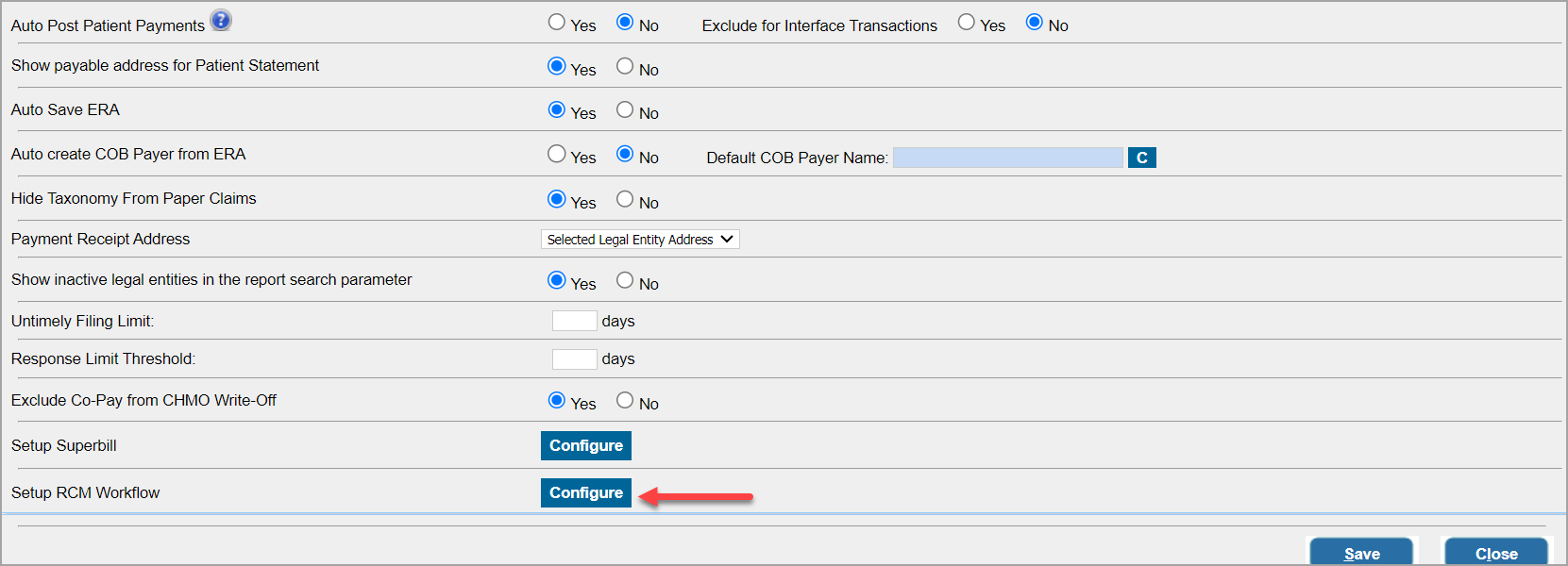
RCM workflow configuration can be accessed by going into the Advanced Setup-> Billing Options(see Image 1.1a). Click on the ‘Configure’ option to bring up the workflow configuration screen.
Rule(s) Set Up
Clicking the “Configure” option on the Billing Options page brings up the rules listing screen (as shown in Image 1.1b). The workflow rules can be modified from here by clicking on the icon  .
.
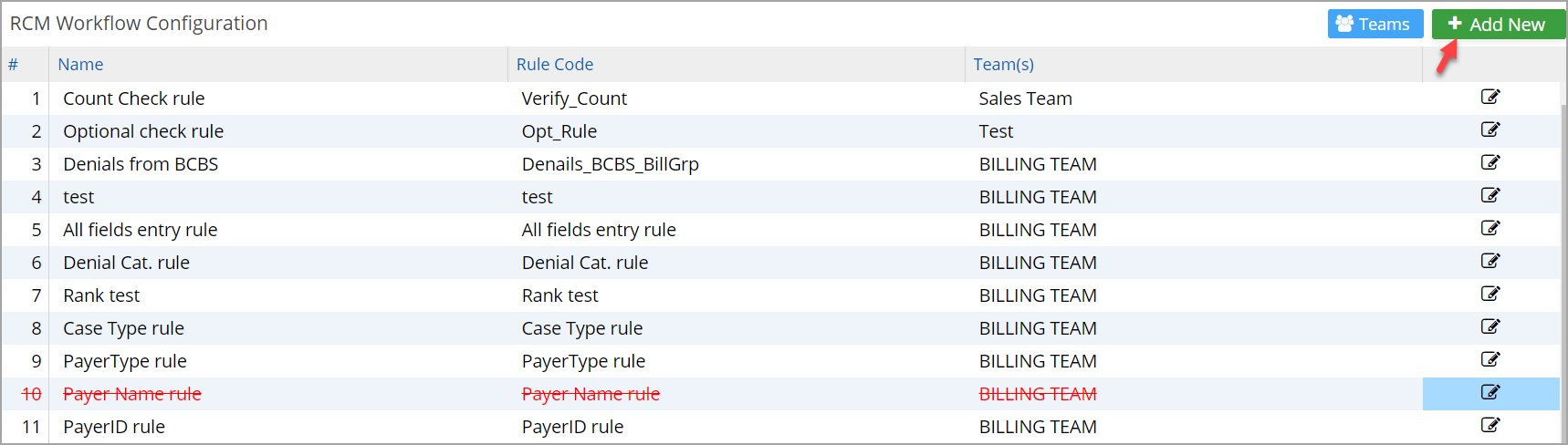
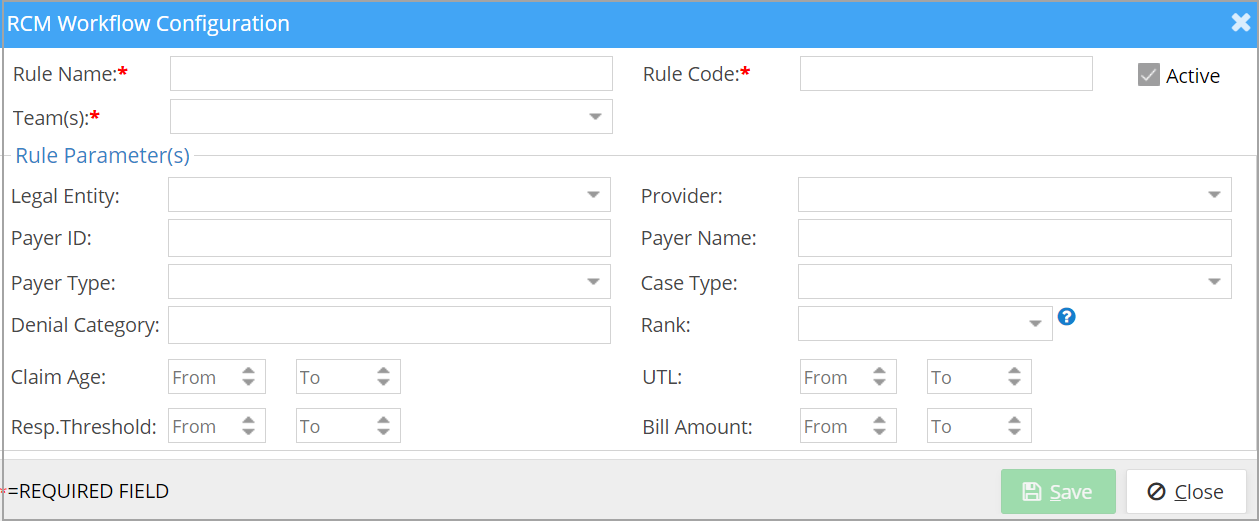
To add a new workflow rule, click on  at the top-right-hand corner, it opens the rule(s) setup screen (as shown in Image 1.1c).
To view the listing of teams, click on “Teams” at the top right-hand corner as seen in Image 1.1b. Users can add new teams using  option.
Team Setup Screen
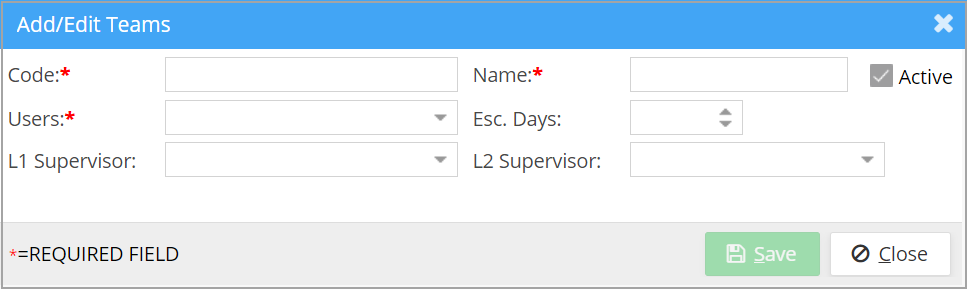
* Note: Functionality related to the fields Esc. Days, L1 supervisor, and L2 supervisor will be implemented in a future release. These fields are currently non-functional.
Note: For RCM-enabled accounts, the ‘Assigned To’ filter in the Collections Manager will henceforth default to the logged-in user. If the user is not part of any team, ‘Assigned To’ will be set to ‘ALL’.
RCM Audit Log
Audit logging has been enabled for RCM Workflow configuration, Teams, and Team Users.
1.2 eFax -Configure Multiple Fax numbers
Practices can now configure multiple fax numbers in their system. If a Practice has subscribed to more than one fax #, the additional number(s) can be set up in the system in the Fax screen under “Practice Options” (please see Image1.2a). Please contact our Implementations team if a subscribed fax# needs to be added to the system.
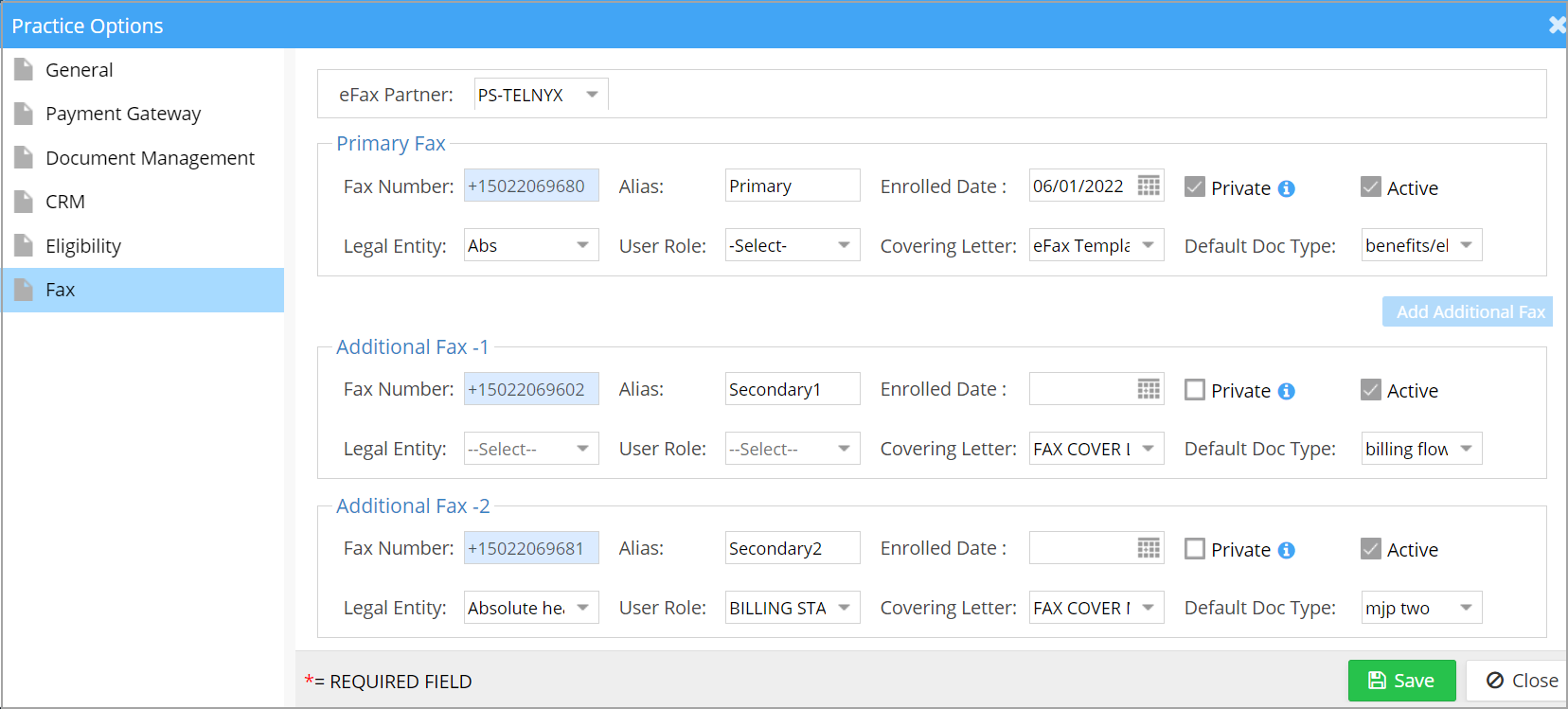
‘Sender’ Fax Number in the Compose Fax Screen
For sending a fax, users can choose the fax # to use from the “From” field (where it would list both the primary and secondary fax #). The use of primary or secondary fax numbers can be made restrictive if needed to have it for either a user with a specific role or for a specific Legal Entity and user role combination.
* User can switch this fax to another number, provided the target fax number is not set as private. A private fax number cannot be shared.
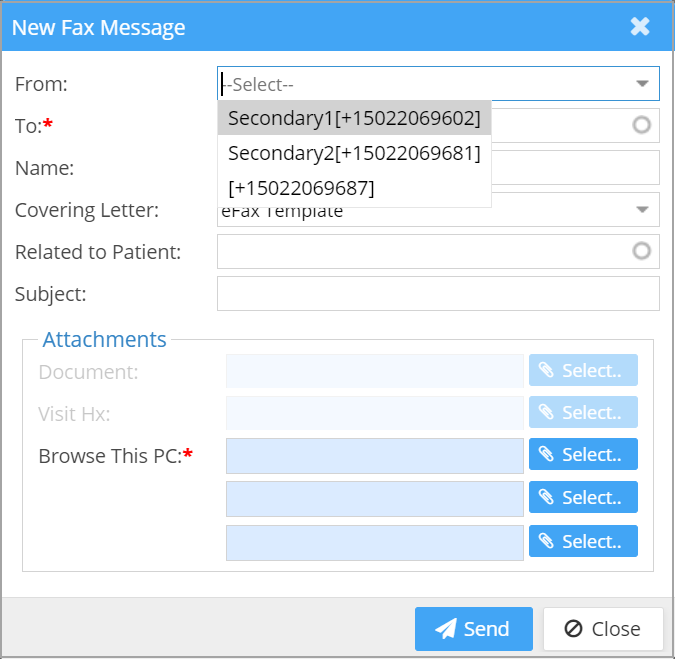
Image 1.2b
1.3 ERA- Sort Option in ERA Listing Page
ERA listing screen has a new sorting option to either sort in ascending or descending order (please see Image 1.3). The following fields are available to sort by on the ERA listing page:
-
-
Creation Date (Default)
-
Payer
-
Check Date
-
Check Amount
-
Check Number
-
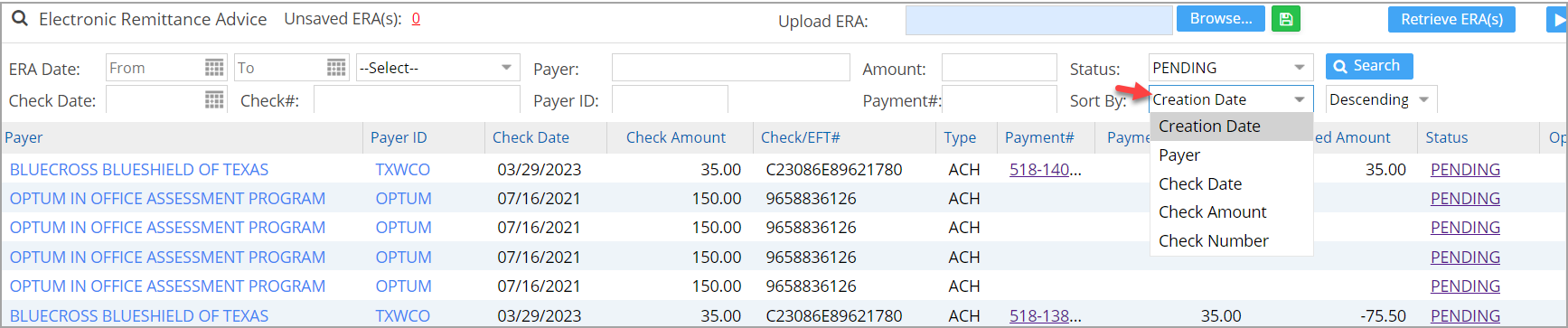
1.4 XSuperbill – Change in Warning Message Context
The criterion for displaying the duplicate charge warning has been modified and will only flag the message if the procedure codes, provider, and LE in both encounters are the same.
1.5 ICD-Repository Update
Updated the ICD code repository to the latest version.
1.6 UB04- Bill Types added to Repository
Type of Bill for UB04 can now be looked up from the system’s repository. Users can double-click on the field to look it up from the list.
1.7 Patient Demographics
1.7.1 Document Manager- Doc Type Listing
Only the document types that have files for the selected patient will now be displayed in the left pane of the Document Manager section. This is also applied in Doc. Mgmt Pane in the Charting tool.
1.7.2 Insurance Screen-Field Size of Group# Increased
The Group Code # inside the Insurance screen of Patient Demographics has its field size increased to 50 characters.
1.7.3 Alerts Screen
The drop-down ‘Type’ in the Alerts/Recall’ screen is defaulted to ‘Alert’.
1.8 Home screen- Claims Dashboard Widget
Claims Dashboard in the home screen is in synch with the Claims Dashboard under Charges with the amount in each bucket reflected correctly.
Part – 2 Reports
2.1 ‘G2. Denial Report’
Summary and Detailed excel outputs of the G2 report are now direct outputs wherein the user need not wait for the report to load on screen. Users can directly generate the excel files.

2.2 ‘C3. Patient Statement Summary Report’
New check box ‘Include Void statements’ is added to the search filter section of C3 report. On checking this, voided statements will appear in the report result and will be colored in RED.
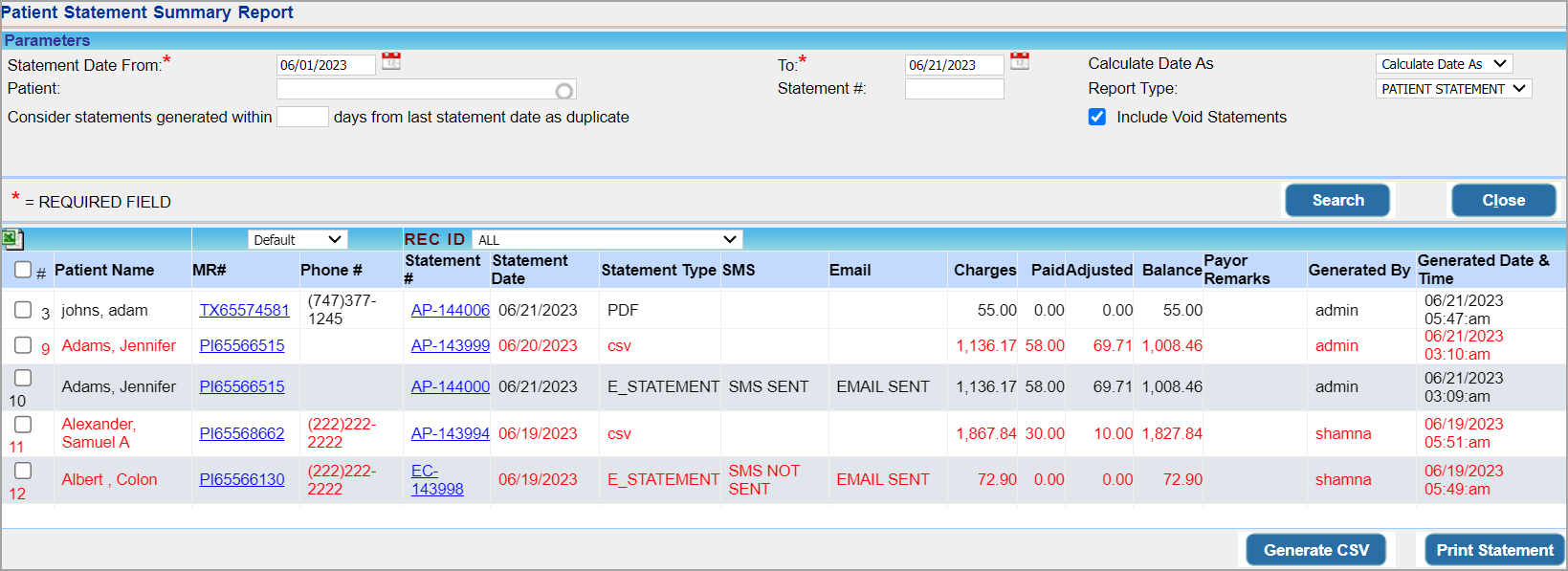
2.3 ‘C2. Generate Patient Statement(s)’- Added a new search filter
C2 report now has a new search filter drop-down for provider selection.

2.4 ‘E9. Interface log Report’- New Column Added
For CCDA outbound transactions, a new search filter for DOS range is provided. The CCDA outbound report will also have the DOS displayed. The DOS search filter is grayed out for other transaction types.

2.5 ‘J25. ERA Detail Report’
Two new columns added to the excel output of J25 report are Accession# and ERA Check date.
2.6 ‘G1. Claims Detail Report’
All output forms of the G1 report will now show the user who generated the claim. The last column ‘Claim Generated By‘ will show this info.

2.7 ‘I18. Credit Card Transaction Report’- Added Comments
Comments entered from the Payment master during Payment entry will now be visible as the last column in I18 report and all its output forms.

2.8 ‘A1. Appointment Schedule Report’
Direct Detailed Excel output of A1 Report will now show the state of the patient in the address field.

2.9 ‘B5. Authorization Tracking Report’- Filter Change
‘Visits Remaining’ filter which earlier was a single input field (days) has been changed to ‘Visits Remaining Between’ which accepts ‘days remaining’ as a range: From and To days. User will have to enter data in both the fields for the filter to work.

2.10 ‘I6. Posting Details Report’ –Denial Code Field added
Denial Code field is added to all outputs of the I6 report except PDF.
Part – 3 Resolved Items
3.1 C2. Generate Patient Statement Screen- Issue with Multiple voiding of Statements
When users tried to void the statements repeatedly or for recurring failed estatement generation, the patient statement count sometimes dropped to negative. Now that this has been resolved, the count when dropped to zero will remain at zero on repeated void, and never hold a negative value.
3.2 Time Out Issue in H13 Report
A time out issue was found while generating the H13 report. The report is fine tuned and is working fine now.
3.3 Default Time Zone Issue Resolved
When the Default time zone was set to either Pacific/Pago, America/Phoenix, or AKST in the Practice Options set up page, the corresponding user date and time field went blank. This is now corrected and all time zones are working fine now.
3.4 Patient Alert Display in ERA Screen
The bell icon beside the patient name in the ERA posting screen did not display the patient alerts created from Demographics. This is now resolved and the alerts are displayed on mouse-over on the bell icon in the ERA screen.
3.5 Updating Tasks in the ‘To-Do’ List
The assignee’s home screen continued to show tasks from the To-Do list even after they were marked as Complete. This is now corrected.
3.6 G1. Claims Detail Report
3.6.1 Claim Display
Issue wherein accepted claims were depicted as rejected in G1 Report has been resolved.
3.6.2 Provider Filter
Non-functional provider filter in the G1 report has been corrected.
3.7 On-account Balance in Charge Master
While accessing Charge Master from the Patient ledger, the On-Account balance in the Charge master screen was wrongly depicted as 0.00. This has been addressed and the charge master shows the correct On-Account balance, whether or not it is accessed from within the ledger.
3.8 Encounter Procedure Screen
In the encounter procedure screen, users in a few accounts were not able to see the group codes in the drop-down. This has been addressed.
3.9 ‘J22. Procedure Productivity By LOB Report’
Charges were not reflecting accurately in the report. Now this is fixed.