Partner Academy

Guarantor

/Patient & Patient Account /Guarantor

Guarantor

The guarantor is the person who is responsible for the medical bill if all other payment options (e.g., Medicaid, personal health insurance, etc.) fall short of covering the full cost of treatment. Generally, the patient himself is the guarantor. If the patient is a minor, guarantor information entry is mandatory. To add guarantor information, follow the steps below.

How to Add Guarantor Information

1. Access the patient search by choosing Patient from the main menu and search for the patient.
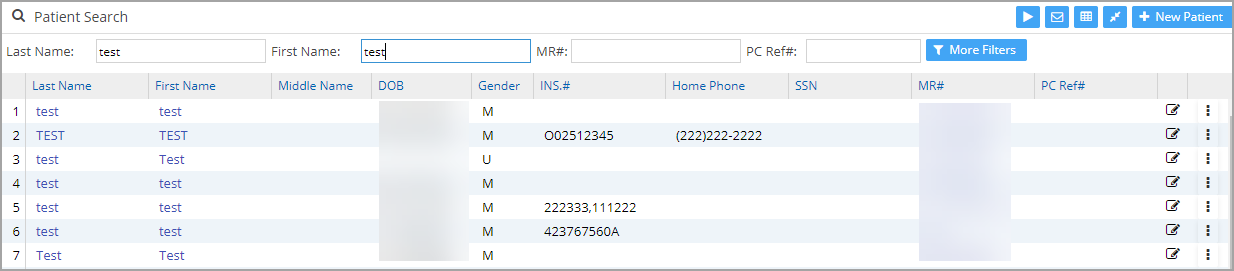
Image 1

2. From the search result, click on the Patient whose guarantor information is to be added. The patient demographics page opens up (refer to Image 2).
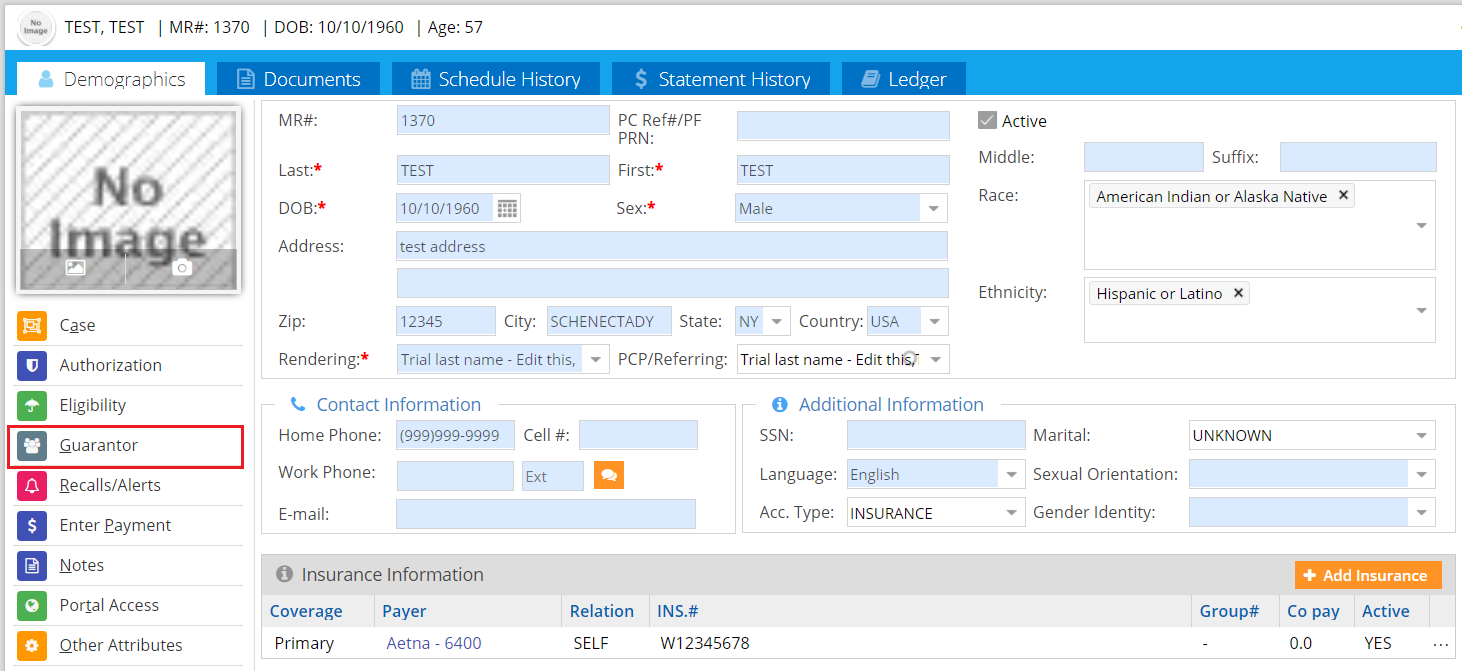
Image 2

3. To add guarantor information, click on the Guarantor link, and the Guarantor screen will appear as shown in Image 3.
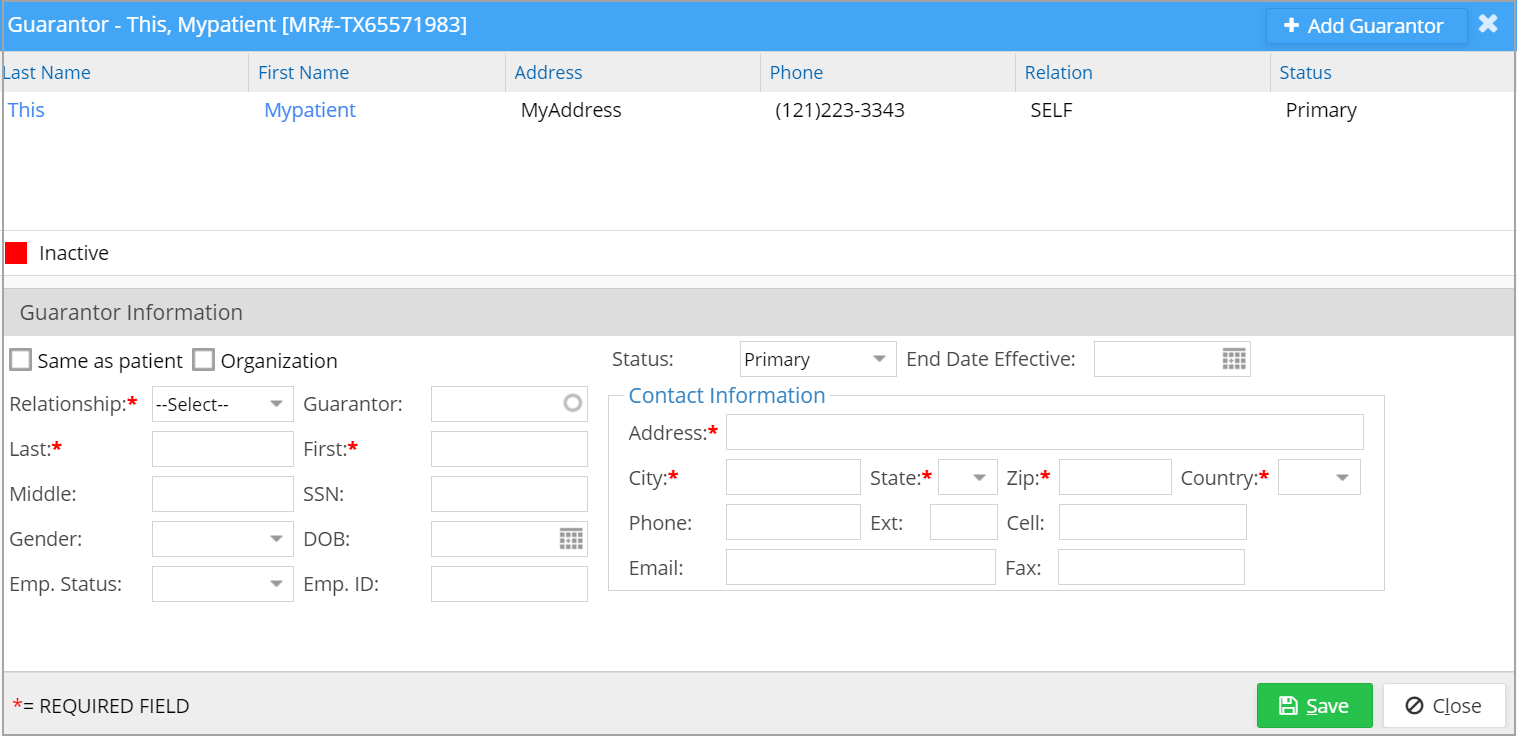
Image 3

4. Mandatory fields have to be filled to save the guarantor. They are guarantor Relationship, Last Name, First Name, Address (55 char max), City, State, Zip, and Country.

5. Click the Save button to save the new guarantor.

If the patient is an adult, a guarantor is created in the patient’s name automatically.

Guarantor Relationship

The guarantor relationship can be selected from the drop-down list when it is invoked (see Image 4).
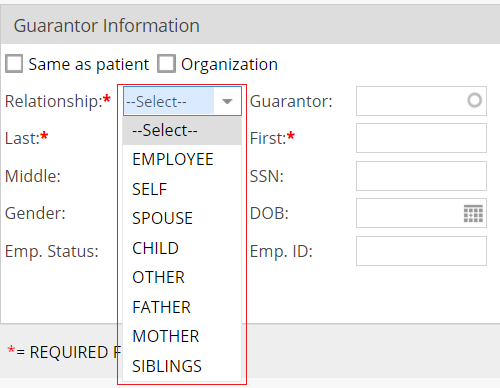
Image 4 

A. If the guarantor is the patient himself, select SELF from the Relationship drop-down. Name, address, and other contact details will be updated automatically from the patient data.

B. If the guarantor is someone from the same family as the patient, check the box ‘Same as Patient’ (highlighted in Image 5); the last name, address, and contact information get copied from the patient data. The user needs to provide only the first name.
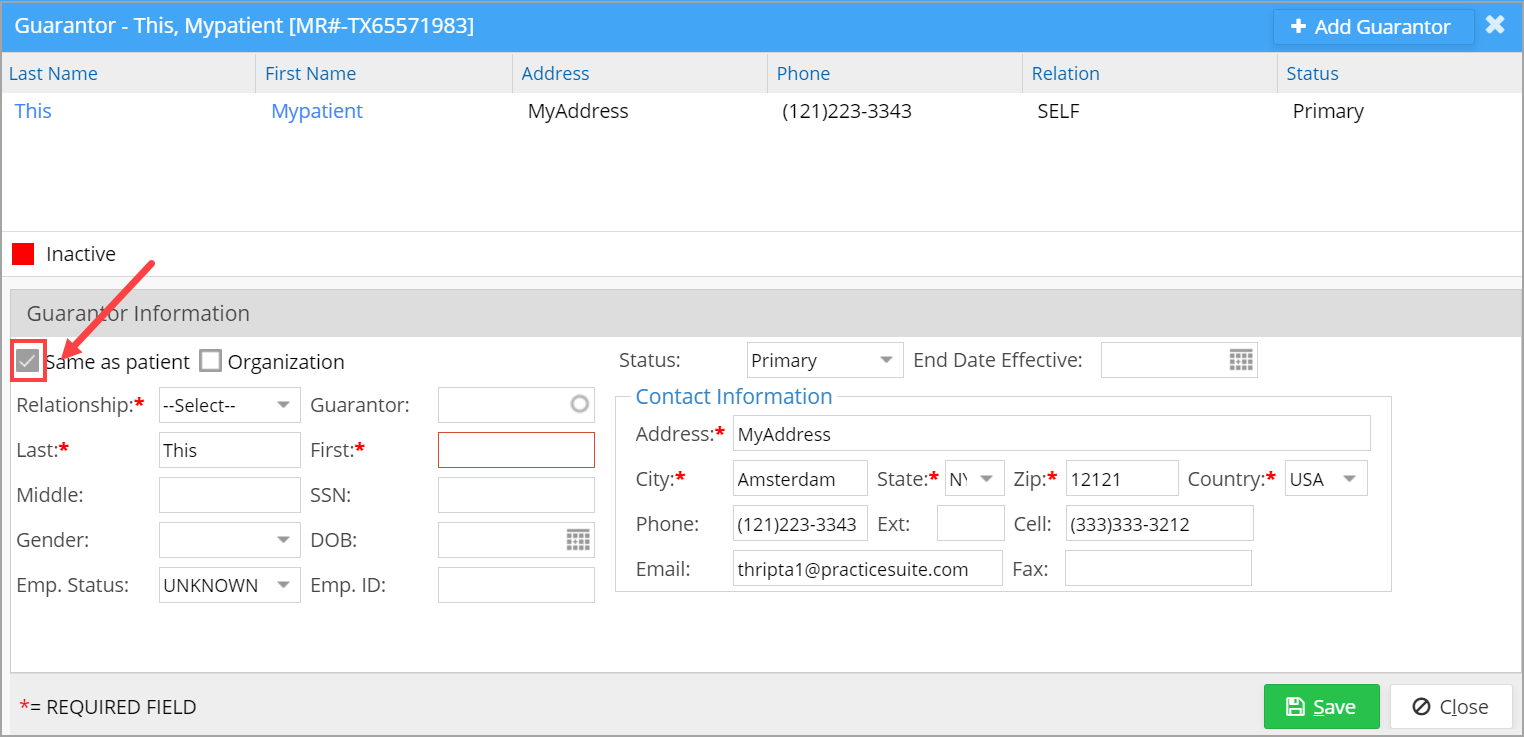
Image 5

C. If the guarantor is an organization, select the organization option and enter the name of the organization in the box (see Image 6).

Image 6

D. To search for a guarantor existing in the system, click the Guarantor field. As you type in, the existing guarantor list will be displayed as a drop-down, and the appropriate guarantor can be selected from the drop-down. On choosing the guarantor from the list, the guarantor details and contact information will automatically be updated in the guarantor fields.

API Menu

  • Patient Search
  • Patient C-CDA
  • Patient CCDS
  • Terms of Service

Related Articles

  • Portal Access

    Portal Setup The patient portal Setup page in patient demographics helps set up the patient's portal ...read more

  • Patient Upload

    Patient Data Upload Practice Management System now facilitates bulk patient record upload into the system from ...read more

  • Insurance

    Insurance Information Beneath the demographic details of the patient, all insurances related to the patient ...read more

  • Locate Statement# for Bill Payment

    Where to Look for Statement#? As bills can be formatted differently based on the type of ...read more

  • Other Attributes of a Patient

    The Other Atrributes Page The Other Attributes page of the patient demographics contains miscellaneous information of ...read more

  • Patient Inbox

    Description The Inbox tab of the Patient Demographics page facilitates interoffice communication regarding matters related to ...read more

PS Academy

Categories

  • Introduction to Practice Management system 5
  • Authorization 3
  • Security 6
  • Scheduler 29
  • Setup & Advanced Setup 42
  • Patient & Patient Account 31
  • Patient Portal 14
  • Charges & Claims 39
  • Referrals 1
  • Payments 22
  • Add-On Services 4
  • Report Central 141
  • Collections 5
  • HIPAA Office 6
  • Inter-Office Messaging 4
  • Time Card 1
  • Product Release 60
  • FAQs 109
  • Miscellaneous 5
  • Training Videos 1

Popular Articles

  • Create Custom Superbills
  • System requirements
  • Initiating Practice Management system
  • ICD-10 Lookup
  • Payment Entry from the Posting screen
  • Charge Entry
  • How To Use ICD-10 From Charge Master Screen?
  • How To Use ICD-10 From Charge Entry Screen?
  • Welcome to our Practice Management system
  • Payment Master

Latest Articles

  • Setup Secondary ID for Providers
  • Personal Profile Page
  • Portal Access
  • Protected: Product Release Document v25.15.0
Copyright © 2026 All Rights Reserved.
  • Home
  • Practice Management PRD
  • Interface PRD